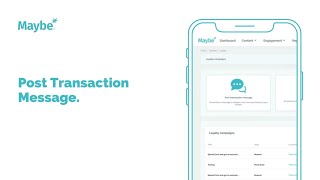
Learn how to set up an automatic WhatsApp or Messenger message that sends right after a customer buys from you. The setup takes about 30 seconds and lets you add a button with a link to drive traffic to your website or social media.
Chapters
Foreign. In this video I'm going to show you how to set up your Post Transaction message. The Post transaction message is a great opportunity for you to send a message in either WhatsApp or Messenger to the customer immediately after they spend in your business. Which is just a great opportunity for you to highlight more things about your business, direct them to your website, ask them to follow you on social media, etc. It's really simple and easy to set up and takes about 30 seconds. So first of all just click on the post transaction message here. You will see that you can add some text. Now you do have quite a lot of text you can play with here. You don't have to use it all. You can use as little or as much as possible. Unfortunately right now you can't use emojis, but other than that you can type away to your heart's content intent. So for example, in this one here I'm going to add a very simple message which is going to be thanks for shopping with us today. Please check out our website. So this person will be receiving this message directly after making a purchase with with the business. And as you can see here, it's actually building your preview of how this message will look. So you see here that the user gets a message to say that their transaction has been carried out at your business. They they tap account Update and then immed. Immediately after that your message will drop into their WhatsApp or messenger. And as you can see here, it says thanks for shopping with us today. Please check out our website. Now if you want to direct somebody to our website you're going to need to add a call to action button. Really easy. Just go to this drop down box here and decide which of these pre made call to actions you wish to use. So in this one here I'm going to say Shop now. And as you can see the button text has changed there to say Shop now. And then all you need to do is drop in the URL of the location as to where you want the user to go when they tap that button. You just drop that in and then finally you've got to attach this message to the location where the transaction has just occurred. So if you have one one business location that's you know, pretty straightforward, just pick your location and add it to the list. But if you are a business which has multiple locations, you do have the ability then to set up a different tailored message for each location and have that sent to the user after they have made a transaction in that particular business. Now also with these messages, you do have the ability to come in and edit these at free will, and they are changed instantly. So you could have a message that runs in the morning, which is very different to the message that then runs in the afternoon or the evening. To ensure that this message is then sent through to the system and to be delivered, you just click Save here to set that message up. If you get stuck at all as you progress through this, you can always tap on the intercom icon down here, which will open the chat widget and that will allow you to send any questions or queries that you have to the team. And our team will get back in touch with you ASAP to ensure that we can get you unstuck as fast as possible. Really hope that's been useful for you, and thanks for watching.