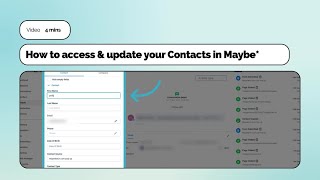
Learn how to add contacts to Maybe CRM, either manually or from conversations and imports, then manage them with tags, campaigns, and bulk actions. Create Smart Lists to automatically group contacts by criteria like email status, and use filters to find exactly who you need for targeted outreach.
Chapters
Foreign. How to access and update your contacts in maybe within your maybe account you can create a CRM for your contacts. Here we will go through how to update and edit your contacts within your CRM. Select Contacts from the left hand nav on opening the contacts page. It will filter to all contacts. If you haven't started building a contact list yet, then this will be blank. Contacts are added to your CRM from a number of places within maybe. For example, they can be added from Conversations, webchat, widget, workflows and funnels. You can also import your contacts from your current CRM or data list here. Within your Contacts page you can also manually add a contact. To add a new contact, complete the form, select the contact type. You can also select to DND contacts. DND means do not disturb. This means you are unsubscribing the contact so that they no longer receive communications from either all channels or selected channels. When you are ready to create the contact, select Save. Lets have a look at a contact record. Here we can see all the information we have for a contact, including the source of where the contact was added to the list. We can see what tags they have, as well as which campaigns and workflows they are currently in and any previous ones they have been in. You can view all the conversations with the contact here too. From here you can start a new email or SMS communication with your contact. You can view your contact's activity. This will list all the actions your contact has taken, including links visited, forms submitted, and surveys completed. You can create tasks for the contact. To create a new task, select Add. Notes can be added to the contact as well as setting up new appointments. Selecting appointment opens up the booking form. Back on the contacts list, we have a number of actions you can attribute to one contact or multiple contacts at a time. These include pipeline changes, adding to a campaign or workflow, sending an sms, sending an email, adding or removing a tag, deleting contacts and sending review requests. Within your contact list. You can apply filters as well as creating smart lists, there are lots of options to choose from to filter your contacts. For this example we are going to filter by email we select the filter type. For our example we are going to select is not empty. This filter will then give a list of all the contacts we have email addresses for. To apply the filter, select Add. Once you have applied the filter, you can save the filter as a smart list. Smart lists are a crucial step in efficiently managing your contacts. They allow you to easily target specific groups of contacts with personalized content. Give your Smart List a Name it's important to give your smart list a proper name before you save it so that you can easily identify it in the future. A good suggestion is to create a name that reflects the filters or criteria used within the list. Once you have created a name for your smart list, select Save. Now your smart list is created and any new contacts that match the criteria will be added to the smart list. Now you can manage your contacts. We have further training videos to help you understand and make the most out of smart lists.