How to create a Conversions ad in Maybe* AI Ads Manager
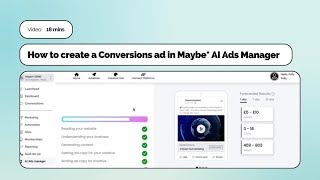
Polly Barnfield shows how to build a conversion ad in Maybe AI Ads Manager, from setting up your Pixel and choosing a conversion event to uploading images and targeting 5-7 relevant interests. The tool auto-generates copy variations and shows forecasted results at a default £10/day spend before you publish.
Chapters
I'm going to walk you through how to set up a conversion ad using the maybe AI Ads Manager. Now remember, if at any moment you're really not sure and need to ask more question, just pause this recording and jump in to the blue button on your maybe dashboard. You could also join us on our daily drop ins every day at 11am where we offer in person support and training. You can find out how to book those here in the blue button. So back to creating a conversion ad. A conversion ad is one where you are asking your audience to take a specific action and it needs to be an action on what Facebook calls an event which is set up in your conversion API or Pixel. For many businesses using Shopify or WooCommerce for example, your events will be there as part of the Facebook integration setup. If your business is more about lead generation, you may have to work with your website developer to set up the tracking that you need to get started. I'm going to jump into my Connect platform here and ensure the settings are correct. So if we jump in here we'll be able to just double check that number one, we've got our Facebook and Instagram connected and we have our ad account connected as well. So I can see that everything's firing green, everything is good to go. So if I just click in there I can just find out a bit more detail about the tracking that I've got available. So number one, you want to make sure you've got your pixel showing. So if you've got a few pixels in your business manager, you just want to make sure that you've got the right one selected. And then this is where we choose our event, our conversion goal. So as I said, it depends what you've already got set up on your pixel. You can see that we've really got quite a few. The one that I want to use for this demonstration is this one here called Lead. So for this demonstration I'm going to use an asset to drive people to this page. So on this page we are talking about what's special with maybe social plus and enticing people to start their free trial. So this is a really good example of a landing page that you might want to create for campaign that you're running. It's really optimized for enticing people to take action. So you can see how the button here is right at the top. Start your free trial now you can scroll on down the page and to explain more about who you are, what you do, what's special about this offer. But Definitely keep those kind of call to action enticing buttons up top and then running throughout the page. So you're kind of and you know, for a range of different ways of explaining what you do, you're enticing people at different hook points if you like. So that's the page this campaign is going to take people to. Now if people click on start your free trial, then we've got a little capture point here. I've done some testing. I know that if I fill in my details and go through this form it fires a lead event. So I know all my tracking is good to go. So let's get back to our AI Ads Manager. We're going to jump back into advertise and we're going to choose Facebook from this array of options you have. So let's get into Facebook. Now the way the AI Ads manager works for your convenience, it always brings in the details of the most recent ad you've created just in case you're kind of going to make a version of a variation of. So it may be that you need to clear some of it down before you get started. So don't get distracted or concerned by that at all. And if it's your first time using the maybe AI's manager, excuse me, then indeed it will be pre populated with something that may not be at all relevant. So don't be concerned by that. So at the top here we just want to double check given that we've just set it in our connect platforms area that should be set on conversions. If it's not, you can click into edit and just tweak that as you see necessary. See how it takes you back to that page again. But we're good on that. That's all set. So we'll leave that setting as is. Now you can see on the right, everything that we set on the left here is going to start pre populating as a sort of preview for you over this side. So that's just a really handy visualizer as you create your campaign. So what I want to do initially now I know it refers to website, but what you want to drop in here is the page where you want to take people. So I've taken the URL of this landing page and I've dropped it into here and then I'm literally going to click press on this arrow next to the URL to open up the next steps to the build. Choose your preferred language English for us. What's your business product, event or idea? So before this demo I've created a Little line that describes maybe social plus in one line. So you've got 100 characters to play with. I've dropped my version in there. So it's just helping with the AI to understand what you do. What's the name of it? I've popped the name in here and then I'm going to click on Generate Description. So again, this is going to be reading that URL page. It's going to take all the knowledge it knows about your account with maybe and it's going to generate some descriptions for you here. So let's. There we go. I'm just going to. So I think because I've already done this once before and I. It will ordinarily actually create four versions for you of a description just as a. A start point of the copy that you might want to use in the ad. Now when, if you're not happy with it, just ask, just click on Regenerate Description. And all this is doing is really getting something started in terms of the content that you use in your ad. So we are able to tweak it, tailor it as you see fit manually. But it's a brilliant, speedy way of getting your ad started. So now I'm just going to click on the down button for Advanced and you can add your offer. So it's really just for the purposes of this ad. I'm going to say start your free trial and I'm going to put that in caps and then I'm going to click on Generate Content. Now this is where it's going to go away and read your website. It's going to kind of go through the motions of understanding your business, generating the content, generating ad copy for your creative, writing ad copy for creative and looking to find your audience. So we're expecting once this has gone through the steps, it may take up to a minute to kind of generate this. But it's as I said, it's just going to create a basis from which you can build out the rest of your ad. Now, if this is your first time using the AI Ads Manager, I have noticed that sometimes the interests that it proposes are just a little bit off. Sometimes they've been bang on. So very, very important to review what's being proposed. And it's very quick and easy just to click off the interests and add in some new ones that you think are more appropriate, which I will be walking you through in 2 secs once we're there. Right, good. We've kind of. We're there. It's now got a range of this is brilliant. It's got all my primary text options here. So I was jumping the gun where I mentioned it before. They are out the other side of Generate. Generate your content settings. So from here we just want to check everything's in place. So we've got our goal set correctly here. We've got our link still set correctly. But as I can see here, some of the audiences that have been brought in are a little bit off. So I'm going to click on the edit here and I'm just going to go clear all. Are you sure you want to clear all selected keywords? Yes. And then I'm going to. For the purpose of this demonstration, I'm going to stick with our target interest so that we're really fueling Facebook to understand the kind of people that we want to go after. But I'm going to tweak them now for some new ones. So type in digital marketing and then I'm going to click on browse to see. Hang on, let's just bring that one in. Okay. And then let's just bring in social media marketing. Let's do social media more generally then marketing. We've got online advertising. That's a good one. Marketing. Communications, just marketing. Some advertising. So we've got some, some good ones more in tune with the kind of target market for maybe. So there's a whole load of suggestions that come up as well. So you can just browse through those and pick out any extra ones that you think might be of interest. I would stick to kind of around, you know, no more than 10, I would say probably max 7 of interest in any one campaign. So we're going to scroll on down here on the targeting. I'm going to optimize for all the. Maybe platform is just as relevant to male or female, but if your business is more in line with one or the other, then you can toggle those on here and then you have the age demographics as well. So location. I'm going to stick to United Kingdom wide. But if you are a local business and you want a radius around your town, then you can do that through here. Okay. So once I've got all that set, I can just click on the cross here and that's going to be brought into my targeting section here. So I want to toggle on include on Instagram. You'll notice that right from the first dashboard I clicked in on Facebook, you could get started via Instagram. I prefer to go through on the Facebook window and then just toggle on Instagram because I'm sure. That I've then got all placements across both those mediums. Okay, so now we're going to load up our creative. So for this campaign, I've actually just got simple image. So I'm going to toggle onto image here, click on the cross and you'll be brought up to this widget here where you could lean in on existing media within. If you've been running ads before, you could use Shutterstock. So I could type in here digital marketing and it will go away and find some images in tune with that theme. So it's definitely worth a look. Shutterstock has some great imagery, so if you're really short on anything for yourselves, take a look at the library. It's all licensed. You'll be able to use it in your advertising. Or we can click on Instagram and Facebook and it will bring in your assets that you've used off of your Instagram. Sorry, off of your organic pages. So that could be really handy just to quickly bring it in from there. But I'm just going to load up a new image here through upload image and that will go away to my desktop and just load it in. This is actually brought in from earlier, so I'm just going to highlight that one here. I've got the opportunity to crop and I would recommend actually sticking with the one to one placement because that will then work. Sorry, the one to one crop here, because that will work really well across Facebook and Instagram. So just toggle on the one to one and then that's good to go. Just click on the cross, save changes. There you go. That's showing underneath and then that should be pulled in. Here you go into my preview. So now I've got my primary text that we always provide initially for, and you can literally just go through and turn off any ones that you just don't think work or click in and make any edits just to make it perfect. So I'm pretty happy with all those four for now. And it will also suggest for headlines, there's a couple of those where I prefer the other two. So basically I've got four body texts, two headlines, and when you publish this, it will just rotate with the mix of all of those, so you've got a better chance of hitting the sweet spot with your target audience. So here's the call to action button. Learn more is perfect for us, but do take a look at the other ones in case something else is more relevant for you. And then here we are at the budget section. So you can see over Here on the right, the forecasted results for your spend. It Pre populates at £10 a day, but you'll make that decision whether you're going to take that up or down. You can see the kind of estimates now. To some extent I take those with a bit of a pinch of salt. But if it's saying zero, then potentially you've got something you need to review. But you can tweak the budget here and then it's all in place. You just want to double check everything and then we're going to click Create. Okay, you're about to create your ad. It goes away and does its thing and it's as simple as that. You will have your first maybe AI Ads Manager created ad and that will then drop into your home screen show as an ad that's running in your dash. So you'll be able to view your results just by clicking here and checking the success of your campaign. What I suggest is jump into the ad sessions on the Thursday or Friday at 11 o'. Clock. Drop in and we can review your results with you. So thanks for listening to the video. Remember to jump into the blue button and ask any questions if you're unsure.
More from Polly



SHE BUILT AI THAT WRITES, PLANS & WORKS LIKE A HUMAN| With Polly Barnfield | The Business Spotlight

Why Most Founders Are Doing AI Wrong — And What It Really Takes to Scale It Across Your Team




Transform Your Business with a Complimentary Digital Growth Bundle for High Street Businesses

What should I post this month? Bira webinar 28th February 2024, featuring York
