How to create an engagement ad
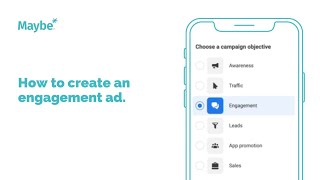
Walk through building a Facebook engagement campaign in Ads Manager: pick a lookalike audience, set your budget and placements, upload creative with a call-to-action, add your destination URL and pixel, then publish. The video covers audience targeting, A/B testing options, and what to expect during Facebook's review process.
Chapters
Hi. In this video I'm going to walk you through how to create a simple Facebook engagement campaign. An engagement campaign is a great starter campaign at objective to use. It helps you build up warm audiences to your business and drive engagements such as likes, comments and shares. So I start within my business manager@business.facebook.com and I'm looking for the Ads Manager view. Just check your burger or list. If it doesn't come up immediately, click into Ads Manager and if you're being introduced to the new Facebook interface that's rolling out right now, you might be brought to this summary page. Just check for the grid in the corner here and click Campaigns and this will take you to the more familiar Ads Manager view. So I'm just going to start by clicking on the Create button. So again, this is the new interface. They've simplified things right down to six core objectives. Don't be put off if you've got a slightly different view here. Just look for the engagement objective. That's where we're going to start. And click continue. So what Facebook does is provides a split screen view. You've got the working area here on the right and here on the left. It's just showing you where you are in the campaign setup. So the hierarchy is at the top level we're setting all the attributes of the campaign. The mid section here is the audience, the ad set. So we're going to define who we want the campaign targeted at. And at the bott we're building out the actual ad itself. So initially let's just give the campaign a name. I would recommend a consistent naming convention. Over time you'll be looking back and working out which campaigns worked or not. So it's helpful just to have something that you immediately recognize. So I'm just going to call this. Example engagement campaign. Special ad categories is only relevant if you're in any of these credit employment, housing or social industry social issues sectors. If you are, you just want to do the drop down and toggle appropriately and follow the Q and A that Facebook will ask from you and you will be put through an approval process before you can run ads. But for most small businesses you can scroll on past that again. Campaign details leave on auction. Campaign objective has been preset by our choice of an engagement campaign. The A B testing is here just in case you want to set a duplicate post. Building this particular campaign, I tend to leave it off and think about how the variations for myself and build them separately. But that's for you to plan with. If you would like advantage Campaign budget is really just asking, do you want to set the budget at this, the campaign level or if we leave it off, it's going to set the campaign budget at the ad set level. There are some advantages of having the budget set here effectively depending on however many ad sets or ads that you create within the campaign. You're really just saying to Facebook, look, here's the money, go away, work out what's working and spend the money accordingly. So definitely one to test. I'm going to leave it off for now because I want to show you how to set the budget at the ad set level as well. So now we're building the audience. So who we're going to target this campaign at? Again, give yourself a name that you recognize. I'm going to target this at lookalike audiences for our Instagram and Facebook engagers. So that will become clearer as I go through. But give your name a name that is going to explain, you know, describe the audience that you're going to target the campaign at. So this is where Facebook's saying what kind of engagement are you looking for now? I'm interested for this particular campaign for engagement on the ad. There are other options. So if you were interested in driving engagement through your messenger app, for example, that would be this one engagement on your website. If you're an app based business engagement on your app, or if you want engagement more generally on the page, then this is an option. For most engagement campaigns I'd recommend sticking with on your ad. That's where we want to drive the likes, engagements and shares. So again it just asks to be more specific, what sort of engagement do you want on the ad? Is it video views, event responses? I'm just interested in straightforward post engagement. I'm going to toggle that on. So here if you've was where you would set the budget for this ad set. If you've got a preset amount that you want to spend then for example £100 you might want to use lifetime budget and just override the 350 that comes up. Put in your own budget amount and you're basically saying to Facebook spend that money please between this date and an end date. So you'd set those parameters here for this campaign. I'm going to go back to my daily budget. I'm going to put it at £10 today and scroll on down to the audience setting. Any audiences that you've ever created before for any other activity will be showing here in your list. So you can just start to search and they will start to come up. So you have an all list, a lookalike and a custom audience list. So I'm interested in my lookalike audiences. So audience building is a big topic of its own. There is other videos in the hub about audience building. So go take a look at that to help you understand the difference between customer audiences, lookalike audiences and interest based audiences. But for now I'm going to look for my maybe audiences. So these are created when you attach your ads manager to the maybe platform. Maybe creates four audiences for you, two that are based on your existing engagers on your Facebook and Instagram page and then two more which are look alikes of those audiences. So that's they're not people who know your business but they're so they're cold to your business but they're based. It's based on the attributes of those who have already engaged with you. So it's a great starting point if you want to go prospecting to find new people to your brand. So here they are coming up in list. I'm going to toggle on my lookalike based on my Instagram engages and my lookalike based on my Facebook engages. So now I'm going to just define the location and age range and gender. Very, very broad demographic settings. So if you are a local business wanting to target a particular area, then you can override the United Kingdom that's coming up. And let's say Bristol, you can see Bristol, England there. So you can set multiple locations if that's appropriate to you. See how it brings up a kind of parameter. So depending on how far you think people will travel, then you can tinker with that here. I'm going to go back to keeping this campaign for all of the United Kingdom. So type in. There you go. It dropped out because I went local, but just plug it back in again if it drops out. Okay, so I'm going to bring the age range up a little bit. I'm going to leave all genders on, but you can toggle men or women on if that's appropriate. And then this is where if you were not using any of your kind of pre existing audiences and you really wanted to define your demographics and your interests, you would start putting that in within detailed targeting. So I'm going to scroll on past that now. If you're again, as I said, if you're interested in learning more about audience building, check out our videos in the video hub. I'm going to keep it just based on my look alikes that I've Defined up here. I've set my demographics a little bit more. Now, this is an option that Facebook have introduced where they're basically saying, if we're struggling to find the right people within this audience that you've given us, do you want us to extend beyond those parameters to find people if we think it's going to improve performance? So in my experience, it's really a matter of testing. So create a campaign, toggle this on, create another campaign, toggle this off, and compare the performance. So it's just one to test for yourselves, really. Languages, I tend to scroll on past that. It's only relevant if you're an international business and then you do have the option to save the audience. So if you've created something you think you're going to reuse again, just click Save and it will ask you to name it and it will save away in your audience library. So here within the placement settings, I would recommend you leave it on Advantage Placement. So what this is is essentially across all the multiple locations where Facebook can nowadays serve up your ad. It's saying to Facebook, you decide based on what you see performing well, you optimize accordingly. If you were interested in just targeting Instagram placements, for example, or just Facebook, you can see how you can start to play with this and toggle things on and off. And even more granularly, can't say that down this list. So you can play with that if you think that's appropriate. For most businesses, I would recommend sticking with Advantage Placements. The AI is so sophisticated these days that it's pretty good at that. And then here, just at the bottom, I just want to check my settings. Yeah, I've got it set for post engagement, which is what I want. There are some. Let's see what the options are. Nope, I just want to stick on engagement and then cost per result goal, it's an optional setting. I tend to leave that off because especially if you're new to advertising, you just want to see really what you're going to be able to achieve. This is going to be more relevant for if you know the kind of costs that you're willing, you know, you can achieve and you want to define that to help Facebook stick within certain parameters. So over here I'm seeing a few little useful pieces of information. Audience sizing here, estimated audience size, that's looking quite healthy. I would recommend you want to be going for over and above half a million. Anything up to a few million is fine. So that's looking fine for me. It's Just one to watch, really, as you build out your audience, it show you what, what kind of sizing you're getting. Estimated daily results. These aren't brilliantly accurate, to be honest, but if this, if Facebook thinks you're just going to get nowhere with it, it will start to show up some little alerts here on the kind of reach and post engagement you're going to achieve. That's looking pretty healthy. So I'm happy with that. So we're all good. And I'm going to click through to the next level where we're going to build up the actual ad content itself. So again, give your ad a name. I know that this is going to be driving people to a particular blog that we've published, so name it accordingly. Just check these settings here. This is basically just Facebook saying, right, we're connected to this Facebook page and this Instagram account, is that correct? If you're connected to a number of pages, sometimes it shows the wrong one. So just make sure they're set correctly. And then this is where we build the ad setup. I want to create an ad from scratch. In the Ad Creative, we're now asked, okay, let's add your media on the drop down there. It's asking, do you want an image? Do you want a video? I'm going to just add an image for this demonstration. It takes you away to your media library. So it does have a drop down here where you can draw in any images that you've used on your pages. So that might be useful to you if you've got graphics there that you want to reuse. Otherwise you just click on the upload button to draw in images from your desktop. I've got something here ready to go. So click next. Facebook asks you just to check the optimization of the sizing here, which is really helpful, particularly with stories and reels. So you might be able to just toggle it here and the graphic will still work in that sizing, but this isn't looking very good. So I'm going to click on Replace and grab a graphic I've drawn in that's optimized for that sizing and draw it in. Okay, that's looking pretty good. This one tends to be good enough, to be honest, so I don't tend to tailor, but you could, if you wanted, replace that sizing as well. Click Done. So Facebook just shows you those placements again. So if you're not happy at all, you can edit the group again using the little pen icon over here on the right hand side. It's just giving you a visual of how it's going to look. You can click on Advanced Preview if that's too small and scroll through in a bit more detail. I've got all my images loaded now. I need to set my text. I tend to master this in a little note before getting my campaign built so that I'm ready to go. I don't really want to be mastering copy on the fly. I want to know. I'm happy with that. So I tend to just copy and paste it in from a notepad and you'll see how that copy's dropping in on the visual over here so you can see how it's starting to look. So I want to add a button as well and I want it to say learn more to help prompt a click through to the blog. There's a few different buttons options there, so choose the one that's relevant to you and then you're asked to pop the URL of the page that we want to drive people. So I've got that saved here. But have your website open in a separate tab. Grab the URL of the page that you want people to land. You can preview the URL just to double check it's the right one from here. Okay, so this is looking pretty good. I've got the URL set. It's asking do you have a pixel effectively here when it talks about tracking? So if you haven't got a pixel set up on your website, we highly recommend you do. There are videos in the hub about how to set up your pixel, so go and take a look at that if you need any help. There you go. The maybe pixel is showing when I click on website events, so make sure you've got the right pixel set. If you're advanced enough to have multiple pixels for your business, then you just want to make sure you've got the right one toggled on there. So if you like to use URL parameters so that you can see through your Google Analytics view where your traffic is coming from, you can set your UTMS here. So take a look at that if that's something that you're familiar with. So I'm looking pretty good here. I've got my ad all set up. Just having one more quick check. No alerts showing. So I'm ready to publish. So let's click Publish. It's going to go away. It says publishing one of three. So that's basically those three different levels, your campaign level, your ad set level, and your post level that are going to be reviewed Facebook's going to take a look at that now to check that everything looks good. There's nothing that contravenes their policies and if all is well it will be approved within an hour or it can be up to even 24 hours. So you might have to be a little patient. But then you will see your campaign dropping in to you can see that it's there and it's in review. So that's a quick walk through how to create an engagement campaign within your Ads Manager Please don't forget that if you have connected up your Ads Manager to the maybe platform, you can create an engagement campaign on an existing post on your feed. That's so easy to do. You just scroll over a post that you think might be good to to boost. You can check it through the Review button and you just want to click on Boost and follow the steps in the window that's brought up for you. Again, there is a How to Boost video in the Video hub, so take a look at that if you need a refresher. Join us on Thursdays every week at 10. If you have questions we are there to help you or just use your blue button on the fly and we can see if we can help you at any time. I hope that helps. See you again soon.
More from Polly



SHE BUILT AI THAT WRITES, PLANS & WORKS LIKE A HUMAN| With Polly Barnfield | The Business Spotlight

Why Most Founders Are Doing AI Wrong — And What It Really Takes to Scale It Across Your Team




Transform Your Business with a Complimentary Digital Growth Bundle for High Street Businesses

What should I post this month? Bira webinar 28th February 2024, featuring York
