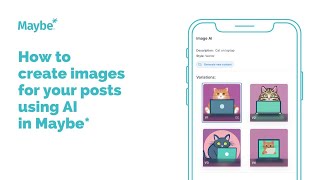
In this tutorial, Sam demonstrates how to use Maybe's built-in AI image generator to create visual content for social media posts. Starting from the standard post creation flow, Sam selects a social account, adds a pre‑written caption, and then explores the AI image feature. He shows how to choose from various style categories—photography, animated, sketch—and evaluates the generated images for relevance to the brand’s tone and the specific post. Sam explains the practical use case of AI images when a post lacks a product photo, emphasizing that the tool can produce fun, eye‑catching visuals that align with a business’s voice. After selecting a suitable image, he inserts it into the post, then proceeds to publish or schedule as usual. The video concludes with a reminder to use the in‑app support button for any questions.
Chapters
I'm going to show you how to create images using AI for your social media content inside maybe. So if we go to create new post as we normally would, to create a piece of content, select our social account. I've pre written a caption just for speed today, so it's generated a link preview for me. So that's obviously pulled that image through from the blog link. But we're going to look at this today, so I fancy having a look at what different images I can be inspired by using the AI. So I'm going to stick with the theme of the image we've got there in the blog just for fun. I have no idea what AI is going to create, so I've got cat baking. So let's first of all you, you've got, as you can see, lots of different image styles. Let's have a look at photography first of all and see what it generates. So obviously these will be images. Oh, they're great, aren't they? That look very realistic but obviously very much linked to, you know, what we asked it to create. So they genuinely do look like real cats baking. Let's have a look at some of the other options. You've got lots here to choose from. Let's have a look at animated. So what you can do is obviously you can play around with this, you can obviously look at different options. You can see what images actually are relevant to your brand, are relevant to the piece of content. I mean, these are really good fun, aren't they? And just obviously relevant to your tone as a business. But you might find a style here that suits your business that you then decide to use regularly for some of your posts. Let's have a look at sketch. We won't look at them all today. You can go in and have a play at your own leisure. But I think it's an amazing feature if you don't have an image to go with the caption. So if you're, you know, say for example, your post isn't about a product or something, because obviously if you're talking about a product, clearly it makes sense to showcase that product in your, your media that goes with your post. But if you just really want something that's fun, inspiring, eye catching and you know you don't have an actual image to go with the post, then dive in and use the AI because as you can see, it really does come up with some fun options that you can look through and choose which one suits your business best. So just have a look at this very last one. This looks quite like my cat, so I'll pick that one just there and once I'm happy, click, continue and it pulls the image through to my post and I can carry on and post or schedule that as I normally would. So I hope that's been useful, giving you a run through of how to create images using AI within maybe. If you've got any questions at all, please do contact us using this button bottom right inside your maybe account connects you to us 247 and I'll see you on another video. Sam.