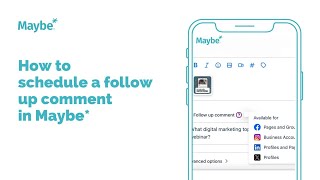
In this tutorial, the presenter demonstrates how to add and schedule a follow‑up (first) comment for a social media post using Maybe’s Social Planner under the Marketing section. The walkthrough covers opening an existing post (or creating a new one), locating the “follow‑up comment” field, entering desired text (e.g., a question to spark engagement), and then publishing or scheduling the post so the comment is automatically posted alongside it. The speaker also highlights practical uses for follow‑up comments such as adding hashtags, tagging people, or prompting audience interaction to boost reach and engagement. The video concludes with encouragement to apply the feature in future content.
Chapters
Foreign. I'm going to show you how to schedule a follow up comment or the first comment in maybe really easy to do. So you need to be in your social planner, which you'll find under marketing. And then if you're writing the post as new, you would click new post and then create new post that opens up the new social post screen where you would actually type in your content, add any media. But for the purpose of this video video, I'm going to go into an existing post, so I'm going to go into my planner and then I'm going to click to edit a future post. So as you can see, same screen but the caption and the image are already here. And if you scroll down slightly you will see this just here follow up comment. And basically you click that and you put in here any text that you actually want to include in your follow up comment. So I'm going to put in a question. The post is about webinars and therefore I'm going to put in a question saying what digital marketing topic would you like us to cover in an upcoming webinar? You could use that follow up comment for any purpose that you actually want to. So some people use it for the hashtags, obviously a question you might want to tag people in to spark a bit of a conversation, ask people's opinions, however you want to use it. That's obviously where you would actually put in the text for your follow up comment. And then once you're done, you would literally post or schedule your piece of content as normal and that's it. So when that post actually goes, so will that follow up comment too. It's that simple. It's really easy to do and a great tool to actually use to boost your reach and boost engagement. I hope that's been useful. I'll see you on another video soon.