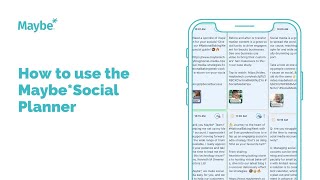
Polly Barnfield walks through the Maybe Social Planner: connecting accounts like Instagram, TikTok, and LinkedIn, uploading posts via CSV, customizing captions per platform, generating AI images and captions, and scheduling posts or setting them to recur. You can save drafts, post immediately, schedule ahead, or send for approval.
Chapters
Foreign. Do an overview of the maybe social planner. So to find the planner, you go to your dashboard and then marketing and you'll see the planner just here. First thing to do is make sure you've got your social media accounts connected. You can see the maybe accounts here. It's really easy to add accounts. You can add Google, My business, Facebook, Instagram, LinkedIn X, previously known as Twitter, or TikTok accounts. You can add multiple accounts, so not just one of each. And you can also connect things like Facebook groups if you actually manage those too. And you do that from here as well. So it really is a one stop shop for posting your content. So let's have a look at the planner. So if I click Open Planner, nice calendar view, as you can see, easy to toggle between a week and a month view. And then this is a piece of content that's already gone. If I click these three dots, it gives me the ability to clone a piece of content. So you can recreate a post and post it again and it just opens that post as if it were a new one. You can make changes as you want and then post that piece of content. When you're ready, we'll have a look at posting a piece of content when we actually create a new post in a moment, you can easily see which feed each post is actually scheduled onto. And then if we look at a post that's already gone, so it's easy to scroll through your calendar. Not only have I got the clone option here, but I've also got the option to edit this post before it goes or delete it to completely if I didn't want it to go any longer. So it's really easy to manage and change and review your content from your planner. But if I go back to this screen, we'll have a look at adding a new post you can upload from a CSV file. So if you want to bulk upload posts, if you have your content detailed out on a spreadsheet, for example, you can actually add multiple posts at once. So that's a big time saver. If you have your content planned like that, all you would do is click there and it would lead you through the instructions as to what to do. But we're going to look at adding a new post individually. So I click Create new post, first thing is to select a social account. If I select Instagram, you can see not only can you add your post, but you can also add your Instagram stories and reels too. So great feature that, because you can add all of your content, all from here. So I'm add my caption and then say, for example, I wanted to actually post that across all of my feeds. I've got this feature here which is great because I can customize it for each channel. So obviously your caption would be slightly different for different channels. For example, on X your caption would be shorter because you've got the character limit. LinkedIn might have a slightly different tone because obviously this is a different audience. Instagram, you're more likely to say link in bio in your caption because obviously you can't include links because they don't work. So that allows you to type your caption out and then obviously just tweak it for the different platforms rather than having to add it individually for each platform. So, super time saving feature, you've got all the options you'd expect here in terms of obviously changing your text. A vast emoji menu. You can add images, you can add your own, or you can actually create an image using AI. So you would tell the AI what image you're looking for, how many variations you want and the style that you want and it will create an image for you. So amazing if you haven't actually got an image to go with your post because it'll create something unique and it will create that along with obviously the style that you're actually looking for. You can add videos, so you just go in and add them just there. You can add hashtags. I love this feature. You can actually group together and save groups of hashtags, so it saves you lots of time. So if you use similar hashtags for different types of posts, you can save all your group tags in different groups just here. And then you can actually click on it and actually apply those to your caption. So big time saving feature. And then you can also tag using that feature just there. If you want a bit of inspiration for your caption, you can use the AI to create it for you. So I'm going to say I'd like five social media tips and then five tips for social media managers. I would like it to include. The word training. I want my tone to be funny. I'd like two variations and I'd like it to be small because it's to go onto X, but you can obviously put in there whatever you're looking for and then click generate and it will generate me two variations of that caption. You can see it's incredible what it actually creates. Obviously you don't have to take it verbatim you can actually copy that, choose your favorite, change it as you want to, but it just does a huge chunk of the legwork for you, and then you can obviously review it and change it as you want. And finally, you also have the ability to schedule the first comment. So you might want to schedule a question or a link or something like that as the first comment on your post. You can also do that from here too. So lots of brilliant features to to save you time to inspire you. Once you're happy with your post, you can save it for later if you want to go back to it and make some more changes. Or you can post it now, you can schedule it for a date and time in future, you can send it for approval if you have an approval process within your business, or you can actually schedule a recurring post. So if you'd like this post, for example, to go out once a week on a Monday morning, or if you are a retailer and you want a post on a Friday telling shoppers what you've got coming up on the weekend, you can actually schedule a recurring post. So it'll literally put it into your calendar for however often you want that to go in. And if you click it, you can see you can actually set how often the date range and everything else. And that's it. That's the maybe Social planner. I hope that's been useful, giving you a bit of a flavor of what it's all about. If you've got any questions, tap this button bottom right. Connects you to us 24 7. We love to help and I'll see you on another video soon.