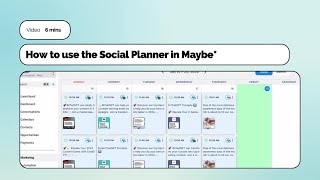
Connect your social accounts to Maybe's Social Planner, then schedule posts across platforms. Create posts by selecting channels, customizing per platform, adding stories or reels, and choosing actions like schedule or send for approval. Bulk upload via CSV or use templates to save time.
Chapters
Foreign. How to Use the Social Planner in maybe from navigating the user interface to creating social posts, this guide will walk you through each step to ensure you get the most out of this powerful feature. Let's head over to the marketing feature within. Maybe on opening the marketing feature, it will open on the Social Planner page. Your first step is to connect your social handles to your maybe account. It's really easy to add accounts. You can add Google My Business, Facebook, Instagram, LinkedIn x previously known as Twitter, and TikTok accounts. You can add multiple accounts, not just one of each, as well as Facebook groups that you are the admin of. Once you have connected your social platforms, you can create groups. This is a great tool if you manage several different social accounts. Now let's view the Social Planner page. By clicking Open Planner on the planner, you can easily toggle between a week view or a month view. You can easily identify which social platform a post is scheduled onto by the logo in the right hand corner. If you click the three dots on a post that has already been posted, you will see the clone option which easily allows you to duplicate a post. If you click on the three dots on a post that hasn't been posted yet, you'll also see the option to edit the post before it goes or delete it completely if you no longer need it to be posted. Let's head back to the Social Planner page. On this page you can filter your content. For example, you can view your most recent posts, future posts that are scheduled, or posts that are appending approval from other team members. Now let's create a new post. Here there are a couple of options you can upload from a CSV file. This can be done by uploading a file. This is great if you want to bulk upload posts that you have created on a spreadsheet. A big time saver if you have it all planned already. Looking for social inspiration, why not choose from a selection of social templates? In the template library you can search from a variety of categories which will give you lots of images to choose from as well as suggested copy to use. We are going to select new post which will allow us to create a new post from scratch. First we are going to select which social platforms we want to post from. You can either select from a group of social accounts or select individual platforms. You can select more than one account at a time. If you are creating a post for multiple channels, you can use the customize for each channel toggle, a great tool that allows you to adapt the post for each channel. For example, on X your caption would be shorter because you've got the character limit. On LinkedIn you will have a slightly different tone because it's more business to business. On Instagram you're more likely to say link in bio because you can't include links as they don't work. If you select your Instagram account, you also have the option to add to your stories or upload a reel now to type your post into the content box. Once you have added your content, you have some options here where you can make the copy bold or italic. You can add some emojis to your post. Then you can add some hashtags to your post here at maybe we love this feature because you can actually save groups of hashtags which you can use on other social posts too. One of our favorite features here is the ability to add in a custom value if you haven't seen our video yet. On Custom values. These are values that you can create based on your unique parameters. You can give them a value so that whenever you select to use that custom value, it will automatically add the value in. It's great for selecting CTAs. You also have the ability to schedule the first comment, a feature you might use when you want to schedule a question or a link. We also have some advanced options. Choosing a category helps to organize and categorize your posts based on different topics or themes. Tags are keywords or phrases that are relevant to your post. They help in making your content more searchable and can increase its reach. You can add multiple tags to a post. Once you post is ready, select the post button. Here you have a few options you can post now which will send your post straight to your selected social channels. You can select schedule your post. This allows you to pick a date and time you want your post to go out. You can send for approval. This is when you need other team members to approve your posts or you can schedule a recurring post. This is where you can schedule a post to go out at the same time each week. Once you have selected your post option, you will return back to the Social Planner. The Social Planner feature within maybe has lots of time saving abilities when it comes to creating content for your social channels. We have further training guides on how to use the content AI for creating posts.