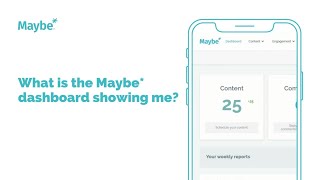
The video walks viewers through the Maybe platform’s dashboard, explaining that it is best viewed on a desktop and is divided into two main halves. The top half provides a quick‑look overview of the past seven days, showing the number of scheduled social‑media posts, recent comments, mentions, conversations worth engaging with, and the total ad spend on Facebook/Instagram. The bottom half contains a set of weekly reports presented in panels: best performing post, total and channel‑by‑channel scheduled content, follower and engagement statistics, performance graphs, top hashtags, sentiment analysis (toggleable between comments and mentions), key influencers, word clouds of what’s being said, and a day‑by‑day ad‑spend breakdown. The presenter then demonstrates that the right‑hand side mirrors all of these reports for a selected competitor, which can be switched via a dropdown or a searchable box. Panels can be expanded or collapsed at will. Finally, the video points out the in‑app blue chat icon for live support and closes with a friendly sign‑off.
Chapters
Welcome to your maybe dashboard. To get the best from maybe and all the features like the dashboard, it's best used on a desktop. Your maybe dashboard is split into two halves. So the top half you can see here will we have content. That's the amount of social media posts you have scheduled for the next seven days. You can see your comments. So this is people that have commented on your posts over the last seven days. You'll see the number of people who have mentioned you. So that's people mentioning you or tagging you into their own social media posts for the last seven days. You'll see the number of conversations that you might want to engage with. It's an opportunity to build out your reach and you'll see the amount you have spent on Facebook or Instagram ads over the last week. Now the bottom half of your dashboard is a series of weekly reports. On the left hand side you'll be able to see things like your best social media post, the amount of content you've scheduled out and how much content you've scheduled by social media channel. You'll be able to see your social media stats including your followers and your engagements. And then we can see a series of performance graphs which show you your engagement spread out over the course of the week. Your most used hashtags, how people feel about you, which you can toggle between comments and mentions to see how positive or negative that conversation is. You can see the influencers in your conversation. So who are the people most frequently commenting on your posts or who are the people most frequently mentioning you in their own social media posts? You'll be able to see what's being said about you. So your mentions will show you what other people who are tagging you in their posts are saying. Your comments will show you the most frequently used words in comments on your posts and you'll be able to see your ad spend for the last week and see what days of the week you were spending the most money. Now the really awesome thing about this so that's your report on the left hand side. If I come back up on the right hand side you can see pretty much all of the same information for a competitor of your choice. Now you can change this business at any time. You can see I've got a drop down here, but if you can't find one in the drop down you can simply type it into the box and it will switch out your competitor conversation and you'll be able to see their best post. Just expand this one here. You can collapse any of these reports at any time, you'll be able to see their best post, how much content they've scheduled out, their social media stats, their engagement, the hashtags they've most frequently used, their sentiment report, who's creating conversation about them, what's being said in that conversation about them. So this information is really about giving you an at a glance understanding of how you are measuring up and where to focus your efforts as soon as you log in to maybe now, if you've got any questions about using MAYBE at any time, you can use the blue chat icon down here in the bottom right hand corner. It connects you to members of the MAYBE team who love to help you. See you on another video soon.