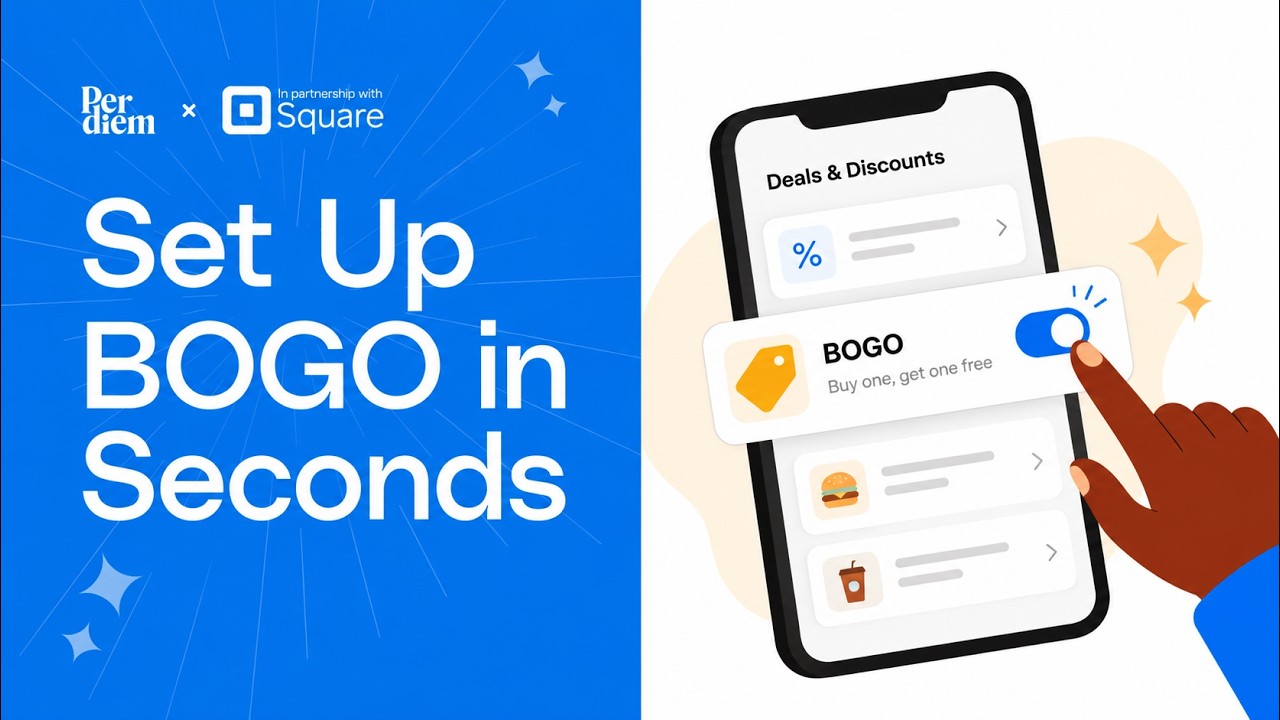
Learn how to set up a Buy One Get One discount in Square Restaurants' Per Diem dashboard. Navigate to Marketing, create a new discount, choose BOGO type, configure quantities and qualifying items, then set limits like minimum spend and location restrictions. The cheapest eligible item discounts automatically at checkout.
Chapters
Want to run a buy one get one offer? Automatic discounts apply at checkout when the cart qualifies, with no code for customers to enter. In your dashboard, open Marketing, then Discounts, and select Create Discount. Add a clear customer-facing name and an internal name if you need one. Choose Buy One Get One. Set buy to 1 and get up to 1, then leave the discount at free. Assign your qualifying items. For a classic BOGO, keep the same items selected, so the cheaper qualifying item is free. Want to offer a different free item? Choose Give them something else instead. Then select what customers can receive, like fries with a burger. You can add a maximum discount or minimum spend, choose when the offer runs, and limit it to selected locations. Leave Mobile App Only off for a web offer. Under Modifier Discount, decide whether add-ons are discounted. Keeping Don't Discount Modifiers means extras stay full price. Check for Ready to Save, then create your offer. On web ordering, qualifying customers see the discount apply automatically in their cart. For BOGO, the cheapest eligible item gets the discount. You can edit or deactivate an offer anytime and track redemptions here. Only one automatic discount applies per order. For more answers, see the full guide.