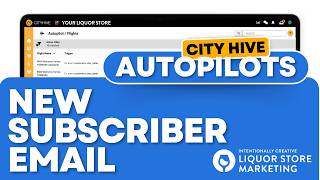
This is a YouTube video titled "City Hive Autopilots: How to Send Automated Emails to New Subscribers Using Flight Template" created in March 2025. The video features a single speaker from Intentionally Creative, a liquor store niche marketing agency, demonstrating how to use the Autopilot tool to set up automated welcome emails for new subscribers, including customization options and workflow steps.
Welcome to our Autopilot series. In this video, I'm going to show you how to use Autopilot to send a new subscriber email. I'm poch from Intentionally Creative, the industry's leading liquor store niche marketing agency. So we're going to start here from our dashboard, and from here we're going to go on the left side to Autopilot. Now on Autopilot, we're going to make sure to click on the top right + icon and then click on Create from template. Okay, so from Creative Template, let's just choose new subscriber email. Now, what's cool about this is it's all built for you. So all you have to do is edit each step to your liking. And that's it. We're just going to go through each and every step to show you what each step does and how you can edit it. So for example, the start of this event is a new prospective customer. This happens when a customer signs up. So you can actually set how long it will take to trigger this. So here you can set it in minutes. Here it's set for 10 minutes, but you could set it for any minutes you'd like. We can also ensure to set this within a certain time frame. So here it's set from 10 to 7:30, but if you'd like to set it from 9 to 5, 8 to 6. So it's up to you what you'd set it to. And then you just click on submit. Once you're done with that, the next step would be the customers and the number of orders. So for example, which customers would be qualified for this email. So the number of orders must be equal to. You can put here 1, 1, 2 or 3. So it's up to you up to what number of orders would make this customer equal for this welcome email. And then you just click on submit for that Next one would be when was this order created? So you can choose again. You can set it to 10 years ago, can be five years ago. So it's up to you what you'd like to set this as well. Just make sure you set it to your liking. And then just click on submit. And the last one is what will happen when the promotional email is sent out. So it'll send out a promotional email and you could set what subject line you'd like, what preview text you'd like, and how the actual email would look. What's really cool about this is you can actually personalize this to your customers and just show them that you care when they do. Sign up for you for more CityHive tips and tricks, join our newsletter in the link below. If you're a liquor store looking to grow your online or in store sales quickly, Visit us@intentionallycreative.com.