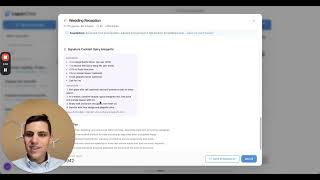
This is a YouTube video titled "City Hive: How to Add a User and User Roles Explanation" created in February 2025. The content features Alden Morris providing a detailed tutorial on how to add users and manage user roles within the CityHive dashboard, aimed at liquor store marketing and management. The video is instructional and focuses on software usage tips.
Want to add a user to your CityHive dashboard? Let me show you how. I'm poch from Intention Creative, the industry's leading liquor store niche marketing agency. So let's see here from the side. We're going to start here on the dashboard. Now if you're going to go to add a user, you're going to go all the way down to the settings menu. From the settings menu, click on Users. Now on the users, you'll see here on the top right, there's a plus icon. From the plus icon, just check that and click on Create Use. Now, there's two ways you can create a user with an email only. Where you just put in the email and choose the role you'd like. Just choose the one that's most general that you think that your user will need. You can actually pick as many as you'd like from that list. Now the second type of way to create a user would be all user info. And for all user info it'll ask you for the role, of course. And aside from that, the first last name, a phone number and a password confirmation and then you just click on save. Now once you've done all of that, your user will come out in the main users menu. Now once it's on the main users menu, just click on that user and you'll be able to see what type of permissions that user has. Now just by clicking all the way down here, you'll see a bunch of boxes that you can expand with this down arrow. So all you have to do is just click on the down arrow to expand that box. And here you'll be able to see what type of permissions that user has based on the check mark in these columns. So you'll also be able to see some descriptions of what that permission is. Now for stuff like inventory, you can see if they can create update or just see the inventory for data imports, create or show, etc. So you can see what is happening with that user and what permissions you actually gave them. If you want to see more City Hive tips and tricks, join our newsletter in the link below. If you're a liquor store looking to grow your in store or online sales quickly, visit our website at intentionallycreative. Com.