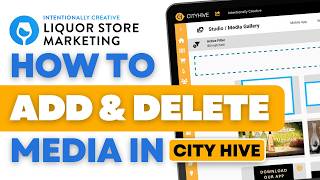
Poch from Intention Creative walks through adding and deleting pictures in the CityHive dashboard. The tutorial covers the basic steps for managing images on your liquor store's CityHive website.
Ever wondered how to add pictures to your CityHive dashboard or even delete old pictures that you've already put in there? I'm poch from Intention Creative, the industry's leading liquor store niche marketing agency. So let's start here from the dashboard. From here you're gonna want to locate the Studio icon. From the Studio icon, go down to the sub menu Media Gallery. Now for the Media Gallery. You'll see all of the pictures here that you've already uploaded on your Dashboard or your City Hive Dashboard. If you'd like to add new pictures, all you have to do is go up here to the top right corner, click the plus icon and you can upload an image from a file, a Media gallery, or from a URL. And then you just click on Submit. If you'd like to delete pictures, all you have to do is select the picture you'd like to delete and then click on delete and that will delete the picture. If you want to see more CityHive tips and tricks, join our newsletter in the link below. If you're a liquor store looking to grow your in store or online sales quickly, visit our website@intentionallycreative.com.