How to Create Additional Locations in City Hive
27 Mar 2025
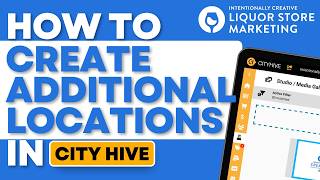
This is a YouTube video titled "How to Create Additional Locations in City Hive" created in March 2025. It features a single speaker named Poch from Intentionally Creative, a liquor store niche marketing agency, providing a tutorial on how to add multiple store locations using the City Hive dashboard, aimed at liquor store owners looking to grow their sales.
More from Alden
youtube.com
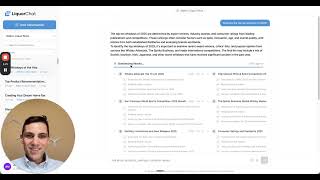
Liquor Store Owners — While You're Running the Floor, This AI Is Doing Your Research.
7mo ago
youtube.com
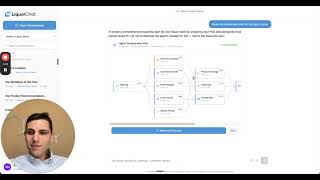
Liquor Store Owners — This Isn't Basic AI. It's 11 Agents, 37 Tools, Built for You.
7mo ago




See all content