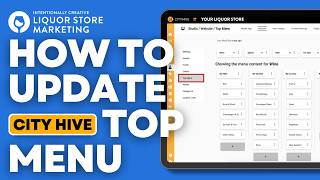
This is a YouTube video titled "How to Customize Your City Hive Website Top Menu" created in February 2025. It features Alden Morris providing a detailed tutorial on how to edit and customize the top and sub menus of a website using the City Hive platform, aimed at users such as liquor store owners looking to improve their online presence.
Ever wanted to change those top menus and sub menus on your website but didn't know how? I'm poch from Intention Creative, the industry's leading liquor store niche marketing agency. So here we're going to start on our dashboard on the left side menu you're going to want to go to Studio. And then from Studio we're going to click on Website. Now on the Website menu on the left side, you'll have the settings. Under Settings, click on Top menu. Now when you click on Top menu, you'll see all the menu items on your website. To edit any of these, just double click and change. Now if you want to see everything under that, just click the downward arrow and you'll see everything that's under that top menu. Now if you want to edit any of these, just double click and edit. If you want to change any of these settings, you just need to click these three dots, click on Change Value and paste that URL here and then click on Update. Now like to add something you can see here there's a plus button. There's also plus button here so you can add anything you'd like on the top menu and anything on the sub menu. Just click on the plus button, double click and enter whatever you'd like to put in there. If you'd like to put in a new URL, just click on Change Value and put the URL there. Now once you're done, don't forget to click the Save button up here because nothing will be saved if you don't. So double click the save button and make sure to check on your website that those updates have been done. If you want to see more City Hive tips and tricks, join our newsletter in the link below. If you're a liquor store looking to grow your in store or online sales quickly, visit our website at intentionallycreative. Com.