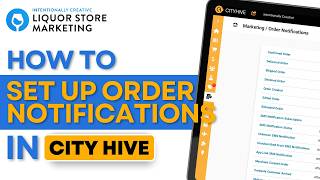
This is a YouTube video titled "How to Set Order Notifications in City Hive" created in February 2025. It features a single speaker, Poch from Intentionally Creative, providing a tutorial on how liquor store owners can configure their order notification settings within the City Hive platform to ensure notifications are sent to the correct phone number and email. The content is instructional and focused on marketing and operational setup for liquor stores.
Want to make sure that your order notifications are set up correctly. I'm Poch from Intentionally Creative, the industry's leading liquor store niche marketing agency. First off, let's make sure that your order notifications are going to the right place. So to do that, let's go to our settings right here at the very bottom. Let's click on Settings and then let's go to Business Settings. And you'll notice there's a part here called order notification preference. So just make sure that you put in the right phone number and the right email. So to edit, just click on this pencil icon, put in that right phone number, put in that right email, and then click on the check mark here. Now, for a list of all the order notifications you're going to be getting to this phone number and to this email. All you have to do is go here to the Marketing menu. Click on order notifications. After that, order notifications. Now, this will show you a list of all of the order notifications you're going to be getting on that email and on that phone number. For more City Hive tips and tricks, join our newsletter in the link below. If you're a liquor store looking to grow your online or in store sales quickly, visit us@intentionally creative.com.