Jeff Bussgang describes his personal Zoom studio used for teaching Harvard Business School during the COVID-19 pandemic. He outlines the physical layout and equipment (main desktop for Zoom, secondary monitor for Slack, two laptops for PowerPoint and assignments, iPad for handwritten boards), lighting (studio ring), input device (Razer Tartarus with Zoom macros), and audio (Blue Yeti microphone). He also comments on HBS-wide Zoom training, classroom practices (2x2 diagrams, class cards), and recommends separating the Zoom-driving machine from presentation devices to avoid crashes.
Chapters
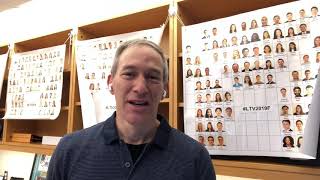
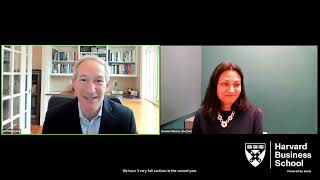
So I get a lot of questions about what my Zoom setup looks like when I'm teaching in this environment. It's an extraordinary transition that many teachers have had to make. For example, the Harvard Business School faculty, at the time of the beginning of the pandemic in March, probably a handful of faculty members knew how to teach over Zoom. Today, all 300 Harvard Business School faculty members have been fully trained on Zoom. And we all have these incredible studios that have been set up for us by the IT department. And so I thought it'd be fun just to show folks what my personal Zoom studio looks like so you can get a sense of the environment in which I'm teaching and the setup that I have. Since, again, many people have asked me about this. So let's come on in. All right. Well, first, the thing to note is that all the action happens in this corner here with the main computer. This main computer. And I'll show it in a minute in more detail. That's what I use to drive Zoom with. What I've learned is that it's best to have one zoom focused machine, because If I have PowerPoint or my boards and my notes on the same machine, the machine crashes even when I've upgraded the machine and upgraded Zoom religiously. So that's the main thing is what's, what's the machine that you're using for the Zoom driving device? By the way, these folks here in the back, these are all students of mine from past years. I don't actually have a seating chart this year because the students aren't seated in a set configuration. The cheat sheet that many faculty members use is they put these big poster boards of the students in order to memorize their names and their backgrounds. Unfortunately, we don't have that luxury anymore. So I religiously use the class cards and try to memorize everybody's names and backgrounds through the class cards. Okay, let's talk about the setup itself. So the first thing to note is that I've got the main screen where I've got the Zoom running. And in fact, you can see the zoom here where I'm doing the projection. And I've got the nice fancy HBS virtual background that they've set to us. And then I've got a second screen here that I'm using for Slack, and I use it for other documents. There have been times where I've had the students do worksheets, calculations, and Google sheets, for example, and I want to see what that calculation looks like. So it's a fun way to look at the shared data while I'm also conducting the class. Then I have my laptop, which I'm using for PowerPoint. So you can see here this cohort analysis and retention curves that we had in the last class. I have a second laptop here for the assignment and to keep an eye on any conversations that might be happening over email. By the way, on the main screen I've got the participant window to the left and the chat window to the right. And then the setup here is kind of fun. I've got this cool like studio style ring that they gave me which allows me to look a little more professional from a lighting standpoint. And then I also have a very fancy gaming device that one of my colleagues recommended to me. That is a Razer Tartarus that gamers use to be very quick with the keyboard. And I use it, I set up macros with various zoom commands and those macros are triggered by that device. So, for example, this allows me to mute this key, allows me to mute video. This pops up the participant window, this changes gallery view versus speaker view, and so all sorts of other fancy designations. And then the final thing I'll note here is I've got my iPad, which I use for scribbling notes and boards, and I'll share that with students. So I log into Zoom on both the iPad and the laptop, as well as the desktop. So you can see my requisite 2x2. Every Harvard Business School professor is required to draw a 2x2 every class session, otherwise you don't get paid. So anyway, that's the setup on my personal Zoom Studio. It's been pretty effective so far. I'm always experimenting and implementing. Oh, the final thing I forgot to mention is sound. I have the. You may have seen it before, but just to zone in on it, my podcast Fancy speaker here, the Yeti speaker. It allows me to move around and be dynamic while I'm sitting on the stool, which I prefer to sit on because it gives me more energy than a chair and it picks up the sound no matter where I am. So that's the zoom setup that I'm using for teaching at hbs. Hope you enjoy. And if anybody has any tips for anything that you're using for your zoom setup, please let me know.