Otuvi's updated QM mobile app streamlines field inspections with a single setup screen, groups services by building area, and lets you add multiple entries per service with photos and notes. Photos can be annotated directly in the app, uploads happen automatically in the background, and a bottom navigation bar keeps Dashboard, Work Orders, Locations, and Settings one tap away.
Chapters
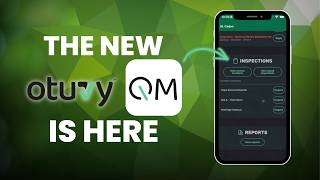
Okay, we just rolled out a major upgrade to the Otuvi QM mobile experience. Not by adding complexity, but by making it faster, clearer, and more powerful in the field. This update is built around what matters most on site: doing the work right, fixing issues quickly, and proving performance with confidence. Let me show you what's new. This is where the biggest upgrades happened: inspections. Setup is now consolidated into one clean screen. Select internal or external, choose your templates, apply the filters, Hit start. Inspections are now structured around how supervisors or any inspector actually walk a building. Services are grouped by area instead of one long scrolling list, which means faster setup and fewer errors. As you inspect, you can now add multiple details under a single service. Each detail can have its own photo, its own note, and its own rating. So if you walk into a restroom, you see 3 separate issues tied to the same service, you can document each one clearly. You can also annotate photos directly inside the app. Draw on the image or add text to show exactly what needs attention. As you move through the inspection, you'll also see real-time progress in the filter. You'll know how many services are rated and how many are left. If you pause and come back later, everything is still there. Nothing disappears. When it's time to finish the inspection, Summary and Sign Off are now combined into one step. Uploads happen automatically in the background, and if you're in a low, signal building, inspections queue automatically and retry when service returns. No stalled uploads, no lost data, and no hesitation to hit save. Locations are now organized into 3 simple sections: Favorites, Downloaded, and Not Downloaded. You download only the locations you need for the day. From each location, you can start an inspection, view reports, refresh data, or manage device storage. For companies managing dozens or even hundreds of properties, this keeps devices fast and operations clean. It's control without the clutter. You'll also notice the new permanent bottom navigation bar: Dashboard, Work Orders, Locations, Settings. One tap between workflows. No more digging. Reports now are accessible directly from the dashboard as well. So if a client asks for last month's score while you're on site, you can pull it immediately. Now, work orders, they're tighter and quicker. Due dates show right in the inbox, helping reduce missed SLAs. Tap once and you're inside. Tap reply and you're responding. Work orders download on demand, which improves speed for high-volume teams. Faster response, clearer follow-through. This upgrade makes inspections stronger, documentation clearer, and response times faster. So when a client asks, "Are you actually doing the work?" You don't explain. You show them. Welcome to the new O2VQM mobile experience.