Alec Couros walks through NVU to build a basic web page. Learn how to format text, set the page title, save as index.html, and insert images without stretching them. Save before adding media, and use corner handles to keep proportions right.
Chapters
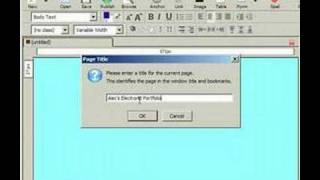
In this video, I'm going to go over some of the basic features of nView in the pursuit of creating our electronic portfolio or our first web page. I've got NVU open. This is something you can download from the web@www.nvu.com. i'm going to create some simple text here. To do that, I'm going to first center my text and type in something like Alex Electronic Portfolio Spell today. Pretty simple. The spelling is the hard part today. And I'm going to highlight the text. And you can actually change the size by clicking on this larger font size button. It's like an A with an arrow up arrow. I can also change the color if I'd like to. Here's a black button, the foreground button, this little black square. And I can choose from the palette here. So I'll choose something still dark if I'd like to as well. I can change the background color. I can either click on this or I prefer to go to format page colors and background and then you can see a lot of other options. The reader's default colors, you'll notice here is sort of like blues through purples or black through purple or a lighter purple. I'm going to use custom colors and these are important things later. Like if you want to create, change your link text or your active link text or visited link text. But for now I'm just going to change the background. Change it to something like, let's see a light blue press. Ok, you can also. You have the option here. If you have background image you can have for the background. But just be aware that this tiles things in the background. So we have the beginnings of our basic web page. I will note that there's a very important note before you put any images in or insert any images in or other media, for instance, it's really important to save your file before that. It'll make sense later on. But right now I'm going to go file save as and the first thing that pops up is it asks for a page title. And this has nothing to do with the file name, but it just gives you identification. So when you look at it in the browser at the very top on the title bar, you'll notice that this text shows up. So I'm just going to put something very descriptive, Alex Electronic Portfolio and say if this was your resume page or another page, you could probably type in something like Alex Resume or Alex about me page, etc. So I'm going to save this. And because it's the very first page. And this is very, very important. The very first page of our web page. We want to call it index HTML or index htm whatever. It's got to be index or default. But I just prefer index. I'm going to find that place on my desktop where I created my folder the other day in the previous video. I'm going to go to my website folder. I'm going to go to my eportfolio folder. And so here I am in my eportfolio folder and I'm calling it index HTML. Very important to keep that file name. And I'm going to hit save. And here I have something saved. And the only thing I'll do now just to get this started is to show you how to insert an image. So I'll go insert image then I'll look for, you know, under choose file, the only thing in my images folder. So this is the images that is on my desktop in my website folder, in my eportfolio folder and then my images folder. So it's in the same kind of kind of folder area where I put my index file for this. So it's really important. And I'm just going to choose Cat on TV press ok. It says the image is relevant to the context of the document. You must apply the alternate text that will appear in the text only browser. So it's good to put alt text in, especially if people are using text readers or so I'm going to say Cat on TV just to give it a little description. And when you hold your mouse over that actually pops up. So I'll press ok. Now this is an ultra huge file and you can actually resize the files once they're in there. Now because this is so huge and my window is so small, it takes me a couple tries, but you can resize it. The best thing to do is choose an image that's smaller from the very beginning. Then you don't resize in the browser because there are some issues with resizing it in the browser. If you can find it smaller at the beginning, it's better. So here I have it and if you are going to resize it in your browser, it's important to use the corners, not the side or top buttons here because it will actually change the proportion. If you choose the corners here, it should stay within the proportion. So that's what I will show for now and I'm going to just re save my file and we'll quit the video.