Alec Couros walks through linking pages in NVU, an HTML editor. He creates an index page, makes separate pages for About Me and Philosophy, saves them without spaces in the filename, then links them together using NVU's Create Link dialog.
Chapters
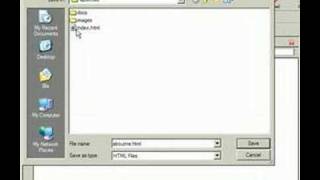
Alright, so we've got our image in, we've got some basic text, now we're going to put a few links in. And so underneath this image file, I'm going to first of all change the size of my text. And I'm thinking about the other files that you may have or the other websites or files that you may link to. So one of the places I may link to is say an About Me page. So click About Me, maybe a philosophy page and maybe say a resume. And maybe, let's see, what else would I have About Me, philosophy resume, maybe some of my projects that I've done, and that's just for some basic ones and I can change, of course, the size, etc. Make that a bit smaller and leave some spaces there if I'd like. Don't have to worry about it all now. And so I've created some basic text, now I'm going to save that again. And at the same time NVU allows you to create multiple documents in the same folder. So I'm going to create some other files out there that I'll link to. So I'm going to go file new, I'm going to create a blank document, press create and here we have a white document. So now you can actually switch between the two in your browser so you can see the many files you're working on at once. So the first one I'm going to create is an About Me page. I'm just going to put here the future home of my About Me page. And I'm going to save this file before I put anything on here. Go save as and I want to put Alex About Me page. And I'm going to save this and call it About Me. And I'm going to put it in the same place where I have that index saved before. So in my eportfolio folder, right beside the index HTML. Notice that I don't have any spaces in my file name. I don't use capitals, I don't use special characters. The most important thing is just leave the spaces out. Things on the web are better left without spaces. I'll hit save and I have the two files opened up. And of course I could do anything I wanted to do with this particular one. But I'm going to go back to the Alex Electronic Portfolio page and I'm going to highlight the word about me. So on this page, highlight the word about me. Then I'm going to create a hyperlink. And to do that a number of ways, you can right click and choose hyperlink or Create Link, or I can highlight it and click the Link button up. Here it asks me where I want to link this to. I'm going to go choose File and go to About Me because I want to link it to the About Me page and then I'll press ok. Now when I click on that, you'll notice that this is underlined and it's ready to go. So when you view this in the browser, you'll be able to see the actual link. So I can continue to do this process. Go file new, Create another blank document and say Create. This is the future home of my Philosophy page. Save that, give it a title. Alex Philosophy page. Remember, this has nothing to do with the file name. And then I'll just call it Philosophy HTML, making sure that I have it in the same place as my About Me and my index HTML file. Now when I go back to my Electronic Portfolio page, I can simply highlight Philosophy. I'll do a right click this time. Go Create Link and choose File Philosophy. And I'm going to save this file. And make sure you save all three of them. I think they've already been saved and I'm going to close out and we're ready to go on to the next step pretty quickly.