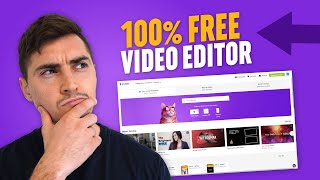
100% Free VIDEO EDITOR app for beginners
Jeremy Mura presents a short YouTube tutorial (March 5, 2021) demonstrating Invideo, a browser-based video editor he endorses and uses. He frames three essentials for quick social videos—templates, stock assets, and a simple editor—then walks through selecting a template, swapping footage and text, adding music and a logo, and exporting. The video highlights Invideo’s built-in resources (templates, stock media), support options, free tier limits, and promotional offers aimed at beginners and creators.
Questions this video answers
Jeremy Mura
March 5, 2021
Over 4,000 templates
Over 8 million resources
$15 per month
Chapters
Hey, it's Jeremy here. And in this video I'll be showing you this hundred percent free video editor that you can use in your browser to edit your amazing videos. So when it comes to making videos, there are three key things that I know in my personal experience that you need to create awesome videos, especially for Instagram and YouTube. And I'm pretty sure Facebook and LinkedIn have so many features with videos, especially like doing live stuff now. And it's so important that we get this right. The first thing you need is actually templates. And I just want to mention that today's video is sponsored by Invideo and I'm going to show you how to use it. And it's a tutorial towards the end, but I love their tool because it's just amazing and it's my go to tool. If I want a quick template or if I have a client that's not really an editor or a designer, then I can refer them to this tool because it's 100% free and it's all in your browser as well, which is super cool. But when you have templates, you can, it's a lot faster and it's going to speed up your video process. The cool thing with Nvidia, they have over 4,000 templates, which is actually really cool. And in the short tutorial I'm going to show you how I use one. And I just like it because it speeds up my workflow. I don't have to spend too much like time looking and doing stuff from scratch or looking for certain, you know, content and things like that. I just have a template. I can just go boom, boom. And I'm already ready to go to actually start editing my video. So the second thing you actually need is actually stock footage and music. A lot of the time is that it's actually hard to find good quality stock footage, especially in video format. There are some sites out there and free sites that you can use, but typically it's kind of hard. The cool thing with Invideo is They've got over 8 million resources including images, stock footage and music all in one. And it's in their inbuilt media library, so I can just access it. It's on the left hand side where you can just click and search for all that. And they actually use premium resources like Shutterstock and istock and, and things like that, which is really useful because I've used them in the past and I know the quality is very, very high. And the third thing is you need a simple and Easy editor to be able to edit your videos fast. And Invideo has an amazing editor. It's in your browser. It's really efficient and really easy to use. You know, it was just drag and drop. And I feel like if you're a beginner, this is gonna be super helpful because it's gonna keep your prices really easy and smooth. And the thing is, if you actually do need help, then actually got 24. 7 support, so you can just ask them a question or send a message with their chat and you can actually get some help that way. So for a beginner, I think it's really good because that they have that helpfulness and they've just got a simple editor that you can use on the go. And I think that's awesome. And if I can shave off, you know, 10 minutes, 30 minutes, or even an hour on my client projects from, you know, using in video as a fast way to edit and use these templates, then why not use it? You know, it's gonna save me time in the long run and even save you money, especially if you're a creator, a content designer, or whatever it is. It's gonna be helpful to you. So if you're someone that's a beginner and you know, edit, are you not a designer, then definitely check out a video. We're jumping to a quick tutorial. I'm gonna show you how I. How I use it and how you can use it. And overall, it's amazing. It's truly a free editor that you can use on your browser. All you need is the Internet, basically. And all the templates are free, which is really, really amazing. And. And all you have to do, if you want the premium stock footage and videos, all you have to do is pay $15 a month, which is awesome. So, yeah, definitely try it out. You can go for the trial, but if you do want a discount, you get 25% off. Just click the link in my description and there'll be a link there to sign up to in video. So I'm going to give you a quick tutorial now, and we're going to see how you can use it. So once you sign up to Invideo, you'll get this first page. And I love a video because it has over 4,000 templates, which is amazing. And they also give you the predetermined dimension. So, for example, if I want to do a video for, like, YouTube, you can do the wide 16 by 9. Or if I want to go on Instagram stories, I can do the 9 by 16, which is really cool. And you can see all these other examples here, but it's super useful. So I'm gonna go find a template and I like to look at what's trending, gives you some id. And I love this template here. You can see it's creative courses at home, and I do courses. So I feel like this is a good fit. So I'm gonna select this and I'm just gonna mute that and I'm going to select it maybe for an Instagram story. So I'm going to select vertical and I'm going to click Use this template. The editor is pretty useful and it's just very intuitive. Like, it gives you lots of options and stuff. So if you're not a, like, editable designer, then this is probably the best tool because it's, you know, free to start off with, but it's got easy to use tools. So if you feel like you're stuck or you need assistance, they have 24. 7 support and they're always willing to chat with you. So you just go to the bottom left and you can click this little chat bubble. And all you have to do is just sign in with your name and your email, choose a department. So if you need help with editing or the billing, then just select that and start the chat. And it's gonna bring up a person we can chat to. So the support is very helpful. And I feel like that's one little bonus you can see here. If I, you know, scroll through the bar at the bottom, you've got your timeline. So I can scroll through all the layers and the content. So if I can click on each part of it, and you've got your layers on the right hand side. So you can see my layers panel. I can see all the elements. So you got the circles, I got the text here. And I can actually left click on the objects on the actual art board here. And if I want to edit things, I can just like click on these tabs on the right hand side. And maybe I want to change the color, maybe I want to change the effects. That's totally cool. So, for example, I'm going to go ahead and change some of these colors of these shapes to some of my brand colors. So, for example, I can select this hex code and I can post in my exact brand color, and it's going to save my color to the preset colors here, which I love to makes it super handy. So I can then go back into the colors and change that color, and it should change there. And if I want to. I can change everything to orange if I wanted to or even a blue. I do also have a blue brand color and a yellow one, so I think that's pretty close to my brand colors anyway. So I love that. And for now I can see I can play the scene that's going to show me how that one part is going to play out. Maybe I don't really like the video and I want to change it. What I can actually do is go to the left hand side and this is where you get all the stock footage and the music and stuff like that, which I think is awesome. So I can click on videos. I can include like different stock results and premium meter media. If you're on the free version, then you might not have access to a lot of it. But you can scroll through here. I can type maybe freelance because my video is usually geared towards like freelancers and stuff like that. I can untick any of these, you know, boxes there. So for example, if I don't want premium media, I can check istock stuff. And maybe I like one of these photos, which is totally cool. Yeah, maybe I like this one. Right. So I can click that and I. Can you trim it down? If I want to trim it down, I can bring it down like this. I want to make it like shorter. But for now I'm just gonna click useful video. And you can see the video drops into the actual page. Right. So I'm gonna just like scale it to the size that I want. And then for the text I can just double click, which is super easy. And I can say join Miura Academy, which I'm launching next week. So this is a cool thing. If I want to change the font, I just go to the right hand side and go to the scroll down menu. And I love a bold font. So I'm gonna pick Poppins black, which is nice and bold. Learn graphic design. Learn graphic design. Beautiful. I can leave that font there. I think that's fine. That font. And what if I want to make the video shorter? You can see currently right now what's happening in the video. I can also play the whole scene. Awesome. So so far it's looking good. I'm gonna make this a bit shorter. Make it like four seconds. I can delete any of these other extra videos that I don't want. And something that I want to change is the music. I don't really like the music, so I'm gonna delete that. Just click the music and delete. What I can do is actually go to music which is awesome. Now I'm gonna click on Mood and let's try and find something maybe inspiring and I can preview it. That sounds nice. I want to type in Lo Fi and see what pops up for that as well. Because I'm a Lo Fi fan, so I might find something nice. Cool. So maybe I want that. All I've had to do is press that plus button and that's going to add it to my timeline down the bottom here. You can also upload your own elements. So for example, I've already gone ahead and uploaded my logo. So if I want to drop that in, I can. So I can click this and it's going to drop my logo in so I can scale this down and maybe just hopefully need to check. Make sure you select it so you can see in the layers panel. Make sure you select the right one. And I'm gonna click on the media here. Okay, there we go. Maybe I want to put it in the corner or something like. Can use videos, you can find images as well. So if I want to like change the image, that's totally cool as well. But overall, once you're happy with that and maybe I can, you know, change this up, but I think I'm just going to delete that. Amazing. So once you're happy with your video, it's super easy. I can literally just download and share it. So what I'm going to do, go to the top right corner and click Download and Share. Then what I want to do is you can actually select the different options. If you get the business plan, you can export it as 1080p, which is beneficial. But for now the free version is only 720p, which is fine. I can export that and you can see that it's rendering. You can see the job id. So I can name it Miura Academy Story Promo, which is cool. And once it's finally rendered, you can see the preview here, which is amazing. And I can click Download and you will get the MP4 right like that. Awesome. And obviously I can hear the music. You probably won't be able to hear it, but there it is. There you have it. And I can upload straight into Instagram. I can just drop it in Creator Studio or whatever like that. And that's how easy it is to use in video. And I feel like it's an amazing product. So thanks so much for watching. Hopefully this tutorial and video was helpful and that you got amazing tips to improve your video creation process. If you do want to try it in video, you can actually use my discount code with 25% off all their business plans, which is really cool. So you can use the code JEREMYMURA25 for 25% off. The link will also be down in the description, so click the link and definitely give it a go. They do offer free trials as well, so you can try it out for 14 days, which allows you to play around with the editor so see what they have to offer and see the cool stuff about it. So definitely check that out. They also have a free Facebook community group which you can actually get tips and advice and stuff. So the link will be in the description as well, so you can definitely check out that. Thanks so much for watching. Hope you guys enjoyed this. I'll see in the next video and catch you next time.