In this tutorial Jeremy Mura showcases Framer’s new in‑canvas AI Agents, demonstrating how to use the right‑hand Agent panel alongside the style panel to build a complete, responsive website with minimal manual effort. He selects the GPT‑5.5 model, drags a reference image into the chat, and prompts the agent to generate a services section with three core offerings and a hover‑overlay effect. The agent creates the layout, converts it into an editable component, and supplies Phosphor icons and text variables. Jeremy then connects the generated content to a CMS by dropping a Markdown file, allowing the agent to auto‑populate project data, images, tags, and galleries. He updates the design system by syncing text styles and colors, and demonstrates the built‑in Agent skills (CMS, Component, Code, Review Design, Style, Analytics). Using the Code skill, he builds a custom 3D rotating spiral component, tweaks its parameters, and inserts it into the page. The agent also generates responsive breakpoints for tablet and phone views automatically. Finally, Jeremy explores Framer’s branching feature, showing how to create, edit, and merge separate design branches without affecting the main site, and discusses free monthly credits and add‑on options. The video ends with a call‑to‑action to try Framer via a link in the description.
Chapters
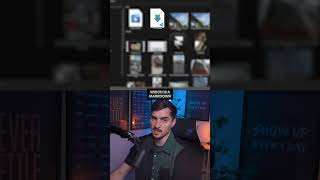
Framer Agents are finally here right within the canvas in Framer and it understands the context completely. I've got a website here, a hero and a footer section, and I'm gonna get the agent to create some cool designs. So on the right-hand side, and you'll see now you've got the agent panel right next to the style panel. So you wanna click that and we can go down and you can select your model here. I wanna be using GPT-5.5. Can use a reference image. So what I'm gonna do is I'm going to drag this reference image right into the chat. It's just a nice layout that I found for the service section. Let's say you have a portfolio and we wanna create that. So I'm gonna say create a services section, 3 core services for our design studio. And I also wanna add a hover effect. So when they hover over that section, then it will, the portfolio image will overlay. While the agent is working away, we can make changes to the website. You know, we can create things, we can do whatever we want. Be working in the background, and you can always go back and check the previous chats that you've got. If you want to add a new chat, you can just press the plus button and it'll create a whole new chat, and it will save it right in this section here. Cool. So we can see it's actually created this section here with these services, and I'm just gonna quickly preview this. I'm gonna scroll through here and let's see if the hover works. Great. So I can hover my mouse over and it's got that nice image, and we can change out those images later, but so It's got a nice hover effect and it's got all the little details, the text here. And you can see it also made it into a component, so I can double-click and now it's a component and I can change this. So if I want to change the background or something like that, we can do that. And it even created a nice little icon in here that we can actually edit. So it's using Phosphor. It's an actual editable icon set we can change, so it's not just a random image. Everything is working. Uh, it's even created the text variables here. Now I want to go a step further and I want to connect this to a CMS. Now I'm going to drop in an MD file, which is a Markdown text file, and then I'm going to load in all these portfolio images for 3 separate projects. So I'm going to say create a CMS for these 3 projects, connect it to the services section, and update all the content. Great, it's done! And it tells you what it did. It populated the existing Work CMS with the projects added, all provided copy, added the thumbnails, gallery images. So basically in the MD file, you can see I had all this, uh, just— it's just text for each project section. And let's go into the CMS now. So you can press Alt+2, it will jump to the CMS, and it's basically added all that content in. Order 2, Antler, short description, summary. It's uploaded the images, which is great. Brand identity and the hospitality group, duration 4 months, label We've got the sections, we've got the galleries, and it also added the tags, which is great. So I'm gonna go and preview that, and we can see on our portfolio page, it's actually— we already had a portfolio page, and it's actually filled that hole in with all the exact information and our images. Amazing. So let's click on the other one. You can see it used some of the Hitler images, which is fine, but we can easily tweak that. Let's go on this one. Beautiful. Yep, and it did that, that one perfect. So all we got to do is we can just go fix these images here, and I can go in here and just change the image. So now if I go to the portfolio section, let's see if the images— you can see it's all updated. Now if I want to click on a project, click on it, and it goes to the project page, which is amazing. So that all works. Now what I can do now is, as you can see, all the styles here are not— I'm going to say update the design of the service of the portfolio section to match project text styles and color, color styles. Cool. And just like that, it's updated our text. So you can see, we— before we had a condensed font, now it updated all the fonts to match our styles. As we can see, we've got all these, uh, text styles here. We're using Inter. For the text, one of my favorite fonts, and we can see the color styles here. You got a few themes, neutrals, and we've got the main blue color there. And so I'm loving where this is going. Now let's go ahead and create something fun. I'm going to press a new chat with a little plus button, and what we can do, we're going to keep it on GPT-5.5. And now what we can do in the chat is you can press dash and you get all these skills that it has inbuilt. So it's got CMS, Component, code, review design, ask me, style, and analytics. So we can actually tell it to do all this. You can also reference anything by pressing the symbol. And so we can reference any page, any collection, any component, and it will understand and read it, which is really good. Any other textiles we can change as well. So for this, I'm actually going to make a quick code component for fun, and I'm going to say 3D rotating Spiral as you scroll down with portfolio images. So we can always start off just with a simple prompt and we can collaborate with the AI and tweak it and slowly get it to where we want it. While it's creating that component, I want to explore some more hero sections as I'm not really liking this anymore. So what I can do is go new chat, 3 new hero designs in the in Design Pages. I go back to the home page and you can see it's making this custom— made this custom code. Now as you scroll, you can see the images move. That's pretty cool. And then we've got our portfolio section. That's very fun. And I just want to update those images. As you can see, and we can scroll, looks super cool. And we can go ahead and tweak this, like we can, we can remove the glow. We can space everything out. We can change the designs here. It's created this component, completely editable, and I love how we can just change the view width and height. And what else we could do? We could do radius, you can do rotation. Now I'm gonna go to the design pages as well, and we can see we've got 3 separate designs that it just created for me. These sections and everything is editable, so we can go in here at this text and I like the shader that's creating the background. Very cool effect. And I did say similar to the one we had right now. So we've got this one. That's nice. I like the, the border within here. And this one's kind of nice as well. I might just go for this one. So because it's a design page, we can just duplicate and we can come in here and just customize everything. Go to the home page and I can come and drop this in. What I love about the Agent is that it can actually generate the breakpoints for you. So we can see you've only got the desktop view. I can go to plus and click generate, and it's actually gonna make those responsive designs for me. And there we have it. We've got the tablet view and the phone view. And let's just go and test everything. Beautiful. Everything seems to be working here. And let's just go to phone view. Scroll back up. There's just one little thing here that we need to tweak, but I think it did a great job. Like, everything looks exactly the same, everything's working, and I didn't even have to do much. I just have to like go in here and like tweak this. I'm just tweaking this stack to how I want it. And let's go back to phone view. Beautiful. Now, one other cool thing. I'll go to my other portfolio website that I have, and there's something called branching now. So if you see in the top center where my name of my project is, there's something that says main. If I click on that, it will go to the branching. Now you can make changes with AI on a separate branch and it won't affect your main page design or your main branch. So I can change it from auto to manual. I can also click the plus button And you can see that now when I make changes, let's just say, hey, um, go to the agent and say change the fonts of the hero to something elegant. You can see that it's updated the fonts in this section. And now what we can do is if I click on the branch, you can see that it's made changes to here, but it hasn't made changes to the original branch. And so when you go to publish, it will only publish to that branch. So if you're working with a team or with a client, and they want— you want to see a different version of the site, you can do this as a great way to prevent you from breaking the original site that you currently have, or the original design. I can come here and you can see we can merge to the main, and if I do that, it will make changes. It'll make those changes to the site and it will save it. I can always come here, and if I click on the main branch, you can see this is the original design, and the other one, if I click on it, you can see it's got the new design. So working with agents is a lot faster when it comes to building websites now, and we have still full control over the creativity. And I just like how we have, it's really easy to just talk to the agent. You know, you do get free credits every month. So I think that's good. And you have the ability to add on more credits if you're a crazy user and you wanna do it, using it for everything. If you wanna check out Framer, I will put my link in the description below. You can try it out. And if you wanna see another video just like this, you can watch this video right here.