Jeremy Mura shows how to capture any website into Figma using DivRiot's HTML2Design extension. Install it, pick a viewport size, click Capture Page, paste into Figma with Ctrl+V, and get a fully editable design with all the original structure intact.
Chapters
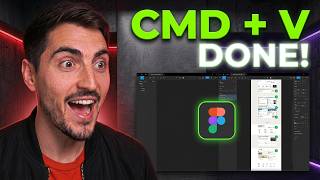
You can now copy any website into Figma without a plugin. Just copy and paste, and I'll show you how with the updated HTML to Design plugin from DivRiot. All you're going to do is download the browser extension from Google, click on the icon up the top in the extensions, then select your size for the viewport. We can do 1440 and we can also do a mobile view. I'm going to click Capture Page. Now what I want to do is go straight to copy to clipboard. Just click that button, then all you got to do is just press Ctrl+V and paste it into Figma, and you're done. You don't have to open any plugin to load anything. It's literally just paste, and I've got the full website up now. You can see I did the Notion website, and everything is fully editable. So I can go into the stacks or the frames here, and I can edit the text. We can, we can move elements around. We have full control over the design, and we have all the layers on the side— containers, sections, and everything is right there. It's great for ad hoc tasks, or if you're just trying to study. I also did Feastables as well as another example what it can do. As you can see here, you've got the Feastables website from MrBeast. It was able to copy everything exactly as it is. The design is all there. And let's say I want to move things around. You can see the elements, and we've got all the views that we selected for this one, the tablet view, and we've got desktop here. A design, or even get inspired by other websites out there. The HTML2Design plugin works really good. You can actually check it out. I'll put a link in the description below. If you do wanna get some other website inspiration, you can check out this video right here.