Framer Just keeps Getting Better
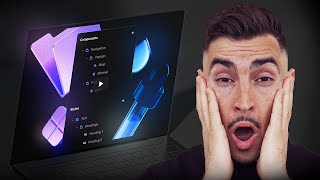
Jeremy Mura walks through Framer's latest features: folders for organizing assets and styles, a new analytics dashboard tracking page views and bounce rates by device and country, and a growing plugins catalog including shader gradients and pattern studio.
Questions this video answers
December 10, 2024
88 plugins
Jeremy ("Jeremy for 25 off any site plan")
December 23, 2024
Chapters
I want to share some new Framer updates that I think are really great. It just keeps getting better and I love how they updating it. And there's new plugins and a whole bunch of things. So I want to quickly show you in this video so if you go on the website, you can check out the new updates. So they released this basically just last night and here's all the updates. So you can add folders, nesting, sorting, support, the assets updates, the badges, you got alphabetical sorting and you got a tap highlight property for the styles, which I'll show you this in a minute. Then you've got some improvements here as well, so icon sizes, color styles and a few other things. And then we've also got the analytics update, which was about a week ago. So December 10th they posted this. Yeah, they got the framer analytics as well, which I'll quickly show you. So let's jump into Framer and I'm gonna show you how to use this folder. So on the left hand side, if I go to my assets section, you can see components and you can see now we've got all these, this nice icon with a folder icon and in styles I've got a blue one and this one's a purple one. So you can see if I open the tab, I've got my component in. As you can see, we can click the little plus button and you can actually create new folder. So if you want to create something, maybe just say grids or something. We have a new folder as you can see which is in the projects. You can actually move the folders around like this. We can also double click on a component and if you want to make a new folder based on that name of the component, we can just type in and you can put a dash, press enter and it will make a new folder called Home. And we'll put the component inside that new folder, which is super cool. So that's a. Makes it a bit faster to use that shortcut. So we've got grids here, which is super cool. Now if I go back to home and let's just say I want to make this a component, right click Create Component. I'll just call it Grid 1. You can see got the component in there, I can drag it and just drop it into that folder. And now we can see you've got Grid one there. So it's really easy to use, really easy to have folders within folders. It just makes everything neater, a lot cleaner when you have a lot of components and assets in a project. It's going to get messy. So this makes it a lot cleaner. We've also got styles as well. So we can go add some folders in here as well. So if we press the plus go to text, you can see it says new folder. And we can go, let's say paragraphs and we'll do one for like headings. You know, maybe you want to do links, quotes. You can do a whole bunch of things here, as you can see there. And then maybe you want to add like a. Let's say we're at a H1 style. Let's just go text H1. Let me just go. I like doing it short. So we'll do H1 and this one. Maybe we're gonna. We'll just use inter for now. And then let's maybe just say we want semi bold and the size will be like 100 or something. So we've got the H1 there. And now for example, go to the text styles as well. So let's just say we select this text. I can click go to the right side to text styles. Then now when I click on the styles bar, you can see we've got those folders pop up. Let me just drag this H1 in there and let me just make a paragraph text into 16. We'll just leave that, I'll drag that into the folder. And then now let's click on. I'll go back to this text, go to the text panel, click on styles. And then we've got the two folders. You can see the body copy there in H1. So it just makes it neater when you have so many different textiles, super easy. So then if I select this, it's going to change that. And then We've got the H1 as you can see. So you can quickly manage all that in the styles panel, which is really nice. So that's how you use the new folders. Now when it comes to the analytics, as you can see, it looks like this. I don't really have any live sites with a lot of views on it. So obviously this is an example. This is on Framer. You can see it shows you page views, bounce rate, unique views every session, pages and sources and countries and devices. So it's pretty straightforward. It's really clean and easy to use. It reminds me of Umami, which is a free analytics tool that I use because I just don't like Google Analytics. It's just too messy and complicated and there's too many things, features and stuff. So I like using this. It's simple. So it's pretty simple, like pages, references, countries. So it's a similar thing to this. That's why I like this update that favor has got here. Not complex. You don't even need any cookie banners as well, which is good because it's fully anonymized and GDPR compliant. And yeah, it's easy to track all your views on your website. All you got to do is just go to the top, right click the little analytics bar and then you can filter by last 7 days, 30 days. You can even select the dates if you want as well. So if you want like a specific date and it'll give you all the stats there. So it's bare bones, minimal. But that's all you need when it comes to analytics, just to get some quick data. Now some other awesome updates is that there's new, brand new plugins. They actually have a total of. If I go to paid and free, they've got 88 plugins. Now when it first launched, you know, months ago, there was only like 15 plugins. Now there's heaps. So if we just look at some of the free ones, a lot of fun ones, we've got effects, you've got shader gradients, smart quotes, color contrast. You've got some icon packs as well. You've got some patterns. Asset manager Lauren Ipsum, which is great. Some color palettes, styles, a whole bunch of cool stuff. Now I'll show you a few of them. Let's go back to framer and I'm going to show you this one. You got this shader gradient. So what you can actually do is we can add this. We just go to my layers. And then I'm going to click add shaded gradient. It's going to add this and it's got a few presets. So if you click the arrows, you can see you get a few different ones and it's going to add that. You can also add a link there and then you've got the color palettes there. So really easy. And what I can do is just drag it in and we'll make that 100%. Now we've got this fun moving gradient, which I think is super cool. Now we've got this other one, a pattern studio. You can add some grid lines, dots, basically whatever you want that they have in the presets. You can filter it by the type. So let's maybe you want some stars or dots. Let's maybe go. Let's go. The diamonds you click customize and you can actually change the colors. So let's say we want white diamonds and the background color, maybe we just make it black for now and we can turn it off as well. If you just want transparency, which is good too, maybe you want colored dots like this and then you can change the opacity, you can change up the stroke width as well, you can change up the angle and then you can click Apply Pattern. So just select your stack and click Apply Pattern and let me just delete the shaded gradient and it will apply that pattern to your stack. And if you want to update it, maybe you want to change the color and you click Apply Apply and it should update or add another one in there as you can see. So if you want to change that, you can download the SVG as well and you can also copy the code or copy to your clipboard and you can use that. So those are a few fun plugins. So definitely check some of these out. Play around. I'm not going to show you all the new ones because it'll be too long. So they'll play around with that. Super fun. So yeah, super stoked at framers updates and where they're going to keep updating the platform and it's becoming better. So yeah, if you are someone that's looking for a new platform and you want to try it out, use my code. Jeremy for 25 off any site plan. I'll put the link in the description below and I recommend trying it out. If you want to see some other tools in Framework, I do have a video right here that shows you the top tools to speed up your design workflow. Check it out.