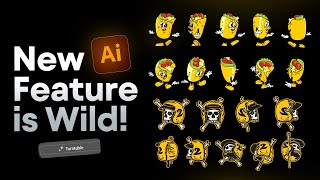
YouTube video by Jeremy Mura demonstrating Illustrator's new 'Turntable' feature (shown at Adobe Max) which generates angled views/iterations of grouped vector artwork and logos. The demo explains how to access Turntable in the Illustrator beta via Window → Properties, describes workflow (dragging the contextual bar, inserting views, resetting views, using arrows for ±45° angles), limitations (may lag on complex artwork; imperfect generation for fine details; live text isn't editable after effect), and recommended use cases (illustrative/3D-type logos, esports, characters).
Chapters
This new Illustrator feature will cut down your illustration and logo design time in half. It's called Turntable and they showed it at Adobe Max last year, finally on the Illustrator beta. So if you don't have Illustrator beta, go to CC Cloud and go download that. If you don't know how to download that, just go to Apps and go to beta and install that. Basically what you want to do is you want to go to Window and go to Properties. So I'm going to have my Properties window here and it has to be a group or so you can have text and vector or just vector only. So I've got this vector in a group. If I click on it, I go to the Properties. You'll see this little icon. He says turntable with the two stars. You want to click that and it might say, oh, the subject might be too simple or too detailed. So try and do it on logos that don't have too many shapes and vectors going on because it might lag. Great. So once it's done loading, it may take 30 seconds, it may take a couple minutes, but you'll get this pop up bar, this contextual bar. And so what I can do is I can drag it to the left and. And you can see now it's created the back of the helmet which is super cool, but you can see how it's not perfect. Like it won't do it didn't do some of these shapes and the flag and the shapes and the feathers on the wings. It doesn't look 100% but I think it's still pretty cool to work with it and edit it. Now if I go the other way, you can see we've got a different version of that. And then maybe you want like this is pretty cool, like this side view. And then I'll go in here and then like maybe clean up the shapes, you know, maybe delete some shapes. Whatever I want, I can always come in here. And if I select it again, if you do make changes, it's okay, you can click on Turntable again. And because it recognizes that shape as that you've already used the turntable, you can go back and edit it. So then I can just go back, click Turntable again and the bar will come out. Then I can do this. Now cool thing is you got these two arrows. If I click the down arrow, it's going to change on a 45 degree angle from the top view. And now if I click the up arrow, it'll go back to the center view, just standard. And then if I Go up, it'll go minus 45 degrees. So now it's from the bottom view and I can spin it, which is really cool. And I can just duplicate it holding alt and shift. I can go back to normal view and I can just like keep doing iterations if I want to save multiple angles. This is great to create a whole logo suite. It's great for illustrative logos, 3D style type logos. Even like esports logos would work well. But you can also use it on text as well. Did example here. I use it on this text here and you can see what it does to the text. It's live text, but you can't edit it. Won't let you. Even if you do edit it, it just doesn't work. So if I type something in here and do the turntable, it just goes back to the original text as you can see. So I did test that out. Yeah, it was good. I did it. I tested all one of my old logos I did for a client. You can see this one. I'm gonna rotate it like this and it's like it's a wheel with a lightning bolt. I think it's pretty cool. If you want to suss it out about a different angle, I think it's really cool. Now what you can do is click the Insert view button. Instead of copying, you can do it like this way. Insert view. It just makes duplicates of the logo as you can see. That's a quick way do iterations. I think it's super cool. And then if you want to reset the view, you can click this little reverse arrow here, click that. Or just go back to the original logo view that you had at the start. And then. And then you can flag it or up it, whatever for feedback. But I don't bother touching these tools. But that's basically how you do it. You can also click and move around. But I think it's really cool. You can play around with testing it on some of your logos. Just make sure things are grouped so then it gets all the little details. Here's another good example of like a 3D retro illustration. These type of logos, it works perfect for. For like characters play around with it. I think it's great. I do have a class on skillshare where I break down all my top favorite tools in Illustrator. So if you want to go a bit deeper, maybe you're a beginner. I'll put a link for one month free for new users in the description. Thanks so much for watching. If you want to see another tool in Illustrator that I love. Check out this video here. It's really great for creating logos.