This AI Designs With You On the Artboard (Lovart AI)
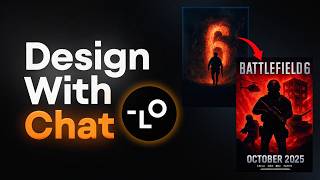
A YouTube tutorial/demo by Jeremy Mura showing Lovart (Lova) AI’s new Chat Canvas feature. The video walks through hands-on examples: editing a Battlefield 6–style poster (changing title text, removing/adding elements like tanks, soldiers, explosions, rim lighting, contrast adjustments, textures) and creating a mango-smoothie poster by combining four reference images, applying photography/typography styles, and iterating via chat comments. The presenter explains shortcut keys (C to open chat, Shift+Q to apply queued comments, Shift+R to send comments to side chat), chat-context linking (Locate chat context), adding comments to a queue, running or previewing changes, and managing multiple chat contexts for separate design tasks.
Chapters
Lovatt has dropped the new Chat Canvas option, where you can actually edit anything on the Canvas and act like a collaborator. Lova just made it super easy to make any change to any design with the Chat Canvas feature. They just released it. I'll show you how to use it. Now, I've got a few use cases here. I was generating a battle 6 beta poster design and it came up with this. And you can see we've got four different designs here. Now what I can actually do is, with the new chat on Canvas, you can press C or we can click the little chat box or little speech bubble on the bottom. You can press C and then let's say we like this middle one here. I can say click on here and say, I love this title effect. Can we change the text to, let's just say Call of Duty, for example. And then I'm going to press Enter and. And then what's going to happen is Lovat AI will talk to you and it will basically give you the context so it understands what you're saying. So it says you want to change the Battlefield title to Call of Duty while retaining the current text effect. And then we can say yes. So you can just chat to it like you're normally doing your normal editing. So then what happens? You can see it says updated in queue. Now what you want to do is add all your comments first. Then in the end you can run all the comments in the queue or you can run it straight away. So if you go down the bottom, you can see it says run all the shortcut keys. Shift Q, it will just apply all the comments on the canvas. Or if you press this little arrow here, shift R, it will send all the comments to the chat box on the right hand side. So you can have that context and preview on the side if you want it. So it just depends what you want first. I'm going to typically go through here and I'm going to change some items. I'm going to say maybe add a tank. Let's go reduce contrast, remove the number six, add more explosions and let's go grunge, texture, fire, sparks and foreground. Press Enter. So now we can go ahead and click on any of these comments and it'll show you what the AI is doing and also add to the queue. So it's adding all these comments to the queue. You can see that it's orange when if you haven't checked it, but if you click on it, it'll go blue just to show that you've checked that and then what I can do is I'm going to click run all and and now it's going to go ahead and generate another poster here. Now the cool thing with Lova is it actually has chat context so you can see how all these poster designs are within this box or this frame. You can see if I left click this and click Locate chat context it will find the context of where we generated this poster. As you can see, I recently did it for this project and so it allows you to connect multiple contexts every and keep track of what you're doing for that project. I can obviously like move things around and stuff. I can even pull things out like this and I can edit, edit it outside of that. So you can see what it did. It changed the text which is cool for that title. It kept the beta arrives. It added a tank which is nice. So you can see compared to the other one it got rid of the letter six which is nice. And what else did it do? It added some more sparks. So you can see there's some more like fire sparks on the floor on the side there a little bit. Whereas before there wasn't that much. So I think this is really, really cool. So we can just keep doing this and continuing. And you know I can say and so it understands the context is really cool. So I can say add another soldier here that has a sniper. Reduce the contrast, add more RIM lighting, add more orange on the soldiers entire. Let's say move beta arrives to the bottom of the poster. So I'm telling it to move the text. She's super cool. What else do we want to do? Another cool thing as well is if you stop typing it will give you suggestions. So I said add foreground elements of A and what it did is provided a pre prompt. So it's pre made. Prompt Call of Duty game person ensuring they're distinct from the background and position. I'll press tab and we'll add that and let's run that which I think would be super cool. Cool. Now let's click on the poster design. Now it's looking pretty crazy. Like I love that rim lighting. It added that. It added another shoulder soldier. It has with a nice sniper or rifle there. It's moved the text from the beta arrives on the top to the bottom. It even had rim lighting to the Call of Duty text at the top which is cool. Added a tank and yeah it just added overall more details with the rocks and refinements. The soldier looks pretty cool. It is very contrasty but I can always like say hey, let's maybe change the color scheme, add less effects or add some more text. You really can do anything you want. And it's all gonna be within this context. And see because I sent it to the, to the side it now if I. For example, let's just scroll to the top. If I click on locate chat context, it says you've switched to this chat. As you can see the little green bar. So now when you make changes or apply the comments, it's gonna apply to that chat. So just be mindful of that. Let's say add more army gear to the soldier. Add more dust particles and grain, make title larger. Say add helicopter. We'll just click run all. I'm gonna go ahead and show you another use case. So I've got these four images and I wanted to do a design. So what I'm gonna do is I'm gonna say use my comment my channel canvas again and let's go with use this style of photography for a smoothie called Mango Smash. Add that to the clue. I also want to click here and say use this fruity pattern but add mangoes mean fruit, the background of the poster. Add mango elements exploding, exploding from the smoothie glass. And then I'll say use this typography style for the poster design. Come up with some other also create a slogan for the poster. So while that's doing that, I go to the bottom and I can see all the comments in the queue with this little drop down menu, which is really nice. You can also delete any of the comments if you don't want to want the AI to apply the effects. Or you can left click on the little target and I'll show you where that image is. I'm gonna go ahead and I'm gonna run all those comments and, and then let's see. So while that's still loading, what I'm going to do now is show you a different context where you can actually send the comments to the chatbot. So then it creates a context. So I've just had these four images in a frame that I created the AI to combine all these elements to make like a fruity poster, say for like a smoothie for summer or something like that. So I can, I can comment and say I use this style of studio photography for the main product which will be a smoothie, a mango smoothie cord. Mango Smash. Press Enter. Use this style of pattern but add mangoes as the main fruit. I'm going to press tab and I should. It's giving me some premade Prompt there. Do that. Use this style of mango floating around the glass. Also add pieces on the side of poster. Use this style of photography. Cool. So now what I'm gonna do, I'm not gonna run all, but I'm gonna press shift R and send the comments to the chat bot or the chat on the side. So it will combine all my comments and it will recognize the four photos and put it inside here. So now I'm gonna do the same with. But with this context we're doing a mango smoothie. So I've got these four images with the four comments and I'm going to send two comments. The only thing is you can't have multiple chat contexts running at the same time. So the bot can only do one at a time. But I'm sure in the future it will be, you know, you can do multiple. That would be really cool. So now it's going to take probably like 20, 30 seconds and let's hopefully see if we can combine these four elements to create a mango poster or something like that. So now the bot is recognizing that it's a different style. So it says let me analyze the reference images to create a new poster. So you just got to give it the right instructions. I'll say make a completely new poster not related to the Battlefield 6 poster. I'm going to select these four images, add to the chat. Now I'm going to say add a mango smoothie poster. I'm going to go for this one. A bold typographic pop, large mango letters. Let's go with that one. Let's do another design but do like a mango inspired design. And we're going to be using some multiple elements. So what you want to do is go to the chat and click on new chat, right click. And I'm going to send all these to the chat and I'm going to say let's design a mango poster using these elements. So for the direction of the mango posa, I'll go with number one, a tropical smoothie hero features a smoothie image and let's see what it creates. All right, beautiful. So now we can see that it's out of those elements and it's put it within a chat context. And now I can make some changes and add some comments. So we've got Sip the sunshine mango smoothie order now, which is cool. It's using a similar glass compared to this image, which is pretty accurate. And it even added that like mint leaf. It recreated that, which I think that's pretty insane. This one not really I don't like. That one's pretty kind of lame. This one has like a sunburst. I like the mango sort of sitting on that nicely. What else? I don't know. It feels a little bit bland. This one has a bit more like, gets your attention, but the text is a bit messed up. So I feel like the first one works really well. So I'll say, you know, add more mango slices, make title smaller to number one Mango smoothie in Sydney. Let's go that. And we'll just say buy at Tropical Store. Also make buttons smaller. Also, I'll say that. And what else? Change color of the smoothie to more orangey. Add floating raspberries. Remove the mint on top with fresh cream. Let's go say change font to arounded sen Serve font. Cool. And I'm gonna run that and it's gonna go ahead and generate this and then these ones I can just, you know, shift, delete. And we've got that context, which is cool. So now when I left click on Locate chat context, it will take me to that specific chat that we worked on. So you can see changes the battlefield one. You can see the title here. And if I go down to this one locate, it will change that new chat. And. And if you want to work on a different design, you just go to the top and click new chat. And I'll say, hey, hello. And then we just work on a new task. And then so that's how you separate the tasks out, which is really cool. Awesome. So you can see the new design added some raspberries and mango at the top. It changed the drink to more of a mango drink. There is a lot of orange, so I'll probably change the foreground. Sorry, the background color, it changed the text here pretty good. Obviously, if you zoom in like it's not upscaled yet. Buy at Tropical Score, which is cool. Sip the sunshine. It did scale it down, I think slightly. It changed the gradient though, a little bit. It looks a little bit less, but I think that's really cool. So there's just few you case use cases of how you can use it. So I think it's awesome. I personally think this is a good update because I like being able to just quickly add comments and it doesn't mess up my workflow when I'm trying to just make changes or add things here and there, tweak the designs, the colors, textures, whatever. So I think this is really cool. If you want to try out Lovat, I will put a link in the description below and give it a go. You can play around it for free. But I think this is a lot of fun if you want to use AI as a collaborator and make it easy just to design whatever you want. If you want a beginner's guide on how to use Lovart, I actually have another video right here that you can watch that will help you get to know the basics of it.