Coloring Book Fishbowl
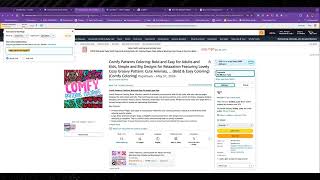
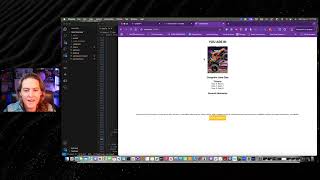
Madison Doherty Tipton walks through building a ClickFunnels fishbowl funnel to sell coloring books on Amazon KDP. The lesson covers designing a giveaway, setting up a newsletter, and converting free users into customers.
Chapters
Foreign. Hey everybody. In today's lesson, I want to do something that I have not done in a while. We've not actually done it as a lesson together in a while, which is to build a brand new fishbowl funnel from this screen right here inside clickfunnels. Completely blank. I have an idea, I have a concept, and I am recording this to save a little bit of time so I can pause it while some things render and everything that happen. But I want to walk you through from the start to getting ready to launch the ads. And then maybe in another lesson we'll actually go through and analyze the ads a little bit. So what I want to do is figure out a fishful funnel that I could use to sell coloring books on Amazon kdp because there is not enough margin in them to sell them the traditional way. So here's my thought process. Here is exactly what I want to do. I want to do a fishbowl funnel that will attract people who love coloring books. I want to a then get them on a daily newsletter where they're going to get a single coloring book page to color every single day. Let me use Beehive to fulfill that. I don't know if we're going to get to that in this lesson or not. Just depending on time in each one of the pages. I'll show you. The pages that I'm going to do is going to have a QR code. The QR code is going to link them back through to Amazon to the full book. But there is an asterisk to that. It's going to be an affiliate link. So I'm going to get the affiliate commission through them going through my link to buy my book. Right. And if they don't buy it, hopefully they're going to buy something else. So this is what I want to go through. So what I want to build today, I have a brand, it's called the Coloring Corral. And we're going to kind of make this a themed page that is going to hopefully attract people in that like coloring to buy my coloring books. So with that being said, I'm gonna flip over to clickfunnels here and then we're gonna get started. Okay. Like I said, I am going to do this from the very beginning. A lot of times if I have a template, I will use a template, I'll modify it, but I'm not gonna use a template this time. I'm actually going to build this straight from scratch. And I'm going to call this One Year of Coloring Books. Basically the thing is, it's going to be, do you want to win one year of coloring books for free? Which you're going to get a brand new book every single week of the year. So. And I'm going to hit create the page. Like I said, I am starting from absolutely brand new. Nothing to it. So while this is coming up here, I'm going to open up another tab. I'm gonna go to a website called freepix. And I want to get like a wood cartoon plank is what I want. Just because of the design. I'm gonna pause this while I'm gonna actually use this one. I'm gonna grab the graphic for it. All right, so now I have my background that I use. I'm going to go up here to Settings background. Turn that on. I got to upload the photo. I think this is one of those times where it's like you. You really hoped that something was going to work, but it. It just may not work. Okay, we're actually gonna. We're gonna scrap that because I don't. I don't love that. I just don't love that. So we might come back and do something different. We start with a single column and I'm gonna actually ask. I said, you want to win one year coloring books? I'm going to put a subtitle in. Put the little guy in with the little emoji. So now what I gotta do is I gotta go over to Amazon. As you can see, I kind of already got a couple of ideas for products. I come through. I'm going to save this image. Maybe I'll also grab colored pencils. I'm gonna look for something that's gonna look good on the image that I have in my mind that I want to do. Let's see it. Here's this one as well. Those look nice. Maybe I'll also grab these. These are kind of cool. Save the image. Now I'm going to go over to Canva next and create my giveaway image. Now, here in Canva, I always like to use a 1200 by 1200 pixel, just because I know that this is like an ideal size for Facebook or Instagram. So I'm going to stick with that. I'm also going to go over here and grab those images. I saved these guys right here, and I'm just going to drag them here, shrink them down a little bit. I also got to remove the background. Move the background. Move the background background. I'm just going to kind of arrange these. Kind of what I think would make Sense a little bit. Bring those guys down a little bit. It's a little big. It's not the prettiest photo because they're a slight bit blurry, but that's okay. The next thing I want to do, I don't know that I'm gonna have completely all the space to do this. I might actually bump this guy down there. I want to make sure the shadows don't go off the page. Actually go up a little bit. And I also got to come through here and grab the other books that I would do that. I would give away other things like that. So we go over to Amazon and I did use a pen name to be able to write these. And if I don't love them, I can just junk them. I'm actually just going to take. Go like this. If I don't want to take the screenshot save image of that one. And I went too far back. And these are all ones that I've made with Mid Journey in the last couple of weeks or so. Pretty simple, easy things to do with AI once you get it kind of figured out. And there is one more. I just got to add this to this image. Now. Oftentimes when you get something you like in here, it's. It's sized right. It's easier just to like control, copy, control, paste, and then drag the other images into it. This, this, this. I need one more going. Have to grab one that I don't have. I also don't want them to completely all be mine because I want them ultimately by mine as well. So what I think I might actually do is I might actually come through and shrink all of these guys down like that. Actually gonna make just a whole nother row of them. I'll probably make one more. What I'm gonna do some of these is I'm also gonna add in some just like drawings that I have. I have these in separate little f. Kind of like a combo of, you know. Give this a minute to catch up. All right. I figured out what I was doing wrong. I was dragging it actually from the project because of the new Canva. And so now that I got actually into the folder and not the actual project I had it in, I am able to drag these in. So definitely want to make these under my folders. And I think I'm going to do. I've actually kind of decided is that I'm going to actually take and keep these pages. Pages. I'm not actually going to use the covers of the coloring books. Just kind of want to utilize the pages from the different books go over here. Grab a couple more. What I want to do is I want to go over to my layers. I do want to grab all of these, group all of them together and slide them to the very back. Unfortunate thing is I should have added a little bit of a back shadow to each one of these shadow. This is just going to give it a little bit of dimension for these images. All right. We're going to give this a little bit of time to render and we will be back. So as you can see, I have some dimension in there. It's not perfect, but we will actually. We'll just roll with it. So I want to say when a year of I'm actually in change this font. Now what I think I'm actually going to do here, I'm gonna say right, I'm gonna say win a year coloring club. This is not currently a thing but if it gets people excited, maybe I'll make it like a. Even if you didn't win myth key type offer. Right. When I do the the big grand prize announcement, right, I gotta make this. I want this all to be online and I'm going to say on this one plus more right? Make this one a little bit smaller. I'm also going to come up here and add a border around this one. This new canva has me all all confused these days. Okay, drag this down here. I think I'm gonna have to do on my outline is I probably want it to be the black pretty thick. All right. Now I'm going to export this as a PNG with a transparent background so that whatever I choose to do on my funnel page, I have the option that this is already transparent, right. So people are gonna be like how you get all these. Plus don't know what coloring club is, but you know, it sounds pretty awesome. So gonna get a year of it all right back to my funnel page. So I have a year. You want to win a year of coloring books? Find out more section. I'm actually going to go, I want this to be a two column row and I am going to use a sub headline free to enter when all of this and more then come through here. And I'm going to add an element which is going to be my photo. I'm going to upload my photo here. I'm add my photo in and I'm actually going to change this from being this light to I want it to actually be white and I might actually come up here and I'm gonna make this colored. Um, but I am gonna have to make some changes to the style guide. But to do that now I'm just gonna go to a background. I'm gonna go with a gradient. I'm gonna make this kind of a purplish, pinkish, something like that. Make this so it stands out a little more. That works for me. And I'm going to do headline. I'm actually going to start here and I'm going to add in a paragraph. Actually going to open up our friend chat GPT it. All right, I'm just going to take this, click funnels, plop that in there and add a button. Click here to enter. Is going to open the pop up and I'm going to come down here, put a divider in. Just kind of want it to be somewhat noticeable but not super noticeable. Actually going to go with grand prize winner bounced in with a, a countdown timer. And I'm going to do my countdown timer to be let's say the 1st of August. And I always kind of like them to end on a Friday. Now I want to show days and I don't want it to show seconds. Okay, now what I want to do is show my pop up and I'm going to say step one. As you guys can see, these are still super easy, simple funnels to build. I'm going to go. I don't want text input. Nope, don't want that one. Grabbed the wrong one. Input, input button, first name and email. All right, now at this point I can move on to step two in the funnel page. New page. I always like to call this one. Almost done. Add section up here. Single column. Do our favorite. Wait, I'm going to say hey, make sure you complete the steps below. Make it a little bigger. Override. And now what I'm going to do is I'm add another section. Add. You can make this. Actually, I think I'm actually going to go with a two column row. Make that a little easier. Give this a background of white for the shadow, some borders. I want some corners on it. Okay. And now I'm going to say here, I'm going to say step one. Now while I'm also here, I'm. I'm just going to clone this. Oops. Before I do this, I want to make sure to give myself a top margin. Let's go 20. So that when these clone down I have the space that I need. All right, so step one, I'm gonna say join our daily coloring newsletter. What I always like to do here is now remember this is where they're Going to learn if they've won or not. So I'm going to add that wording in here. It I do always like to add the little sub. Sub headline of you are already on the list. Okay, now what I want to do, go over here, take our survey, get 3x. And so I might actually say five entries. So if you guys watched the one funnel away for Ecom, this is actually a Trey Llewellyn thing where they take the survey and that's just done on a Google form. So let me grab the link for that. I'm going to shorten link, copy that back to click Funnels. Okay. And then step three is going to be tag three friends in our post. Going to add a little element underneath it, tell them a little more information, do and okay. And then I'm gonna go step four, I'm going to say the handy dandy. Last one of. Get this guy to drag down here. Okay. He's not cooperating to our email. Oh, I actually going to have to enable these differently because I want to do. This one's actually going to turn out to be five. This one's going to be four. This one's going to be three because I'm going to add another one in here. I'm going to copy this one. This will say check out our books on Amazon. Turn off the check mark at the end of this, I'm actually gonna say get 25 bonus. So technically I'm not, I'm not asking them to leave a review. That's kind of one of those key issues that I don't really, you know, that's not really kind of allowed by Amazon. But I do want to be brought up that like, hey, if you do leave a review, we're going to give you 25 bonus entries, as I said, for each book you purchase and review, you leave. I'm just going to come through here and grab images. Images, make this none. Get rid of the padding on the sides, add in the covers of the books. Now the other thing I want to do is I want to add little image that's going to look like a button, but it says buy it now on Amazon. And what I can do is I can actually just go copy image URL, go back over here to click funnels. I'm going to come here, add an element underneath that's going to be an image, paste it in there, come through, make it oops. Not that I wanted to grab the image, get about 59% works for me. And actually when I come through and I'm actually going to clone this whole row and then just change out the images for the other two. Grab this one as as well. Now I'm gonna do over here on Amazon. I'm actually gonna go back, I'm gonna grab the URL, the affiliate URL for this. What I'm gonna do is when you click on this and add an image there, the URL there and when you click on the button image, I'm gonna add that there, there as well. And I'm basically going to go back through and do the same thing for all the other books. The other coloring books. Oops, I did forget one. I did forget Summer Paradise. So you guys can see it's just super easy. I'm just copying the links over that one. Is this one up here. Make sure you have the right one selected link in there. Link in there back to Amazon to grab the last two. And if you guys want to go and leave me a review on Amazon, I will greatly appreciate it. Buy coloring book. I'll greatly appreciate it too. So I'll put this in here. Make sure I grab the right links for everything and then I just got to add the comfy pattern one next. If you guys want to know about like why I came up with this, then just drop a comment down below and we can go over kind of a 10,000 foot view of how I learned this and how I'm finding these coloring books to do. It's not that I'm really into patterns by any means, but they all have a reason behind them, right? Just like everything else. Same with like, you know, the step three of taking the survey, different things like that. So at this point I am pretty much done from start to finish. I would just add a couple things in here, hook up one minute for emails, grab a URL. But in about 40 minutes and a little little more than that, this page is ready to go and I can make just a few tweaks in terms of like a URL, um, and it'll be ready to actually turn ads on. So we will come back next week and we'll give you kind of an update on where we're at with ads and if we made any tweaks to this page. But otherwise have a wonderful week and I will see you guys all next week.
More from Madison
STOP Selling Like This! Do This Instead 🔥 (Marketing Secrets) #digitalmarketing #contentmarketing
The #1 Reason Your Funnel Is Failing (Fix This!) #digitalmarketing #clickfunnels
Hook-Story-Offer: Simplify Your Funnels Today! #FunnelsMadeSimple #DigitalMarketing #RussellBrunson
Funnels 101: Stop Selling, Start Building Relationships! 🚀 #ClickFunnels #FunnelsThatConvert