SalesVu walks you through building an art gallery website from scratch. You'll edit logos, link social media, add products to sell, set up payments, and publish with your own domain.
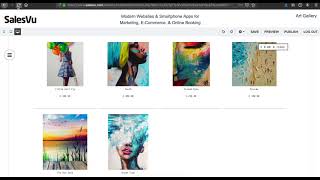
Hi. Today I'm going to show you how to create our website using an art gallery template. So I'm going to click Create a site and here is our template. If you need specific requirements for your custom website, you can click this, enter your name, email address and the requirements and we will get back to you as soon as we can. Let's start. Click on Edit. So here is the website for our art template. I'm going to start by editing the logo. So I'm going to click the logo, edit image and upload my own logo. Here is our new uploaded logo. I'm just gonna drag and resize the image, show you how to link your social media. So we have to scroll down click on the Facebook. So if you have Facebook, Instagram or other social media networks, you can copy the link and then paste it on the sales view website like so click on Save. Then I'm going to do the one for the Instagram. Then same as with Facebook, just paste the link here and then save. So if you have other websites like LinkedIn, Pinterest, Twitter, YouTube, you can also link them below. Now, as you're going to see, I'm going to go through all the pages of this art page. So Art template has exactly what you need, like exhibition and events. A place to showcase the art and the artist. Go ahead and edit the product or shop page. If you sell your art, you can have that as well here. So by clicking Shop, then clicking on Product Add Product. So here you can upload an image of the product you're selling. You can put a name, a selling price, a description, and you can put it in a category so it's categorized. Once you've saved all the necessary information, just click Save and add new to add more products to your page so you can add as many as you want. At this point, I'm just gonna preview what our shop page looks like. So when we click on Shop, this is how it will look like. I'm gonna add a few more products to even it out. Again, click on Product. Then you're going to click Add Product and do the same steps. So upload an image, put a name, selling price and a category and then save. You can also configure the payment options by clicking on Payment. Here you can choose full payment upon delivery or pickup, make use of a discount code, enable TIP settings and allow loyalty. If you're happy, just click Save. We also have additional settings wherein you can have multiple notification email address when somebody orders from your site. We also have a direct link feature. For products. So when you click on Shop and then go to Product, those two dots, click that, then click Copy URL. So that's the URL of that specific product. Thing I'll show you is how to configure it on a tablet mode and a phone. So we can also do that for your benefit. Want to arrange the products or your website according to a tablet mode? Just click the second icon and this is how it would look like. So you can arrange it however way you want it to, how it would look like on a tablet. So this is how it would look like on a tablet. Now we're going to the phone. So when your customers look through their mobile phone, this is what they're going to see. I'm just going to readjust the logo and then I'm going to save my work. When you're ready to publish your website, click on the gear icon. Website settings, switch to Own domain, Click on the instructions and follow the instructions right there. So you're gonna copy paste this IP address under your domain. So if you already have a domain like I do, click on DNS, then scroll down, click on Add. Then I'm gonna select Type A host is at, put the IP address and points to and then click on Save. Then I'm just gonna delete the one type A that's like points to Park. Then go Back to the SalesVU website, enter the website URL, then click on Save. Click OK, then click on Publish. Then enter your domain URL, click on Publish. So now I'm going to open a new tab, enter the URL and your website is live. Thanks for watching and let us know if you have further questions. SA.
 eCommerce, point-of-sale (POS), ERP and Data Analytics platform for retail and restaurant businesses