SalesVu's resource-based booking lets studios, gyms, and rental shops manage individual rooms, equipment, or boats. Set up a service with limited sessions, add resources with specific availability windows, then customers book and pay through your website.
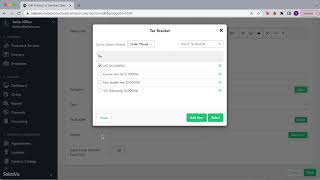
Many businesses like studios, gyms, clinics or equipment rental shops need to let customers reserve specific rooms or equipment, not just generic appointment slots. Our new reservation based scheduling feature solves that by letting you define and book individual resources directly. In salesvue. Let me show you how it is set up. So first log into salesvue.com and then click on Master Catalog. So today we're going to review how to create this feature for boat rental shop. So click on Product listing. So here you can add the new product. Once you add a new product you will see these fields. So you should fill them up. So name you can put the name type should be service price type fixed. You can select any category you prefer. You can select Tax options and then you have to select a duration. Here let's select 2 hours and then you can select the service type. Service type should be Appointment and then Membership plan type. Here you can select Limited Session and then Session count one. You can change this and then click on Save. So once this is completed, go to table Reservations or Appointments section and here click on Settings. So under settings scroll all the way down and then enable Assign availability time slots for resources type 2 settings. So this setting should be on. So after that navigate to Layout section. So under Layout section you can you will see all the resources that you have. If you want you can click on Add, then add more resources so you can name it, select the Max capacity and save. So once you have all the resources that you need, click on Manage Availability. So you will see all the resources on the list. For example, let's review Cabin Cruiser. So once you click on Configure Availability you will see you can select the days of the week that this resource is available for booking and you can select the start time and end time. And don't forget to click Save. So once all these configurations is completed, now you as a business owner you can book these resources directly from salesvue.com for your customer or your customers can book it from your website. So let's see how we can book it from salesvu.com so for that go to Reservation Calendar and then click on Book Appointment. Enter the customer information, click Next. Select Appointment, select let's say boat rental 2 hours. Select catamaran. For example you can select the date, you can select the time. Then once you're done you just click on Continue. Okay so here you can select the payment methods and then once you select will be completed. So that's how you book it from salesforce.com so now let's see how your customer can book it. So they can go to your website and booking page. So that's a similar interface they'll see. So here they can select the category and then the service. Let's say boat rental two hours book and now they will see the available option resources to made available. So let's select catamaran and then they will see the dates that are available. Example, let's select this and then they will be able to select any date based on what you set up. And then they can login or register as a new customer and on the next screen they will see a credit card payment option and that should be all with this setting. If you have any questions, please contact supportsalesfue.com and we will be happy to help you.
 eCommerce, point-of-sale (POS), ERP and Data Analytics platform for retail and restaurant businesses