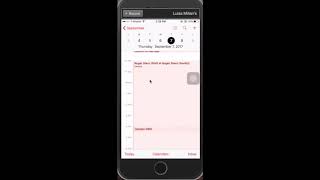
Learn how to sync your work shifts from SalesVu's Scheduler to Apple Calendar, Outlook, or Google Calendar. For Apple, copy the Calendar Sync link and open it on your phone. For Outlook, paste the link into Add Calendar. For Google Calendar on Android, authorize SalesVu to access your account.
Salesvu has made it possible for your employees to have their shifts on their phone through syncing the Scheduler feature on the Employee module. To do that, you'll have to log into SalesVU, go to Features and click on Employees. Click on the Scheduler to sync your shift with Apple Calendar, Click Calendar Sync. Copy and paste this link on your email or message and send it to yourself. Open that email or message your phone and click the link. After that you have to follow the steps and check your Apple Calendar and your shifts will be there. If you have an Outlook Calendar, that's fine as well. Go into Calendar Sync, click the link, go to your Outlook Calendar, click Add Calendar, then click from the Internet, Paste that link that you copied and enter a calendar name if you wish and then hit Save. Then you will see every shift on your Outlook Calendar. If you have an Android phone, we've got you covered as well. Click on Calendar Sync, manage Google Calendar Sync and log into your Google account. Click Allow and now you can sync your Google Calendar and your Sales View Calendar. Thanks for watching and please let us know if you have further questions.
 eCommerce, point-of-sale (POS), ERP and Data Analytics platform for retail and restaurant businesses