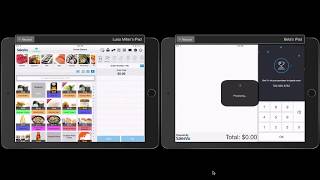
Adam Johnson shows how SalesVu's customer-facing display works on a second iPad. The merchant terminal rings up items and takes payment while the customer sees their loyalty points, account balance, and progress toward rewards in real time.
Hi. In this video I'm going to show you the newest feature that we have with sales customer face display. My iPad1 is going to be my terminal and iPad2 is going to be my customers display. First I'm going to start by adding a phone number to get my loyalty points. As you can see here, Adam Johnson has been attached successfully to the order. Now I'm going to proceed and add some products to the order and next I'm going to click on pay. Now I have my different type of payments screen. If I want to accept a credit card, this is how the tipping screen will look like. I will go back and take cash for this order. The last screen that I'm going to see is when the transaction has been completed. At this point I can either print the receipt, send it by email or send it by text and the customer will see the loyalty they earned with this order, the account balance and the additional loyalty points that they need to unlock the account. Going to click on Done. Hope this video helps and please let us know if you have further questions.
 eCommerce, point-of-sale (POS), ERP and Data Analytics platform for retail and restaurant businesses