This content was created by SalesVu Technical Support. This content was uploaded by SalesVu Technical Support. This is a YouTube video titled "How to use Invoicing in SalesVu" created on March 13, 2014. The video features two speakers demonstrating how to use the invoicing feature on SalesVu's website and iPad app, including creating, sending, and managing invoices, as well as viewing related reports. The content is instructional, aimed at helping users understand the invoicing process within the SalesVu platform.
Hi. In this video, I'm going to show you how to use SalesVU's invoicing feature to invoice your customers. First, we'll show you how to invoice from salesvu.com go to features and click Invoicing. If you don't have invoicing under Features, you can enable it from the App Center. To create an invoice, simply click Create New Invoice and you'll select your business location. If you only have one, it will automatically be populated. You can search customers with the search field here and click Search. View all your customers by clicking View all or you can skip by clicking Continue. If you want to add a customer, simply check the box next to their name. If you want to invoice multiple customers, you can do that as well. Still, click Continue. And if we're going to invoice Marcus from Men's Golf Polo, simply click Add to order. Next to Men's Golf Polo, put in our quantity here. So it's just one Polo. Choose a size, add any notes and we'll click Add to order. If you want to add more items to the invoice, click Add more items or if you're finished, click Checkout. Here you can see the invoice detail, so you can see the products on the invoice. If you need to edit or delete, you can do that here. You can see the subtotal tax. If you need to remove tax, simply click here and the order grand total. We also have a shipping status you can set here and the customer information is over here. Next, if you click Continue, it'll send that invoice. If you need to send it again, you can click here, print it and click here. Next, I'll show you how to send an invoice from the SalesVU iPad app. So if we switch to that app. So here we are on the SalesVU iPad app. Now, if we want to invoice somebody for Swedish Massage, touch that. And this is a buy the Hour product.
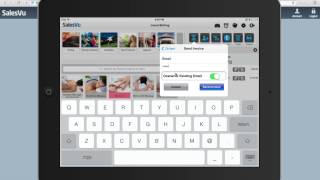
So imagine you wanted to bill them for 90 minutes. You would simply touch the quantity and put it in 1.5. This works well for any by the hour service. And we can also add additional products like a deep conditioner. Now we can either select a customer here from the list or can touch the orders button and just touch the email and put it in an email.
So in this case, let's say we're.
Going to invoice Marcus again. Just put it in his email and touch Send Invoice. Get a pop up and you just need to confirm. And this order will stay open until the invoice has been paid for. Next, let's go back to our web browser and pull up Marcus email and see what those invoices look like. So we click on mail and we can see the invoice from the pro shop, which was the Golf Polo we did first and the invoice that we just sent from SalesVu iPad app. So you can see it shows the customer detail, shows what products and services are on there and the grand total. And you can click Pay now and it will take him to a page that shows the detail and then you can click Pay now and it will pull up a credit card entry page.
Where he can put in his details.
Now, once the payment is paid, you'll get a notification via email that the invoice was paid and it'll also show paid in salesv.com Next let's go back to salesv.com and we'll go back to our invoicing feature and we'll show you that you can see your outstanding and paid invoices. So first of all, let's choose today and we'll click submit and if you have multiple locations, it'll break it down by location. So we can see the two invoices that we created. This is the one from the payment device at our beauty spa boutique location and the one we created from salesvu.com from the pro shop. So if we click the green plus button we can see some additional options. Here we can see the customer detail. If you need to re email it, pay it, click delete or print, we click pay. You can take cash, payment, credit card, gift card, check, external card, etc. If we go back, we can also see the date, time it was sent, employee, customer, again, total, etc. So we can also see paid invoices. So let's go back a little bit further. Last seven days and we can see some invoices that have been paid today as well. And this will show also the product additional if you need to email it, print it, you can change the employee if you want it associated with a different employee. There's several other filter options as well. So you can break it down by payment device or location. You can say paid, deleted, outstanding. You can search by invoice ID customer name last for their credit card if they've paid it. And you can also see if it's paid, been reconciled with your accounting. And also the shipping status if you have ones that are waiting to be shipping, maybe you're waiting to get from your supplier. You can also search by products. So if you need to find a specific invoice by product, you can do that here. Next, we're going to show you how this information will show up in the reporting section. So we scroll back up, go to features, click reports. Anytime that a customer pays the invoice, those will go into saved the sales report, average ticket sales, which basically just shows you what your average transaction size. And if the invoices have any discounts, those discounts will show up in the discount report. So we're going to look at the sales report and basically you can break this down by, you know, pie line, bar table. If you have one of these other options, you can choose if you want it hourly over 30 days or daily over 30 days, daily over a year, weekly over a year, etc. In this case, we'll just leave it as pie chart and we'll do a quick pick for the last 30 days. Now you can break this down by product category. So if we do it by category, you can basically see all your sales, you know, for whatever period of time you put in for that category. So in this case we can see that our spa services are the highest and spa products are the second highest. You can take this further and do it by store location. So you want to see all your sales per store. If you have multiple locations, you can do it by employee if you want to see who's invoicing the most and you can do it by other level, category or products. I hope this video helped. If you have further questions, please give us a call at 888-900-5819 anytime from 8am to 10pm Central Time, seven days a week. Or send us an email to supportalesu.com.
 eCommerce, point-of-sale (POS), ERP and Data Analytics platform for retail and restaurant businesses