Step-by-step walkthrough of embedding SalesVu's ecommerce widget on a Facebook business page. Configure the widget in SalesVu, set the page width to 800px, copy the iframe code, then add it to Facebook using the Static HTML app and enable scrolling.
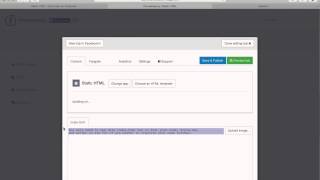
Hi. In this video, I'm going to show you how to use SalesVu's ecommerce feature to sell products and services on your Facebook business page. We need to get some information from SalesVu first before we can set up your page. So here we are. On the login page of SalesVu, we'll go to Features, go to ecommerce, choose your location. If you don't have multiple locations, it'll take you right here. And click Set Up Website and Widget. And we're going to change this from website to widget. And we're going to scroll down and change our page width to 800 pixels, which it's already at, but if it's not, Change it to 800. I'll scroll back up to the top and click Publish and then click ok and we're going to copy this. Windows users, you can touch type Control C. Mac users, you can do Command C. And once you've copied it, then you can close it. If you need to change your settings back, you can absolutely do. So just change them and click Publish. Next we're going to go back to Facebook and in our search bar we are going to type htostatic HTML and it'll be the second one, at least on this search. What you're looking for is this one, iframe tabs with the star next to it. And once it loads, you're going to click Add Static HTML to a page and this page will open. You're going to choose your business page and you're going to click Add Page tab. And so here we're back on the news feed. We're going to go back to our page. It's now in our favorites here. If you didn't add it to your favorites, you can access it here by going to Manage Pages and then clicking on the page. So now we've added that page to More and Welcome, which is where it's at right now. We'll show you how to move it in a little bit. First things first, we're going to add our shopping here. So we'll come here and click Edit tab and you're going to go down to the bottom and delete all this text that's currently there and then paste your text that you got from Sales View here and you can paste that by typing Control V on Windows or Command V on a Mac. So there's a couple things you need to change here. It's very easy next to scrolling. You're going to change this from no to yes and then you're going to remove everything after this iframe here so grab that and delete it and want to make sure that we're flush. We'll use the arrow keys and make sure there isn't anything else in there. Once we have that changed, we can click save and publish and then done editing tab. So now that we have that tab edited, we'll just go back to Facebook.
 eCommerce, point-of-sale (POS), ERP and Data Analytics platform for retail and restaurant businesses