SalesVu Technical Support walks through the employee scheduling and human capital management module, covering how to manage employee info, set access levels, schedule shifts, process time off requests, and conduct performance reviews.
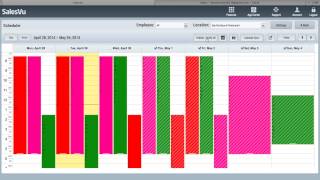
Hi. In this video, I'm going to show you how to use SalesVU's human capital management and employee scheduling feature. If you do not have this feature enabled, you can enable it from the app center here. If you do have it enabled, you can go to features and click on Employees here you will find everything you need to manage your employees. First of all, if you click on employee information, you can view edit your current and former employees. To access former, you would use this filter here. If you need to change something about an employee, click Edit next to their name and you can change or add any information that we have available here. Next, if you need to add an employee, you can click Add employee and put in all the information and follow the steps. So if you click on Access levels here, you can edit employees access levels to either salesvu.com or to the SalesVu app. So here you can see these are the different web access levels here and these are the different payment device access levels here. Now if we go back next thing, you can set employee password and pins from here. So you need to change it. You just click on that. Choose the employee. The locations feature will allow you to set which locations your employees have access to. So if you have multiple locations and you want your employees to be able to clock in at each location, or if you just want them to be able to clock in at one, you can do that there under hours. If you click Next Edit next to their name, you can see each individual clock in and clock out for a given period of time. You can also add additional ones or edit if they clocked out late or clocked out too early. Those can all be edited here. We'll go back and if we go to the labor report, this will show you. So if we just do for today, you can see which employee, the location, how many hours they worked, their total compensation here, whether they have hourly or salary. You can also configure commission so it'll do a percentage of their sales. It'll show the total sales rang under their name and then your labor cost ratio to sales here. This can be exported or printed. Under compensation, you can set compensation for each employee. So if we look at Jimmy here, you can see that he has no monthly salary, no Commission, no yearly bonus, $12 an hour, $18 an hour overtime. You can set their job title, manager status, date, contact created, etc. If you need to add a new compensation, you can do that here. Next, if we go to the employee scheduler, you can see we have our schedule for this week and these solid Ones have been set, meaning they've been published and the employees have been let know that they are scheduled to work. These other ones are just a draft and that's what the cross lines mean. Now if we want to publish these, we can simply check all the days and click publish and you can see that they'll change. And if we go into Jimmy's email here, you can see that he has a new shifts and it shows when those shifts were and who it was created by. If we go back, you can see we can add a new shift. So if we go to next week and we want to add a new shift, simply click here, choose your employee, put in the time. So let's say we want 8:00am to 6:00pm you can color code this and you can put in a comment. So you can say kitchen and then you can either create and draft or create and publish. Create and draft. It's going to go right here. You can see there's a little note there. If you need to change it, you can just simply click and drag here and say we want to make it 5pm and so that's how you can add additional shifts. This will publish it. Calendar sync. You can set this up so it'll show up on your know, Apple ICAL or Google Calendar. Basically you just click this for each individual employee or click on this to see the entire one. Place that into, you know, Google Calendar iCal and it'll automatically update every time it's it's published. And there's some basic settings here. You can see when start date, where the emails come from, when there's reminders for each shift and click back, go back under time off requests. Employees can request time off, managers can accept them. You can view it as a list. The shift trade request will allow employees to ask for shift trades between each other under messages. You can send messages to other employees. So if you want to create a message and say happy B Day, it will go to them and they'll see it in their email. They'll also see it when they log into salesvu.com documents. You can upload and share documents. So if you have new training documents that you have or employee manuals, stuff like that, you can share it across employees. You can also upload and make it private for just you. The shift discrepancy report will show you any shifts where an employee clocked out before or after their scheduled time. So you can see for this one, today, shift started at 2, supposed to end at 10, and he actually clocked in at 2 right on time and clocked out four minutes later than you're supposed to. This is a great way to make sure that everyone's clocking in on time, not staying too late, or not clocking out early. The performance review allows you to create performance reviews. Managers can create them and have them accepted. You can also do personal performance reviews. You just simply create performance review. You can do just type in the employee name you want it to be Employee self assessment. You put in the review and the notification settings will let you set. If you want email or SMS for all of these things. So I hope this video helped you understand the Human Capital Management feature in Sales View as well as our scheduling feature. If you have further questions, please feel free to send us an email to support@salesview.com or give us a call at 888-900-5819.
 eCommerce, point-of-sale (POS), ERP and Data Analytics platform for retail and restaurant businesses