
Inventory count sheet
SalesVu's count sheet feature lets you run physical inventory from the web portal. Create a count sheet, assign products and employees, then scan items in the POS app to log quantities. Managers review and commit the counts when done.
Hi. Today I'm going to introduce you how the new count sheet feature works. So the count sheet features a powerful tool that enables your employees to accurately count products in your physical store. So it can help you to eliminate any hassle of manually tracking inventory products one by one. So how does it work? So to begin the process, first you need to create the count sheet on SalesVU portal. And then your employees can log into SalesVUE POS select the count sheet and then they can start counting the products. And then as a manager, you can review the counted products and then accept that so it gets counted into the existing inventory quantities for your products. So let me start by showing you how to create count sheets on SalesVue portal. So for that, login to your salesvue.com account and then go to the inventory section. And when you go there, at the right top of the screen, click on the arrow down down icon and then click on count sheet. So once you click here, you will see the location drop down menu. So you can select the location you need. And then at the right top of the screen click on add new count sheet.
So let's click there.
So first step is that you need to name the count sheet limit Warehouse two. So that can help to clarify what is this count about. Let's say in this case we want our second warehouse to be all the products in the second warehouse to be counted by some of our employees.
So the next step would be to assign products that needs to be counted at that warehouse. So let's select, let's assume we have food products there, drinks. So we select those categories. You can also select products one by one. So we go to the next step. So next step is auto commit.
So what does it mean?
So by default it's no. So it means that after your employees, they do the counting on the pos, you, you need to also review the count on backend portal and then verify it before it gets actually counted for the existing inventory quantities. Few select to. Yes, as soon as employees finish the counting, the inventory quantities will get updated in real time. So let's do no in this case. So we go to the next step.
So on this next step you can.
Select employees for this count sheet project. So let's select all employees. So we go to the next page. So here you can select the date for the counting to happen. So please note that the count sheet will show up on the exact date that you schedule it for. If that day is passed or it doesn't come yet, the count sheet will not show up on the pos. So let's select today and you can make it also recurring. Let's say if you want your employees to count the inventory at the particular section, your location every week, let's say once, or every month on Monday, you can select that and you can select the end date. Let's say you want your employees to count the inventory every month once for the next year to ensure the accuracy of the the quantities of your products. So let's do just one time here. So we'll save.
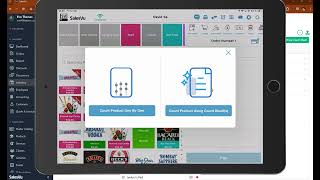
So the account sheet has been created now. So now this should show up on the pos. So now let's go to the POS interface and see how it looks there. So here on the pos, once you open it up, you need to go to the SEC settings. So it would be the gear icon at the right top. And then here you need to click on inventory mode. So once you click on inventory mode, it gives you to select two options. So count product one by one. So that's our previous inventory mode. So if you touch on that, you would need to count it one by one. So let me show it to you just so you know, so you can see you need to touch on the product, you need to enter the quantity and save. So this is not the new feature, it's our previous feature that we already had. So now the new inventory count feature. So for that you need to go to the settings, touch on inventory mode, and then you select count product using count sheets. So once you touch on that, as you can see on the list, we have a warehouse to the count sheet that we just created. So as an employee, I need to touch on the start counting next to the count sheet and I need to select an area. So the area selection is showing up because maybe some of the products that we set up to count, they have areas assigned to them. So it's asking us to select the area. So let me select both. So we continue. So here it shows the what products have the areas attached. So once we get to this screen. So here you can start counting your products by scanning their barcode. So once you scan a barcode of any product, the keyboard will pop up and then the the product quantity column will be displayed. For example, I scan a product, right? And then you will see this keyboard pop up. And then let's say I have 10 of this product. So I enter the quantity of 10 and then I save. So I need to click on save at the right top of the screen. So the sheet has been saved successfully.
So.
With this scenario you will you can complete inventory quantity sheet and once you're done counting all your products you can simply go back. Then you can exit the inventory mode by going to the settings and you need to touch on exit inventory mode. So as an employee, now let's say I have completed counting the inventory. So what manager should do? So let's go back to Sales View Portal. So now as a manager I go to the inventory section again and then so these are the inventory accounting projects that we have. So here let's say next to the Warehouse 2 project that I assigned to the employees I need to click on View Count. So when I see it here it's still under counting. So some of them it means that it was partially counted. So I click on View. So I see this product that we just counted and entered into the pos. So after verifying this as a manager I click on commit and then here I need to and by default it will show you the last unit cost. So I think this product being entered into the system first time. So I will enter the cost and then I save. So that's it. So that's the whole cycle of the inventory count sheet feature. If you have any further questions, please reach out to our support team. Thank you.










