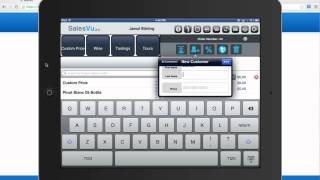
Learn two ways to open a customer tab in SalesVu: automatically when you swipe a card and choose "open tab" at checkout, or manually by creating a new order and assigning a customer. The video walks through adding items, taking payment with tip entry and signature, and printing or emailing the receipt.
In this video, we're going to talk about how to open a tab. In SalesVu. There are currently two ways to open a tab. One that's automatic and one that's a manual process. So the first thing that you'll do is add a product to a blank order. In this case, we'll add a glass of wine. And then you'll swipe a credit card. You'll get a message that says, do you want to open a tab or close the order? And you'll select open tab. And at this point, we'll send a message to our payment processor to see if the card is valid and you'll get an approved message. To do the manual process. You'll come into your orders, touch new order, and we'll add a glass of wine. And you can choose from your current list of customers, or you can add a new customer. You can put as little or as much information as you'd like about the customer and click save. This customer will automatically be added to the order at this point. So you can touch cancel. You can see all their information up here if they have additional information. And when you're ready, you can come back to that order at a later time. Now, for either order, you can touch the orders button and add more products. And the same with the first order that we opened automatically. But with the automatic order, you don't need to have the card present again. You can just touch pay and charge here. You can enter their tip amount or hit skip and sign on the screen or have them sign on the receipt. If you have a printed receipt, hit done signing and you'll get an approved message. At the end of the transaction. You'll be able to print your receipt if you have a receipt printer set up or email it. Hope this helped. Thanks.
 eCommerce, point-of-sale (POS), ERP and Data Analytics platform for retail and restaurant businesses