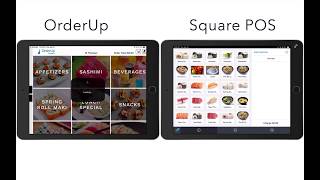
OrderUp is an iPad kiosk app for restaurants that lets customers order from a photo menu and send orders straight to Square POS. It integrates loyalty programs using phone numbers, syncs with kitchen displays, and costs a base price plus an Advanced Bundle option.
Questions this video answers
15–30% higher average ticket on the kiosk.
$15 per month per device.
$150 per month (Advanced Bundle allocation).
In this video, I'm going to show you the new design of our OrderUp app and how it interacts with Square. OrderUp is a kiosk app that can be placed on a stand in front of the cashier line at quick serve establishments or on all the tables of a full service restaurant. Customers can approach the iPad with the Order up app and begin their order by entering their name and optionally also their phone number and number of guests. The phone number is optional and serves as the customer identifier for the loyalty program so customers can earn loyalty cash even on orders processed through the OrderUp app, the customer can browse the menu which is presented with large attractive images that are designed to catch attention, upsell items and increase sales. With our new design, the customer can easily navigate through categories, subcategories and product pages. Each product can have a number of carefully curated modifier groups that are designed to promote and sell additional items. That's why customers using our kiosks have a 15 to 30% higher average ticket on the kiosk compared to the regular point of sale. Once the products are added to the order, the customer can either place the order or swipe their cart directly at the order up kiosk and close the order. In a full service restaurant, customers can tap on Place Order which will send the order to the kitchen to our kitchen display app called Incoming. The customers can then go back to the menu, keep adding items to their tab, send the new items to the kitchen throughout their visit and pay at the very end. Kiosk orders will automatically appear on the square point of sale as you will see on the right side of the screen here. These orders are sent to the square point of sale using the same order injection API that Square provides to online ordering merchants. But OrderUp is the only in store solution that allows customers to pay by card at the key and have the order appear automatically at the square point of sale. All information that was entered on the Order app app goes through to the square point of sale so merchants in a quick serve environment can find the customer name here. Full service restaurants will see the table number here. The square point of sale can be configured so that the orders will be printed in a bar or kitchen printer. If you've got no space for iPads, SalesVU can offer you an iOS and Android branded app and an E Commerce page builder with tons of templates for your customers to order from their own phones at the table or at the counter instead of waiting in line. Orders made through the branded app or the website will also appear in the Square Point of Sale immediately. The Incoming app that I mentioned previously is an optional complimentary app to the OrderUp app. It can be used not only in the kitchen as a kitchen display, but also at the main counter. The orders made through the OrderUp app or through the Square Point of Sale show up instantly here in the incoming app, where they can be marked with different statuses by the kitchen staff or the wait staff. When a customer needs help or has questions, they can tap on the Help button in the Order of app which will immediately show an alert on the incoming app so a member of staff can go help the customer. The staff will see the green alert on top of the screen and then they can find all the help requests under this button, which turns red when there are unresolved requests. The staff can easily see where the request is coming from, either by seeing the table number in a table serve environment or by seeing the customer name in a quick serve environment. When the request is resolved, the staff can delete the request by tapping on the x icon. The OrderUp app costs only $15 a month a device, but merchants who need more firepower can subscribe to our Advanced Bundle that costs $150 a month allocation and comes with a range of features that expand on and bring additional value to the OrderUp app and square integration. To name some of these features, we offer Sales Report to show kiosk sales broken down by devices which can also be broken down hourly so managers can quickly identify which sections of the restaurant are not performing as well as the others and take the appropriate actions to increase orders in those sections. Product Management that allows to quickly rearrange the product and category order on all the kiosks at the same time and update product images and add modifiers in depth. Ingredient inventory tracking, low inventory alerts and profitability reporting. Time based menu setup that allows merchants to only show certain items on the Order app kiosk and change the menu based on time of day or day of the week and generating a customer report to view all customer information and customer purchase history on the kiosk. Now let me quickly show you how to set up the order of kiosk at a new Merchant. Download the OrderUp app from the App Store and open it. Merchants who have existing accounts with SalesVU can log in and new merchants can create their account on the spot. Simply fill out basic information about themselves their business, set up a new SalesVU location and device and it's good to go. Next the app opens up with the default screensaver image that can be changed later. We just need to tap on the screen to activate the app and then tap four times on the order up logo to access the admin section of the app. You can see that the app is blank. So we're going to connect to Square and sync the Square products over to Sales View. So we go to Settings to connect the Square, which is a simple process that only requires the merchant to log into their Square account and select a Square location to connect with this sales relocation. If they have multiple, then it's back to the orderup app to connect the Switch Square reader right away and sync the Square products over to order app. For that we will enable the setting to push order to Square and from there we can sync the products over. Once the products appear in the order of app, the merchant can organize the products by sorting them by name or by price, or just move them around as needed to change the order in a simple drag and drop Mac. By syncing the app with Sales View, the Square images will appear on the app as well if available. Next we can change the default screensaver image that I mentioned previously. Then we exit the admin mode and the app is ready for use.
 eCommerce, point-of-sale (POS), ERP and Data Analytics platform for retail and restaurant businesses