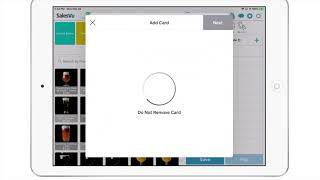
SalesVu Technical Support walks through pre-authorizing cards with Square payments in SalesVu POS. Tap the pre-auth icon, swipe the card with the Square reader, enter the ZIP code, add items, then reopen the order to collect payment and tip.
Hi. Today we're going to show you how to pre authorize credit cards using Square payments. First, we'll start a new order by going to the table layout and selecting a table. Scroll to the far right and touch on the pre auth icon and assign customer. You can select an existing customer within your database or add a new one by touching on the plus icon. At this point, you can swipe or insert your card into the Square env Contactless reader. We've now added a new feature that will no longer require the email address. You can now configure a placeholder email instead. This will speed up the process. Last requirement is the billing zip code. Once you've entered it. The preauthorization is now completed. Now you're ready to start the customer's order. You can add a couple of items to the order save fire the ticket. Now, once you're ready to pay out your tab, just go back to the table out, reopen the order and touch on pay. The customer can now add a tip on the iPad directly or on the customer display to finalize the transaction. Thanks for watching. Let us know if you have any questions.
 eCommerce, point-of-sale (POS), ERP and Data Analytics platform for retail and restaurant businesses