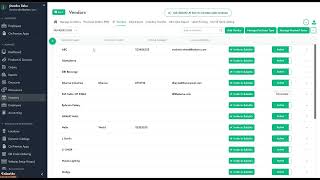
SalesVu's Purchase Order Automation watches inventory in real time and creates draft orders when stock drops below your threshold. Set four inputs—threshold quantity, max stockdays, storage capacity, vendor lead time—then choose when to create POs and how to calculate reorder amounts. Draft orders go to employees for approval, then to vendors.
Hi. Today I would like to introduce you our latest feature, Purchase order automation. Managing inventory can be a complex and time consuming task. Stock levels fluctuate, manual tracking can lead to errors, and staying on top of purchase orders is a constant challenge. But what if there was a way to simplify this process, ensuring you always have the right stock at the right time without the manual hustle? Let's explore how this powerful tool works and how it can benefit your business. Our system monitors your inventory in real time. When stock levels dip below your defined threshold, it triggers an automatic purchase order to replenish your inventory. This ensures you always have the right products available for your customers. The automation is guided by four key settings you configure within sales view. So to start using this feature, so make sure that these four settings are set up beforehand. So to access them first go to inventory section on sales fee.com and click on manage inventory. So the first setting is the threshold quantity. So this is the set the minimum stock level that triggers reorder. So if you put one as soon as it reaches one, it will trigger the reorder if you put 10, so the same thing will happen. The second important setting is also on the same page. So just scroll all the way to the right. So that would be max stockdays. So max stockdays defines the number of days worth of inventory you wish to maintain. So, for example 7. So it means you want the inventory last for this product for seven days and so on. So the third important feature setting is storage capacity. So storage capacity specifies your facilities, maximum storage capacity to prevent overstocking. So if you put 50, it means you want to have only 50 maximum amount of products for this item at a time. And fourth and final important setting for the PO automation would be the lead time. So it is related to vendor settings. So for that setting you need to go to the vendors. So once you're under vendors, edit any vendor you wish. So click on arrow down, click on edit, scroll all the way down and you will see lead time in days. So it will indicate how long vendors take to deliver. So orders arrive just in time. So here it is set to 6 and click on Save. So once all these four settings are set up, you can go to the PO Automation screen. So here as soon as you go, the first option would be do you want to create automatic pos? So the setting is there so you can turn on or turn off this setting when you need, so turn that on. And the second one would be do you want to send consolidated POS for All the locations. If you turn this on, we will make sure to consolidate automated purchase orders across multiple locations while we're creating them. And we send this to your employee managers and vendors so they don't receive multiple emails, but they get one email that will save them a new time. So the third option would be the schedule automatic peer creation. So you can schedule it for daily and weekly options and you can choose the time. And then the most important part would be this one. So what rule you want to use to create automatic POS? SalesV uses two smart rules to calculate order quantities. So the first one is based on max allowed quantity. So it's called based on storage capacity of your product. So this helps you to keep your inventory at or below a specified maximum level. Then the next one would be based on maximum days of inventory that you would like to keep. So this ensures you have enough stock for a set number of days based on sales data. Also you can select both option. So if you select both, the system will calculate using both and choose the lesser quantity to optimize reordering. And you can select the eligible employees so they receive the created purchase orders. Automated purchase orders. So every time system triggers an automated purchase order and creates gets created as a draft purchase order. So it will always be under draft. And your employees, your managers will get automatically an email similar to this. So when, when they get an email it will show them the products unit cost. So these are generated based on the past POS and your employees can approve it or reject it. So if they approve it, system will automatically change the status of draft PO to open and send it to the vendor. So once vendor receives an email so they will see a similar email here. So they will see the buyer details and then the vendor details and what products you would like to order from them. And at this point they can accept the purchase order or they can reject it. If they reject, they can leave a comment here why they're rejecting, what's the reason and you will receive the information. So consider you're running low on a best seller with the purchase order automation. The system detects the low stock, calculates the optimal reorder quantity and prepares a purchase order. All without manual intervention. So if you have any further questions regarding this feature, please review our article and contact through our support through chat. You can call us or you can email us@supportealthview.com thank you.
 eCommerce, point-of-sale (POS), ERP and Data Analytics platform for retail and restaurant businesses