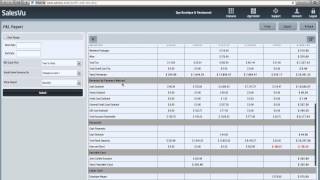
SalesVu's accounting features let you track expenses by category, view transaction logs and P&L reports, and sync everything to QuickBooks Online. The demo covers creating expense types like variable labor vs fixed cost, generating revenue breakdowns by payment method, and what data actually transfers over.
Questions this video answers
May 7, 2014
Last seven days
Employee data
888-900-5819
8am to 10pm Central Time, seven days a week
Hi. In this video I'm going to show you how to use SalesVU's easy accounting feature and the SalesVU integration with QuickBooks Online. So here we are logged in salesvue.com go to features and Accounting. If you don't have the accounting option, you'll need to enable it. From the app center we'll choose our location. If you only have one location, it'll take you right here. So we'll go through the salesvue Easy Accounting first. So first thing we'll show you is the expense categories. So we have our expense categories here. We have some subcategories here. If you want to edit them, you can click edit. If you want to add a new one, you can add it. Put your category, name, description, expense type, whether it's variable labor or fixed cost. And then you can choose a parent category if you want it to be a subcategory. Next we'll go back show you the transactions log. So by default it'll show you the last seven days. So we put in year to date and these are the approved transactions. So you have debits and credits. As you can see we have bank deposits, which is here by default. And then we have each of our expense categories here. And these are our sub expense categories there. You can see the date payee, what it was for, it was paid what or if it's outstanding, the amount will show positive or negative. And then the payment method also add a check number if paid by check. We also have imported transactions, so you can import transactions here. If you need to download the file, you can do it here and you'll just have to format the file exactly how it shows in the example imported transactions. Once you approve these, you can just check here and click approve selected. If you want to approve all, you select here. If you want to do that and approve it, it's approved. It goes into the approved section and then any deleted transactions will show up here. We'll go back and then lastly we'll show you the P and L report. So let's just do a year to date and on the top it's going to show us a chart of accounts based on our categories. It'll show the quantity sold from each of these each month. Total them here. Do a total quantity here, total for the month here. And then it'll give us a revenue for each of those as well, the same matrix. And we also have revenue by payment method. And we have this feature that allows you to reconcile basically your revenue minus your bank deposits. And I'll show if you're over or short. So if you didn't deposit enough into the bank, you can see here we haven't completely reconciled may yet and it'll show you your totals. It also lists the variable costs, each type. So we have a variable cost, labor cost, fixed cost, and you can see the total earnings down here. Now if we go back, I can show you the QuickBooks integration. Go back again. Click on QuickBooks integration in this account. We've already configured QuickBooks with QuickBooks online. To sync data, you'll simply click Sync with Sales View and click ok. Now this process can take a while, especially if you have a lot of data. What you'll want to do is just leave this open and leave your computer connected to the Internet. As soon as it's done syncing, you'll see this pop up and then we can open up a window and pull up QuickBooks and we'll go ahead and sign in. And basically the things that sync are your customer information. So we can see all our customers here. Vendor information, employee data does not currently sync. Transactional data will sync. And if we go to reports and let's say our P and L, you can see that all categories from SalesVU will sync as income categories and subcategories in SalesVU will sync as sub income categories to build out your P and L. So we hope these accounting features will help you manage your business more effectively at the end of the day, make more money. If you have further questions about these or any other features, please please give us a call at 888-900-5819 from 8am to 10pm Central Time, seven days a week, or send us an email to supportalesu.com anytime.
 eCommerce, point-of-sale (POS), ERP and Data Analytics platform for retail and restaurant businesses