Learn how to create and receive purchase orders in SalesVu. Set up a new PO by selecting a vendor and products, enter quantities and delivery dates, then receive orders partially or in full to update your inventory automatically.
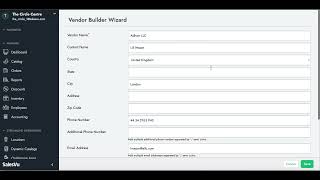
Welcome. In this video we will be walking you through how to create purchase orders and also receive purchase orders. So the first thing we're going to do is go to the backend and on the left side menu we're going to the inventory section. Now from here you can see your inventory according to the location you're in. With this drop down menu you can select the location you want to update your inventory and then you can see the product, the quantity, the unit, the threshold, the deduct inventory quantity, the last cost price, final retail price. And you also have the option to select the aisle, the shelf and the area. And also you have the delivery options at the very end. Now from here you can see your quantity, but if you want to update the quantity you can change it here manually, save it as an adjustment for inventory, or you can also create a purchase order. Now all we need to do is go to the section called purchase orders and in here you will be able to see all the open orders that you have at the moment. Right now we have four different open purchase orders. If you want to create one, all you need to do is go to New PO and then from here you can select the vendors that you have already saved. Here we're going to select the first one and click on next. Now we're going to get a message that says do you want to copy the past purchase order of this vendor? You can select yes and make the process quicker or you can select no and do it manually. Now when you do this, you have the option to select the products and you can select any products that are already on your inventory. And to make this process easier, you can come here to this drop down menu and select the products that were assigned to a specific vendor and to the vendor that you have already selected previously. So I can come here and do Atom LLC products and also you have the option to select the products that having quantity less than the threshold level. We're going with Atom LLC products and what I can do here is select all of them by checking this box. You can also select search products by the name or by the sku. Now in here we're going to next and in here you can see all the product name, the overall over vendor on hand, quantity, vendor, open PO quantity, the units, the quantity. And this is where you need to simply add, add the quantity manually. In this case we're going to add 10 of each one for this example and you also have the option to add the expiration date if this applies for your case. Now we click on next we see all the products, the unit quantity and unit cost. If there is anything else you need to add, you can select the products or you can edit this from here. Next we're going to the purchase order details. We can select the employee that's creating the purchase order. Now in this case we can select the store manager. For example, the expected delivery date may be for next week. Then we have the purchase type face to face and the payment terms will be check on delivery. You can fill out all the other spaces according to what you need to have. And at the very end you can save it as a draft or you can place as order open po. Now when you place as open po, you will immediately have an open order in this screen. And if you have the option to send to the vendor an email every time you send the open PO, they will get this PO2 to their emails. Now in order to do this, all you need to do is go to vendors, select the vendor. In this case we already have him created and we can first assign products or we can come here and edit. At the very end if we scroll down, we can check this box. If you want to have the purchase orders emailed to this vendor. Now this is the way they will get automatically these POS to their email and no extra steps will be needed. Now to receive a po, all we need to do is go back to this purchase orders screen and what we need to do is simply come here and with this little drop down menu we can do two things. We can come here and view the order and receive the products partially or fully. Or if you receive the full order, you can do it from here. So we're going to do the two examples. So first we're going to view, we see all the products, we see all the purchase order information, and if we scroll down we can go to the very right, select this drop down menu and do partially receive. Now if we partially receive an order, what will happen is that you will get a message on the top saying received for the first five products that you did receive. And if you scroll down you will be able to see that a new item was created automatically, which is the five units that are remaining to be received. Now in this case we see here the quantity is five. Now if we go back and receive an order fully, we can add the vendor invoice number and we see that this is not part of our open POS information anymore. To see it, we can come to this drop down menu and go to closed order orders and see the same information. And if we go to View Adjust we can see that the quantity has been updated automatically. So another way to see this is by simply selecting the drop down menu offenders and checking that the products were added. And you can see that the quantity has changed automatically on your inventory management. Thank you and let us know if you have any questions.
 eCommerce, point-of-sale (POS), ERP and Data Analytics platform for retail and restaurant businesses