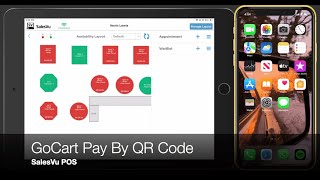
A short SalesVu Technical Support video demonstrating how to complete a transaction using the Go Cart "Pay by QR code" feature in the SalesVu POS. The walkthrough shows a server selecting a green table, adding items, tapping Pay, choosing Go Cart Pay by QR code (which prints a check with a QR code), and explains the customer’s flow (scan, enter contact/security code, confirm billing/payment, add tip, tap Pay). The POS receives an immediate notification, auto-closes and approves the order, and allows printing or sending receipts before returning to the Availability/table layout.
Welcome. In this video, I will be walking you through completing a transaction with Go Card Pay by QR code. In this example, as a server, you can simply allocate your new customers on any available tables that are on green. All you need to do is simply tap on a green table and then proceed to take your customers order. Now in here, all you need to do is tap on any products and add it to the order. And whenever your customer asks for the check, you can simply tap on pay. Next, you can scroll down and select the option Go Cart Pay by QR code. What will happen is that your printer will immediately print the check with all the details of the order and at the end the QR code for your customer to scan with their phones and complete the transaction whenever they're ready. Now what you can do in here is simply go back and continue to take orders. If you would like to check the status of your orders, go back to the table screen and check for the yellow badge that says Go Cart pending. This means your customer having completed the transaction. But once this is done, this will automatically be removed. So on the right side your customer will simply scan the QR code, tap on the link and proceed to add their contact information so that they can receive their security code and access their credit card information securely. After your customer has added their security code, all they need to do is simply check that that their information for billing, address and payment method is correct. They can also add a different payment method and add a tip. Once they're ready, all they need to do is simply tap on pay. Now, once this is done, they will receive a message saying thank you for your order in an option to review their order as well. Now what will happen on the POS is that you will receive an immediate notification and the order will be closed and approved automatically. From here you can print the receipt or send it via email or SMS and the iPad will redirect you to the Availability layout screen. In here you can go back and start taking more customers on the tables that are now available. Thank you and let us know if you have any questions.
 eCommerce, point-of-sale (POS), ERP and Data Analytics platform for retail and restaurant businesses