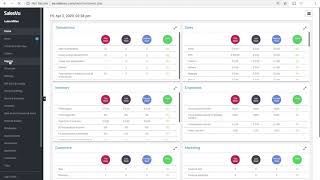
SalesVu support shows how to hide shift details from employees while letting them deposit to safe and adjust cash. Go to Employees Access Levels, then Device Access Levels, to enable the feature. The Sales Review Dashboard Reports shows where deposits and adjustments appear.
In this video, we're going to show you how to hide the shift details. The purpose of the shift report is to account for the total sales for the day. We now have the ability to hide the shift details from your employees only allowing them to make cash adjustments, depositing to save and closing out the shift. We will now process a transaction to demonstrate the purpose of this feature. Now, looking back at the shift report, the transaction that was processed does not appear when the employee is ready to close out the shift. Touch on deposit to safe and enter the amount that is in the drawer. This will allow for you to determine if they are under or over for the day. To view this report, sign into the Sales Review Dashboard, click on Reports and close out. Scroll to the far right to view your deposit to save. Here you can see we entered the 50. Then under cash Adjustment we can view the overage of the day. To enable this feature, log into the Sales Rep Dashboard, Click on Employees Access Levels. Edit next to the employee of your choice, select Device Access Levels, scroll down and then enable Height Shift details. Thanks for watching. Let us know if you have any questions.
 eCommerce, point-of-sale (POS), ERP and Data Analytics platform for retail and restaurant businesses