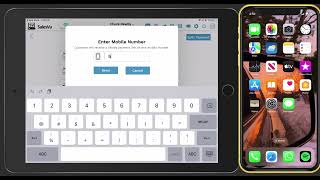
SalesVu's Skipify Pay by Link lets you send customers a payment link via SMS. Add products, choose Skipify at checkout, enter their phone number, and they pay on their phone with saved info and a security code. Use Verify Payment if the link doesn't go through.
Welcome. In today's video, I'm going to walk you through how to utilize the scipify Pay by Link in our pos. The first thing you need to do is add products to your order and then tap on Pay. The next thing is selecting the option called skipify Pay by Link and adding your customer's phone number. Once this is done, your customer will receive a text message immediately with the link for them to proceed with the payment on their phone. All they need to do is open the message and then tap on the link in here. Customers that have already saved their information in skipify only need to add their contact information and later on the security code to access their payment and billing information securely. This security code can also be sent via email or sms. Once they log in, your customers will be able to find their different billing information and payment information that they have saved before. Finally, all they need to do is select the one to utilize. Also select the tip percentage and then tap on Pay Now. Then this screen will automatically close and show you the thank you message and your order information on the pos. It will show you that the transaction has been completed. You will also get a notification that says the SCPIFY payment has been received. Now I'm going to show you a second example of another option that you can do with the skipify Pay by Link which is utilizing the option for Verify Payment. Now, all you need to do is follow the same steps, add a product to the order, tap on Pay, and then add your customer's phone number. Your customers will receive the link immediately and they will need to follow the exact same steps that we did in the example we just did. All they need to do is go to the text message, click on the link and add their SCPIFY contact information. Then they will need to add the security code and proceed to select the payment method that they prefer to process the transaction with. They can also select the tip percentage and whenever they're ready, tap on Pay Now. Now, in the rare event that your iPad doesn't receive the skipify payment notification after they complete the payment for reasons related to your Internet connectivity, for example, you can always utilize the option of Verify Payment. This will allow you to simply check if the transaction was completed and approved and then you can continue to take the other orders. Now, another case that could happen is when your customers would want to change their payment method and not utilize the skipify Pay by link anymore. Now for this example, you're going to do the same steps of adding a product to the order, tapping on Pay and then select skipify Pay by Link. Here you will add your customer's phone number again and then tap on Send again. Your customer will receive the notification on their phones. But for this case, let's suppose your customer would like to utilize cash instead of the credit card. So what we're going to do is tap on cancel and then this will redirect you to the payment method screen where you can select another option such as cash. In here you can send the receipt via email or SMS and then close the transaction. Now I'm going to walk you through the final option with the Skipify PayPal link. This option is specifically for the cases whenever you don't want to wait for your customers to finalize their transactions on their phones to take the next order. This could be for example, when you have a long queue line. Now, in order to do this, you're gonna follow the exact same steps that we did before, which is adding products to the order. Then add your customer's phone number and in this screen it will ask you to pay later. So that's the option we're going to tap on. Once you tap on this, you're gonna be brought to the main screen in which you can take more orders. And if you would like to keep track of the orders and know whenever your customer has finalized their payment, all you need to do is go to the shopping cart icon and check for the orders that have the yellow icon that says skipify. This will let you know that the order is pending and that your customer hasn't finalized. Now what your customer needs to do is simply do the same steps on their phones by clicking on the text message and then going to the link and adding their contact information. After this, they will need to add again their security code to access their payment information and billing information as well. In here they will be able to select their payment method of choice and also the tip percentage amount. Once they're ready, they will need to tap on Pay. Now. Once this is done, you will receive a notification automatically on your iPad saying that the scipify payment has been received. It doesn't matter what screen you're on, if you're taking a new order or if you're looking at the other orders. You will get this notification on your iPad. Thank you and let us know if you have any questions.
 eCommerce, point-of-sale (POS), ERP and Data Analytics platform for retail and restaurant businesses