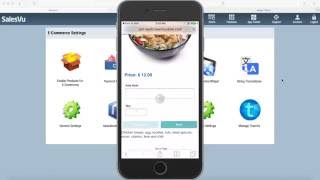
A SalesVu Technical Support tutorial demonstrating how to use SalesVu’s ecommerce and online ordering features. The video shows placing orders via smartphone, computer, and Facebook store; how online orders appear in the point-of-sale and shared inventory behavior; and how to configure products, payment and delivery options, website/widget design, API access, abandoned-cart emails, and advanced settings.
Hi. In this video, I'm going to show you how to use the ecommerce and online ordering feature in SalesVU. This feature will allow you to process online orders that are created by your customers through the website or the widget that you have with SalesVu. Your customers will be able to make these orders on their smartphones or on their computers, directly on your website, or even through your Facebook store. First, let me show you how to create an order on the smartphone. Once I'm on the website, I can see the categories up here and then the products. I'm going to go to my category and then I can select the product that I want to order by touching on add to cart, which is down here. Next, the delivery option will pop up. This happens because we need to verify whether the customer's zip code is in our delivery range. Since I'm already logged in as a customer, I can simply select one of my preferred delivery addresses. This will bring me to my cart where I can continue shopping and go back to the store or place my order. I'm just going to select place order now. I can review my details and contact information right here. If I wasn't logged in, I'd be asked to sign in, register, or just proceed as a guest. At this point, I can still edit my order, the delivery preference, my address, or my information. I'm just going to tap on, continue and place my order. At this point, the point of sale will receive and show this order and it will be also sent to the designated email addresses. This account is set up to process payments upon delivery or pickup, but it is possible to make online payments directly on the website. Another way to place an order is using a computer. The process is the same. I have to select my products, add them to the cart, and select my delivery option. Next, I'm shown my card and I can continue shopping or proceed to checkout. Again, I could pay directly on the website or upon delivery or pickup. You can sell your products on Facebook as well. We can see the products and categories the same way we could see them on the actual website. And the flow of the process is identical. So I have to select the product, add it to my cart, and then proceed to checkout. All online orders come through to the point of sale. This badge will show to notify you that there is a new order. You can open this order and see what is in it. And if you have a kitchen, printer or display, the order will automatically show on there. Your inventory is shared between the point of sale and ecommerce. This means that the items are pulled from the same inventory regardless of whether they are sold online or in store. If you run out of something, the product will automatically disappear from your website until you add more inventory. This way there is no risk of selling something you do not have in stock. Now let me show you how to configure the website for use. First of all, you need to create the products to show on the website. You can do that under Products and Services. Next, you have to enable them for E commerce. You can do that here in this section. Simply check the box for products you want to show on the website. Next, you have to set up the payment options and delivery preferences. You can have your customers pay you directly on your website using a credit card or a gift card, or pay upon delivery or pickup. Alternatively, you can set up a flat fee or a percentage to be paid in advance. Online. For delivery options, you get to choose from shipping, delivery, delivery or pickup. You can further indicate what time are delivery and pickup available, what zip codes you deliver to, and what are the possible pickup addresses. In the configuration section you can select whether you would like to create a website or a widget. You can create a fully hosted website with a shopping cart where you can add more pages while a widget has to be placed to your existing website. We also offer an API that can link your existing website with sales view. This section will also help you with the design. The different settings on the left side will change the colors, fonts, layout and more. You can also show links to your business's social media. If you would like to use Google Analytics, you can paste the code in this section and keep track of your site's visitors. String translations allow you to translate your entire website into a different language. And in general settings, you can select which device and what email addresses will receive online orders. Here in the abandoned order section you can filter and see all the orders that had some products added to them but were never finalized or paid for. You can enable automated emails that will be sent to the customer to remind them of their unfinished order. As mentioned before, the API access will help you link your existing website with our software. In the advanced settings, you can enter any custom code that you want to publish on the website. If you have any questions, please let us know.
 eCommerce, point-of-sale (POS), ERP and Data Analytics platform for retail and restaurant businesses