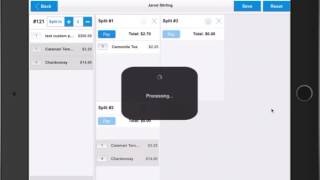
How to split a check by product in SalesVu POS. Ring items, go to Pay, choose Split Payment by Product, select the number of tabs, drag items between them, and process each tab's payment separately.
In this video, I'm going to show you how to use the new Split Check by Product feature from Sales View. First thing we need to do is ring in some items and we'll also include a high priced item. So it's time to pay. We just click Pay at the top, right? We select Split Payment and we can split by either amount or by product. So we're going to select products and you can select how many customers are splitting this between. So we'll say you can add another one. In this case, we'll do three. So you can simply select an item, click and drag it over onto a tab. You can also select multiple items at once and then drag them over to another tab. For high priced items, what you can do is split those items between tabs. By clicking and holding, you'll see split number 1, 2 and 3. You can simply select all three or two of them to split it equally. In this case, let's say we'll split it between number two and number three. So once we click Done, you'll see that amount is evenly split between number two and number three. So at this point we can simply click Pay and we'll take a cash payment. Pay for the first one. Again we click Pay. You can take a different type of payment and then once we've paid for the last one, the order will be closed and we'll get our pop up. So that's how you use the new Split Check by product feature from SalesView.
 eCommerce, point-of-sale (POS), ERP and Data Analytics platform for retail and restaurant businesses