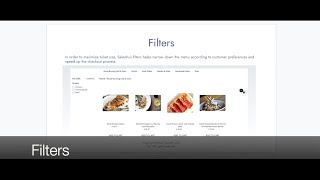
SalesVu's filter feature lets you tag products and categories so customers can narrow down menu options while ordering. The tutorial walks through setup and shows how filters improve the ordering experience on e-commerce and kiosk platforms.
Welcome. In today's video I will focus on the premium feature of filters. This is a feature that can be enabled for E commerce and order up kiosk. By enabling filters, customers can narrow down the menu based on their personal preferences. This is very useful because it can help them visualize what they would like to order and prompts. For a better experience, businesses can get creative and add tags and filters to specific categories and products. Now let's get started with the setup and then I'll walk you through an example of how these filters look on different platforms. The first step is enabling filters that will be found on the backend under location settings page. This is located next to the name of the account owner. If this is a multiple location account, remember to always select the correct location by using the drop down menu. Then what we're going to do is click on the drop down menu to the right side, scroll all the way to the bottom and then we're going to click on recommendation settings. Then we look for the order up and e commerce settings and enable the first option which is to show filters. Once you have filters enabled you you will be able to create tags under products and services. In here you have two options. The first one is going to your categories and we're going to make an example. So let's say that we're going to create tags for the category of males. So what we're going to do is that we're going to scroll all the way to the bottom and now we're going to see a feature called tag groups. You can see that I already have some tags created, but you can add as many as you like. Everything here is customizable. You can type anything you like. So for example, it can be dietary restrictions, protein options, calorie count, just to name a few. Now let me show you how you can apply this to a product. For this you have to apply tags by the item level. So let's say I'd like to add these tags to my melts itself. So I'll go back to product listing and then I'm going to find the product I want to add the tags to. What I'm going to do here is scroll down all the way to the bottom and now we're going to see that for default there are going to be some options in here for the tags. These are the ones I created before. So I can select that this melt is going to be vegetarian. I can select the protein option. The I can select for example the spice level. I can do different things in here. And get very creative with my menu. Now I'm going to show you how these tags are going to look on my menu in order app and on the website so your customers can narrow down this menu to specifically what they would like to order. So let's go first with order app. Now in here I'm going to be a customer. I'm going to go to categories of melts and I will be able to see a filter icon at the top. In here I can select the options and then simply add the product that matches with my options to my cart. This same flow will apply to E commerce. Customers can apply the filters so they can find a specific product. To conclude, filters can adapt to any environment with versatile ordering options. They are optimal for post pandemic, either self serve or order from staff. And finally, they will help reduce labor costs by streamlining upper ordering process. Thank you.
 eCommerce, point-of-sale (POS), ERP and Data Analytics platform for retail and restaurant businesses