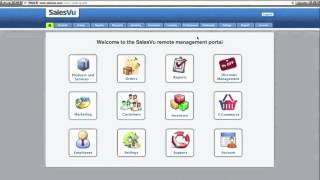
Instructional video transcript explaining how to set up and configure printers for the SalesVu iPad app. Covers connecting LAN and Bluetooth printers, locating Printer Settings in the iPad app, testing printers, toggling printers on/off, assigning printers and categories (e.g., kitchen receipts) via the salesvu.com backend, and expected printing behavior for open tickets. Provides support contact info for further help.
Questions this video answers
us@supportalesview.com
888-900-5819
8am to 10pm Central Time, seven days a week
Hi. In this video, I'm going to show you how to set up printers in a SalesVU iPad app. The first thing that you're going to want to do is make sure that your printer is connected to your wireless network if it's a LAN based printer, or that it's paired to your iPad if it's a Bluetooth based printer. Once you're in the iPad app, the first thing you're going to want to do is touch on the settings, which is the gear here, and go to Printer settings. When printer settings dialog comes up, it'll search for printers and any available printers that are on your network or connected will appear. So as you can see, we have two printers here, and if you want to do a test print, you can touch on the print button. And if you don't want to use one of those, you can turn the switch off. In case you have two receipt printers and you have another iPad you're going to set up or you can turn it back on. And then if you want to set them up as kitchen printers, you can go into the back end of salesvu.com and here you can see the login screen. You'll click on the settings tab and you'll come to Printer settings For mobile devices. You can see we have our two printers there. So if you want to name one receipt, another one kitchen, do that. Then to change this to a kitchen printer, click here and now you'll have all your categories. And so we don't want all the categories in this. All we want is our dining to go there. Everything else would not print to the kitchen. And we'll click on save and we'll come back to the Sales view app. And now anything in our dining menu. If we add here, we can touch the printer button, choose kitchen and it'll print out a kitchen style receipt. Or if we close the transaction by taking a payment, it will automatically print out all the items on the ticket or any items that have not yet printed. For example, if someone comes in and orders a coffee and you send it to the kitchen and then 10 minutes later they order a sandwich and the order is still open, it'll only print the sandwich the second time. Well, I hope this video has been helpful. If you have further questions, please email us@supportalesview.com or give us a call at 888-900-5819 from 8am to 10pm Central Time, seven days a week.
 eCommerce, point-of-sale (POS), ERP and Data Analytics platform for retail and restaurant businesses