
SV Spektrix Demo
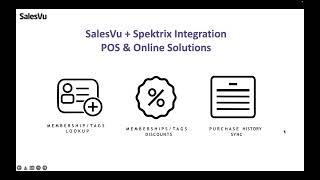
Joshua demos SalesView, a cloud-based iPad POS system that integrates with Spectrix to look up members, apply discounts, and sync purchase history back to Spectrix. The platform supports in-store checkout, online ordering, pre-orders for events, and table-side QR ordering across multiple payment processors.
Questions this video answers
November 8, 2023
Supports iOS 11 or higher; recommended iOS 13 or higher.
United States, Canada, United Kingdom, Europe, and Australia.
40% hybrid (venues/theaters/gift shops/events), 35% retail, 25% food & beverage (hospitality).
1) Membership/tags lookup; 2) Membership/tag discounts; 3) Purchase history sync.
Let me welcome you to SalesView and Spectrix, which is a singular comprehensive platform designed for art, culture and entertainment organizations. Now we're going to go ahead and get started with a SalesView intro. I will just explain who we are, what we do and the different pieces that are part of our software. Then we're going to get into the SalesView and Spectrex integration demo which will account for the POS and online ordering. And at the end we're going to do some thank you and Q and A sessions. All right, so SalesVU is a growth acceleration partner for organizations. We're actually experts in two of the most highly demanded industries, which are food and beverage or foreign drink and retail. We're the only POS partner that specializes in both industries and that works with Spectrix. And as you can see in this particular graph, 40% of our customers right now in the arts and culture industry are hybrid, which means that they have solutions as venues, theaters, gift shops, events. And our system, it's able to account for all of those. Now, going into the pink side, 35% of our organization merchants are in the retail side. And then last but not least, 25% on food and beverage or hospitality. Now in SalesVu, our personal goal is to grow this particular number of 40% and convert it at the end to a 100%. There's always room for growth in different organizations, whether you're starting with retail or with F and B. Now where is SalesV available? Our software solution, it's available worldwide. We actually cover most of the important markets and we're expanding rapidly onto other countries. As of now, we cover United States, Canada, United Kingdom, Europe and Australia. Again, our services are available at all times in any place in the world. It all depends on the flexibility that you get to have within your business and the Internet connection. Now, in order for us to be fully capable of have a solution in your country, that specific country must have an integration with payment processing. So right now, again, we're able to use all of our different solutions in the specific countries that are listed on the screen. Now, SalesVu Solutions. A little bit about SalesView is that we are a cloud based platform. We store everything, again in the cloud. That's one of the highest benefits that we have as a software company. Because you can be at home on vacations, you don't need to be on site to monitor your business. So that's one of the best advantages here. Now, we're hosted by Amazon Servers, so our cloud is very secure. In terms of devices, what do we use in SalesView, we're actually compatible with iPads only. Any device that's iOS 11 or higher, my personal recommendation is go with iOS 13 or higher. Mainly because we're doing updates, right, with applications. Apple as well, so, so that's just gonna give you a better, I guess, experience on the software when you're using it. Now, specifically with these devices, why iPads? Well, iPads are extremely flexible. I can go buy an iPad at any point, at any time, I can buy it online, I can buy it on site, and they rarely change any of their settings. So that's why iPads are the simplest type of devices that we can use within our software. And a plus, iPads can actually transform into anything that I want, right? So one day one iPad can be a fixed station at the counter, maybe at the gift shop, or maybe at the concession stand. The next day the same iPad can also be transformed into a mobile device that I can use for mobile events, pop up events. I can grab the iPad off of this case, put it in another case that's more user friendly and mobile friendly and then I can complete transactions that way. Now the exact same iPad can also transform into a kitchen or bar display and into a self ordering kiosk or into a customer display. So we have a suite of different applications and all of them are iPad compatible. Now besides offering in store solutions, which is what we have been covering, we also go heavy into e commerce solutions. We have two types. The first one, it's going to be a simple website or a simple webpage that it's going to include all of your products. This can be for F and B, this can be for retail, but it's a little bit more generic because it's just a website or a webpage. Now if you'd like to go a little bit more fancy, that's how I'd like to call it. We can also do a smartphone branded app. So imagine the name of your organization in the App Store or Google Play Store. And then customers can download your own application to their phones and they can purchase any drinks, they can purchase merch, or they can even purchase gift cards. So this will be what we do in a nutshell for front of the house. And we're also pretty good at back of the house, right? We're experts at POS solutions, but we have a centralized management portal that can be accessed from anywhere. You can use your desktop, your laptop, any tablet, your personal phones, it doesn't matter as long as you have Internet connection. Now in our management portal solution, we're going to cover modules like gift cards. So for example, in SalesView we have an in house physical and digital gift card solution. This way you can offer other perks or payment methods to your customers, you can actually create plastic cards, or you can go completely paperless and transform the solution into something that's more digital and that's available out there for all of your organizations. Now talking about inventory, our centralized management system allows you to control inventory seamlessly for items, modifiers, ingredients, you name it. Because we're able to work with two types of industries. We can do F and B for, well, inventory for F and B or inventory for retail and then other couple of things that are included in there are for example the ability to add vendors, purchase orders, maybe some transfer inventory from a warehouse to a destination or manage out of stock notifications for your own menu. So, so those are the different tools that are included in here. Now with employee management you'll be able to add different users, volunteers, managers, staff, basically anyone that has access to the system. You can set up access levels per role, you can create schedules, you can create groups, but most importantly, you'll be able to keep track of sales or tips by users using the labor report. We also have accounting, which means that you can get all of the insights that you need to continuously improve your reporting. And. And as of now, we integrate with two partners. One of them is going to be QuickBooks. Desktop and online versions will work and then Zoho Books if you're using another organization or another software that we don't work with. As of now, SalesView has a lot of different reports that can actually be exported into CSV. So you'll be able to get those, manipulate the data and then import it into your accounting software. And lastly, I wouldn't like to just leave it aside, but marketing, marketing is a big piece of what we both do. Salesview and spectrix. And with this integration, at the end of the day, spectrix will become the source for truth of data. And then with spectrix you'll be able to send out compelling marketing campaigns via SMS or email and then promote products right there. So all of these particular modules will also be available for all of the organizations to help them operate and also increase revenue across different omnichannels. Now the best part of this presentation will be the integration. This integration first and foremost is available for POS and online solutions. So yes, you can have an iPad at the store and yes, you can also have a website and this integration will work for both. Now how do we integrate With Spectrex, as of now, for version one, we integrate in three main ways. The first one is going to be membership or tags lookup. The second one, it's going to be membership or tags discounts. And then the third one will be Purchase history sync. Now let me walk you through each of them individually, specifically for membership or tax lookup. In spectrix, you have the ability to create different tags and tag groups. Now, this don't have to be specifically for members. This could be for returning customers, for subscribers, or for anything that you'd like to do. So right out of the bat, spectrix gives you a little bit of more flexibility on how you'd like to manage your CRM. Now, with the integration with Sales View, you will be able to look up for members, patrons, constituents, basically any, any person who's attached to those groups. And once we found them, we can attach them to orders. Now, how do I look for these constituents? How do I even attach someone to the pos? Super easy. You can do it two ways. One of them is to scan a barcoded membership card or tickets with a QR code to identify the patron. So Spectrex has the ability for you to customize those tickets that you're printing for events. And then at the bottom, you might be able to add a QR code which is attached to an account number in spectrix, and that account number gets reflected as a barcode number for that client. In a moment, I'm going to show you live how you'll be able to scan this. But of course we know that things can also be searched manually. So we can search by using the membership or customer id, which is usually included in the ticket or by email address. And those are all the ways that you can look for any constituent. Now, we've looked for a constituent with attached the constituent to this particular order. What's next? So these constituents can have different perks. Again, it doesn't have to be a membership perk, it can also be a subscriber perk. Or I can just give a discount to a client that comes to the theater a lot. They might not want to subscribe just yet, but they're still a loyal customer. So those are the things that you can do specifically with the spectrum side. And then with SalesView, this discount will apply automatically as long as you're attaching someone to the order. The good thing about it is that you can create all of these discounts in SalesView. I'm going to walk you through it in a little bit and this will give You a lot of flexibility because you can apply these discounts to your whole menu or maybe to just specific products. Now, once we attach someone to an order, as you can see here on the screenshot, as soon as we are tapping on specific products or whatnot, all of these are going to get a discount and they will get applied automatically. You don't have to create extra processes for your cashiers or bartenders. This will just apply as it is last but not least, these memberships or tag groups. Discounts are available again for in store and online transactions so your subscribers or your constituents can get their benefits as at every single selling point. The last part of this integration, which I consider to be the most beneficial part of everything that we've been discussing so far is purchase history sync. As we've been discussing throughout this presentation, you can convert spectrics into a single source of truth for data. Because at the end of the day your CRM started with them and ends with them. And what SalesView is truly doing is we're just putting our services out there. So as an organization you can sell drinks, you can sell food, you can send merch or compelling things and you can still attach someone and send this information back to spectrix. Now I'm showing a screenshot from the spectrix database or from the spectrix backend. And in here we demonstrated that within a patrons profile you will be able to find ticket sales history, donations and most importantly all of this in store and online transactions that are coming from salesview. Another example that I can give you, it's the following. This will be an aspects report showing the level of data being written back from salesview to spectrix. Right? And this is how you can start segmenting things. So for example, in here I can identify customers who regularly are purchasing bottle, you know, bottled waters, specific type of candy or a specific type of, let's say wine or any products. And again, this is how we come full circle with all of this that we've been discussing and with the integration now going into other parts of integrations, credit card processing partners. So if your business is located in United States, we are able to integrate with Worldpay so square zero by PayPal and Heartland. Now we're mentioning these four because these four partners have the ability to do in store and online transactions. So you can get their benefits, you know, at any time. And all of them can also do contactless transactions. And they're PCI compliant. Right. This means that you can use chip cards or you know, we have EMV technology with them where you can insert the card, tap the card, pay with Apple Pay or with Google Wallet. So you know all of them will be your best friends in order to process transfer transactions. Now if you are located in United Kingdom or Canada, we can also offer payment processing options in your countries. Now with this one the list narrows down a little bit and now you'll see settle by PayPal and Square. But these two are extremely powerful and again, amazing hardware. Readily available anywhere, inexpensive and contactless transactions. Doesn't matter where you are, you can still use our solutions and then compatible hardware. So how do I even use this thing? Luisa? Well, super simple. This is the equipment that we work with. And the first thing that I'm going to show you is the POS setup, the cashier's point of view, right? So I'm looking at the iPad, which is the following. This is going to be the main POS stand is recommended. Something that's just heavy, you know that you can even drill depending on your type of setup. And then some stands come with a swivel, like a swivel stand, if I may call it that way that goes underneath and you can either swivel the iPad or flip it in order for customers to do like tip on the screen or if they want to get their receipts some other ways. Now we also offer printers, Storm, chronic, Epsom printers, anything that's LAN, WiFi, Bluetooth or USB. Our top recommendation is go with LAN printers. They directly connect to the router with an ethernet cable. Most reliable printers out there of course, if you have connection. If you do not have spaces with connection, then my personal recommendation would be either use USB because it charges the iPad or Bluetooth. So there's always an option for every single use case. As you can see now, cash drawers. Some organizations would like to still complete cash transactions, which is perfectly fine. Some others would like to go completely contactless. So either or there is a device for you. And then something that I would like to point out here is this barcode scanner. Now this device might be very small, but it's extremely powerful because you can use this barcode scanner towards anything, when I say anything, literally anything. You can scan products to attach them to orders. You can scan the tickets, right? For recognizing that specific patron, which I'm going to show soon. You can scan membership cards and you can also scan gift cards. And this barcode scanner can also scan inventory when you convert the iPad into inventory mode. So this scanner right here will be able to perform different actions in the pos. And going into part number two this device that I have right here on the screen, this is called the Dymo Label Writer printer. This perfect whenever you want to print tags for retail or for to go items and what we do is you can print or export a label sheet directly from Sales View from products and services. Then this sheet will have the exact same format that the Dymo Label Writer software needs. Then you can just import it or input it and then you can bulk print all of your tags, paste them onto your products and then use this barcode scanner to identify anything that you need to. So we've been talking a little bit about, you know, the integration and basically an intro of Sales View and spectrix. So now let's jump into the fun part of, you know, Sales View. So one of the things that I would like to show you directly is how tags or tag groups in spectrix behave. So these are just going to be two specific screenshots. As you can see here. These are going to be my tags in the group. So I can have for example a partner tag, let's say a choreographer if I know I have shows or anything that's compelling in here, or even a summer stage subscriber. And then these tags will get attached to groups. These groups can be for example, a board group if I have admins, employees from my own organization that are going to get specific discount subscribers or members and so on. So just to demonstrate right here how spectrix is able to do these things in the backend. Now in Sales View, there's going to be one trick onto how we connect the integration. Super simple. You're going to go to the backend of Sales View, then you're going to click on spectrix Integration directly, the Inspectrix integration. And then directly from the back end you'll be able to see the following. So let's just start from scratch, let's log out. Perfect. Then we're going to put our email and password, we sign in. Then directly from here we are going to go to the top, then click on Location Settings and then click on spectrex Integration. It's going to redirect us to a page like this and then you're going to get the client name, the username, the key, all of this from spectrix. It's going to be a really simple process, but that's not something that I can show you as of of now. So then the next step will be to create your discounts, right, discounts. Again, it's something that's created in Sales View. So we're just going to open this discount spot right here. And then these are the types of discounts that you can create. In my example, I'm creating different types of subscribers or memberships, and I have the Bronze membership, Silver and gold. But again, you can create employees or anything that you like. Now I'm going to show you an example here. With the Bronze Membership, if I actually edit this discount, I can name it the way that I want. I can either assign a flat rate or a percentage, and I can select any discount value. So in this example, anyone who's purchasing a membership that's bronze will get a 10% discount. Now the next step is selecting the different products, subcategories, categories, anything that I want for this discount. Now, in my example or in this venue, we're only going to apply the Bronze Membership discount to anything that has to do with food and vev. So you can see here that I just selected wine, beer, beverages, treats, food and so on. But I do not want to discount merch at all. Merch should only be discounted if they are a member that belongs to the Silver membership. So this is how you can start brainstorming and going back and forth with the things that you want with the system. So after selecting categories, subcategories, or products at the bottom, we also have the ability to select the max number of products, right? So do I want this to be unlimited? So it doesn't matter how many items are buying, I'm just going to discount everything or should I want to limit them and say, nope, only two items. And that's pretty much what you're going to get, right? So it all depends on how you'd like to do this. Once we save this, we'll get our new discount. And then when we go back to the spectrix integration, there will be a space in here where you can map, right, those tag groups that we just saw to the discounts. So again, just so don't confuse anyone tags, tag groups are created in spectrics. As soon as we connect it, we automatically get this. Then we need to map what we want. So for example, subscribers and members, right? These are going to get the Silver membership, which costs this much, and the discount that I'm attaching, it's silver and so on. So this is how you can start doing things and mapping everything before, before you go live. So now that we set up a spectrix, let me walk you through the main part of the presentation, which is the live demo. So right here, right now, I'm going to be showing my iPad and I'm going to walk you through a day in the life of a bartender or a cashier. The different things that they can do on the POS with the Spectrux integration. And at the end of the day, basically, how do they account for all of the sales that they completed. Now let's go ahead and get started. So the first screen that you're going to see here, it's the login screen. The login screen is super simple. It's basically every single user that you want that needs to have access to the positive. This could be a manager, a cashier, a server, a volunteer, doesn't matter. All you need to do is give them access and give them a pin number and then they will be able to see their name in here. Now, if you're interested in using Sales View's very own employee solution, we actually have the ability to clock in and clock out so we can keep track of the hours that employees are working. We do have a labor report that will let you know the total hours that they worked and then sales by person or tips by person. So that's something that's definitely available. If not, we can skip this step and we can just proceed and log in. So for today, I'm going to be Joshua. I'm going to be the cashier, and I know that I have an event, so I'm going to get ready. So I'm entering my four to six digit PIN number and I logged into the system. Now the first thing that the cashier or bartender will see is the menu and the order screen. Everything that you see at the top, these are categories. You can have as many categories as you'd like. Anything that you see at the bottom are items. So same thing, you can have items with pictures or items with color codes. And you can also organize your menu in different subcategories. So for example, if I tap on merging here, then this narrows down to apparel, accessories and jewelry. This is how you can see that you can organize your menu in a couple different ways. Different ways. Now let's go back. And then other things that you can see directly from it is that we have a layout type of view. But we've seen that some other bartenders get used to different interfaces. So you can change it by tapping on these three lines and then you can go to a list view. So for example, if I want to see wine, these are all of my wines. My beers can be in a different color, right? I have all of the beers that are in cans or bottles and then all of my draft Beers. So again, this is just showing you that salesview, it's flexible and we have different interfaces depending on who's working at the cash register. So let's go back and let's change views. Now, Joshua's starting the day, which means that he has to put in his initial bank. So to start the day to do that, all we need to do is tap on the piggy bank icon. Then Joshua is a cashier, so he doesn't have the ability to see all of the numbers. And he, he's going to do like a blind close out. At the end, he's going to enter the initial money blind as well. Right. So what we're going to do is just tap on manage cash, tap on the plus icon. Let's say that I start my days with $300 and I'm going to put starting day. And then today is 7. 7. Nice. So after we've done that, then what we can do is just tap on save. At this time, we have entered our initial bank successfully. So that's exactly what we see in here. So then I'm just going to tap on. Okay. And then I'm going to tap back. All right. So those are all of the processes that we need to account for at the beginning of the day. Now, something else that the cashier can do before processing their first transaction is if you are keeping track of your inventory, you can have bartenders or cashiers check that on the spot directly from this iPad. Like they don't have to have any other device. So let me show you. Let's say that Joshua right here knows that this is a busy vent and he needs to have enough water bottles for the whole crew. So what we're going to do is locate the product, tap on it, hold it for a few seconds, this expands automatically. And then right here, right now at the bottom, I can see the current quantity that I have in inventory or on inventory, which in this case I have 93 items and I'm good to go for my event. So that's another process that you can incorporate if that fits your needs or your operations. And if not, then we're just going to continue with a couple of transactions. Now, when we were discussing the Spectrex integration at the beginning, we talked about how to search for constituents, patrons, subscribers or members. Right. So two things on how you can do that. I would like for you to pay attention to the screen because what I'm about to show might go a little bit fast, but I'm about to show you how you can Scan membership cards or even those QR codes at the bottom of the ticket, right? So you can do this with a barcode scanner. But in my example, I do not own one. So what I'm going to do is use the iPad camera with this icon right here. So let's say that Joshua sees a member, that it's coming or approaching to the pos. Then Joshua's like, hey, may I get your membership card so we can scan it? So then we tap on this icon, we open this, we put the barcode scanner, it scans. And then right here, right now, we've attached Karen automatically to the order. As you can see here, it took less than two seconds. It literally took less than two seconds, right? I was about to search for someone that exists in a different software with the API we call that person. Then we didn't even have to go through any other screen. We actually did it directly from this orders menu screen. And then I just have Karen in this example attached automatically to this order. Now, if you'd like to verify any type of information or do this manually, what you can do is tap on customers at the top. This is where we get our dropdown, where we can search via membership ID or by email address. In this example, I scanned, then we can see Karen's information. So anything that lives and exists in Spectrics will translate over to salesview. Like this. Then some extras that we have in here that are part of SalesVue's user interface is what's at the bottom, what are their favorites? So if I'm a cashier and I would like to just talk to the customer, I can see that he, hey, Karen loves to buy the Tiamo, Pinot Grigio and Smith and Hook, right? Those are her favorites. Or I can see the last time that Karen ordered, which was this day at this time. And this is the total amount. So I can get to know my customers directly, you know, from this screen as well. Now we know that whenever you're in shows and whenever you have intermissions, you might not have all the time in the world to talk. So that's why you can simply scan and then attach someone to the order just like that. And right here, right now, this is step number one of our integration, how to search for someone and attach it to the order. Now step number two is actually selling things, right? And then if this person is part of any sort of, like, subscription, apply these discounts or benefits automatically. So then what we're going to proceed to do is add a couple of products. So let's say I'm going to add this, you know, Tiamo, Pinot, Grigio, Smith and Hook. And I'm doing everything live. And the discount it's applying automatically, I'm not doing anything else. You're seeing, well, you can see my fingers physically, but you're seeing my, my mouse right here. I'm not tapping anywhere else on the screen. I'm simply adding products as we go. Now let's say we want to add something from any other category. We can just tap on, you know, any other buttons. Maybe Karen would like to get some chips. Right. So we just added that. Or maybe Karen would like to get something else that I don't see directly on the screen. So what I can do as a cashier is I can use this search bar and search by product name or sq number. So let's say that she wants a water bottle. I'm just tapping some keywords and then I can simply go ahead and tap it and add it to the order. Perfect. So as you can see here, the discounts have been applied and then the next step is completing the transaction. So what we're going to do is tap on pay. This will take us to the payment screen where we can accept cash, other payment methods, credit card transactions, and we can also do gift cards. Now I'm going to show you what other payment methods are. So this, it's something that we develop specifically for arts and culture merchants. These are going to be for example, house accounts or departments or vouchers or events. Right. This is basically helpful whenever you want to complete the transaction without a physical payment and still deduct your inventory. So again, if I go back you can see that I only have a drinks voucher, but I can have as many as I'd like. They're completely customizable. And then I can close my orders that way. Now to complete this transaction, we are going to do it with a gift card. So you can see how this functionality works with the system. So I'm just going to go ahead and tap on it. Now gift cards is something that we can either tap manually, right, just like that, or we can scan with the camera or with the barcode scanner. So as soon as I do that, we have the ability to leave tips on the screen. As I mentioned before, these tips on the screen will apply for credit card transactions, gift cards and other payment methods. So in here we have the percentages. Let's say that we go with this one. Then it's going to let me know the balance. And as you can See here I have no balance. So let's go back, maybe change the number and there you go, a gift card with a balance. And then we can tap on pay when the transaction is completed, we're going to see the number, the remaining balance for this transaction. And the nice thing about it is that again I'm doing everything live and you can see the transactions can be completed in couple seconds and you can have more customers coming back and forth, back and forth. And then just use that 20 minute window that you have in intermissions to maximize your sales. At the end of the transaction you can print the receipt. My iPad is not connected to a printer right now. Or you can complete and just go to the digital route so you can send your text, well your receipt via text or your receipt via email. Now because we attach someone from the CRM, we automatically attach their information in here and then just send that information right now. So right now I just demonstrated how to place an order for a member. But another common questions that we, you know, common question that we get with these types of organizations is can you place a transaction for someone that's not a member, someone that's not a subscriber and just a regular client? The answer is yes and it's actually going to be faster. So let's say that I have a client in front of me, they would like to get some beer today. They're getting, you know, they both show ipa, they want to get some treats, this ice cream bar, then pay, then cash. Done. And you know, you can see here that the transaction is going actually pretty fast. So our, you know, our POS system has elements as the integration with the spectrix or simply use it as a normal point of sale. Now I would like to show you a little bit about pre ordering. This is something that we've been discussing with a lot of different theaters, museums and it's all about showing information online and then getting your clients to order things in advance. So what I'm gonna do right here is I will walk you through it and let's go back to this presentation. Pre ordering in salesview, it's gonna come in three different ways, right? We're gonna have preordering for pickup and events. We are going to have pre ordering for QR code or on premise ordering where you can have servers delivering things to their seats or we are going to have pre ordering with self ordering kiosks. Now these are going to be other iPads that you can install all over the venue and you can have clients order directly from there. So let me walk you through these solutions. The first one that we're going to walk you through, it's just going to be pre ordering for events. So I am going to show right here my iPad. I'll share the phone. Right. And let's go ahead and get started. Perfect. Let's just adjust this on the screen so you can see it nice and clear. And I'm just going to move the phone directly here. All right. So for the first use case, I am going to be a customer that knows that I will be attending Mean Girls on Broadway with Universal Arts Center. And I know that my show is today or even tomorrow or any day. And I would like to pre order in advance because I would like to get some drinks before and I do not feel like lining up, you know, at the bar. I just want things quick and fast and, and Universal Arts center has that. So I am just going to access their website that they sent me with a ticket and this is how it's going to look like. If I am a first time user. I see that they have new additions at the top. These are just the new products that they have. Maybe something can be compelling or something that I like in here. If I already know what to order, I can just simply go down. I can utilize the menu to go through the different categories or I can start adding things as I go. Right. So I already know what I'm going to order. I'm going to go with this T am Opino, Grigio, maybe with this Smith and Hook. Let's just go back. Let's go with some snacks or treats and let's go ahead and add some chips. Cool. If I'm good to go, I'm just going to access my cart and then I'm just going to make sure that all the items that I added are good. So we have this three and with Sales View we have something that's called AI recommendations. These have the ability to upsell along the customer's journey and they're placed in very specific parts and they're very organic. So for example, right here, right now, SalesView is upselling a bottle of water before checking out or before paying, which is a very good idea. If you're taking a couple of drinks, you have some chips, you got to stay hydrated. Right. So right here, right now I can tap on, add to cart and I'm just going to add a bottle of water and this will update my cart on the spot and it's going to be located at the bottom. Now let's Say that that's all that I want to buy for today. I'm just going to go ahead and proceed to checkout as soon as I do that. If the organization is connected with Spectrex, you can show a message like this, which means you need to register or log in using the exact same Spectrex email address in order to receive your benefits. So super easy. We can just go ahead and tap on it. This will open this screen. I'm already a member so I'm logging in with my email and password and this will take me back and automatically to the screen. So my information pre populates and then I would like to pick up this particular order. So I'm just going to go ahead and tap on pick up. Then I can see that Universal Arts center has different bars where I can go pick up my drink. So I'm checking my ticket right now and I know that I'm located to door number four. So maybe the best bar for me is the West Wing Bar. And something really nice that sales view has is the ability to pre order for events and for this specific time slots. Right? So as a user I know that I am attending Mean Girls on Broadway tomorrow at 8:15pm and then I would like to order my two glasses of wine, my chips and my water for intermission and all of this that you see events and the slots are completely customizable. So then let's go ahead and make sure that all of our items are here. Because we're logging in. You can see that there is a discount that applies on the spot. And this is because Karen is already a member of Universal Arts center and she's getting a percentage off of all of the products that she has added to the cart. So again, the benefits reflect one more time by searching for Karen and attaching her to the online order and then applying these memberships, discounts or these benefits at the bottom. As an organization you can allow clients to pay with gift cards, with credit cards, with other coupon codes. And then for this example we're just going to go ahead and paid with a gift card. So I will enter that number manually. Tap on apply. Nice thing about it is that salesview lets me know what's my remaining balance already so I can actually pay for this transaction. So so let's go ahead and continue. This will get processed and then when the transaction is completed we will receive a message that says thank you for shopping with us. And then the bartender or the cashier will receive an online order notification as well. It has a sound, it Comes in green. And then the cashier can also see a red dot on top of orders. Now as a client, I can view my receipt, right? Or I can continue shopping. And then if I go to the cashiers mode, I can go here to my orders. This will pre populate all of the orders that I have on the screen. Then I would like to search for closed orders because those are the ones that have been paid for. And then I can search via anything via type of event, right? Or I can also do by the time slots or I can do by customers or last four digits of the credit card. So let's see all of the orders that we're going to have for this event. Right here, right now we have two. And this is how the orders will look like. What I can do directly from this screen is expanded. And then if we are pretending that we are the bartender at this time, something really nice that we can do is we can mark this order with different statuses. If you look at my screen, I can say this order is in process, right? And then we can let the customer know, hey, your order is in process. Or I can say this order is ready and then let the customer know so they can go ahead and pick it up at the counter. So these are all of the different things that you can do for front of the house operations and back of the house operations. Now the next thing that I'm going to show you is QR Code Ordering. So let me jump back to the back end. Now with QR Code ordering, we developed this new feature that's called QR Code Ordering under Streamlining Operations. So when we click on it, all you need to do is follow five simple steps and you'll be able to create a website with products with tables and with QR codes that can be attached to either tables or seats, right? So follow the steps at the end. You're going to get a QR code like this. And then I'm going to show you how the customer is able to scan and the resource will automatically get allocated. So let's pretend that I am attending my show. I go to this particular table, I'm sitting down, and then I see a QR code. So I don't want to wait for a server. I do not wish to again line up into any sort of cash register. I just want to order. So what I'm going to do is grab my camera, scan this. This will automatically take me to the website, which is going to be the following. Then let's say that I'm going to Order this, I check the menu, then I'm going to tap on the shopping cart, proceed to checkout and then at the bottom you're going to see the delivery preference dine in, which means that someone is going to bring my food or my drinks or whatever I'm ordering. And then availability table number five, which is the exact same table that we just scanned. So in this one we're trying to demonstrate that the customer does not have to manually tap and search or whatever. They can just scan. This gets attached automatically. Once they complete the transaction, then the customer will receive the ticket and the receipt. And then in the kitchen or in the bar, you're going to see that this order belongs to table number five or private box one. And that's how servers will be able to identify where things are, are going or where orders are going. So this will be pre ordering number two or delivering to the seat. And then if we go here specifically for the self ordering kiosk, right. Something really nice that we have is you will know that customers, not all of them, might be tech savvy, specifically if you have audiences that are not young. So a lot of these types of customers might get scared whenever you put technology as in E commerce or scan this QR code or SC something and they might back out and they might not want to try it. We have a solution for that. For someone that you know, it's likely going to either talk to someone or just grab a device and then start ordering by themselves. So this is called Order up by Sales View. This will be a self ordering kiosk. It's just another iPad with a different interface and UI and ux. Right. And you can put it in any type of standard. Now, during intermission, if attendees have an order ahead from their seats, they can still place orders right at this self ordering kiosk. And again, this is something that if your organization allows, you can mount it on the wall, you can put it right next to the register, you can have a toll stand at the beginning of the, I don't know the venue, right? You name it. You can put self ordering kiosks even in private boxes, right. It all depends on the type of technology that you want to have out there. Now this will be everything that I have prepared for you today. As you can see, the integration with spectrix is top notch for any arts and culture organization, anyone that's in entertainment and we will be able to, you know, propose in store solutions, online solutions, all in all, with a comprehensive CRM platform like spectrix. So thank you so much, and I hope you have a great day.










