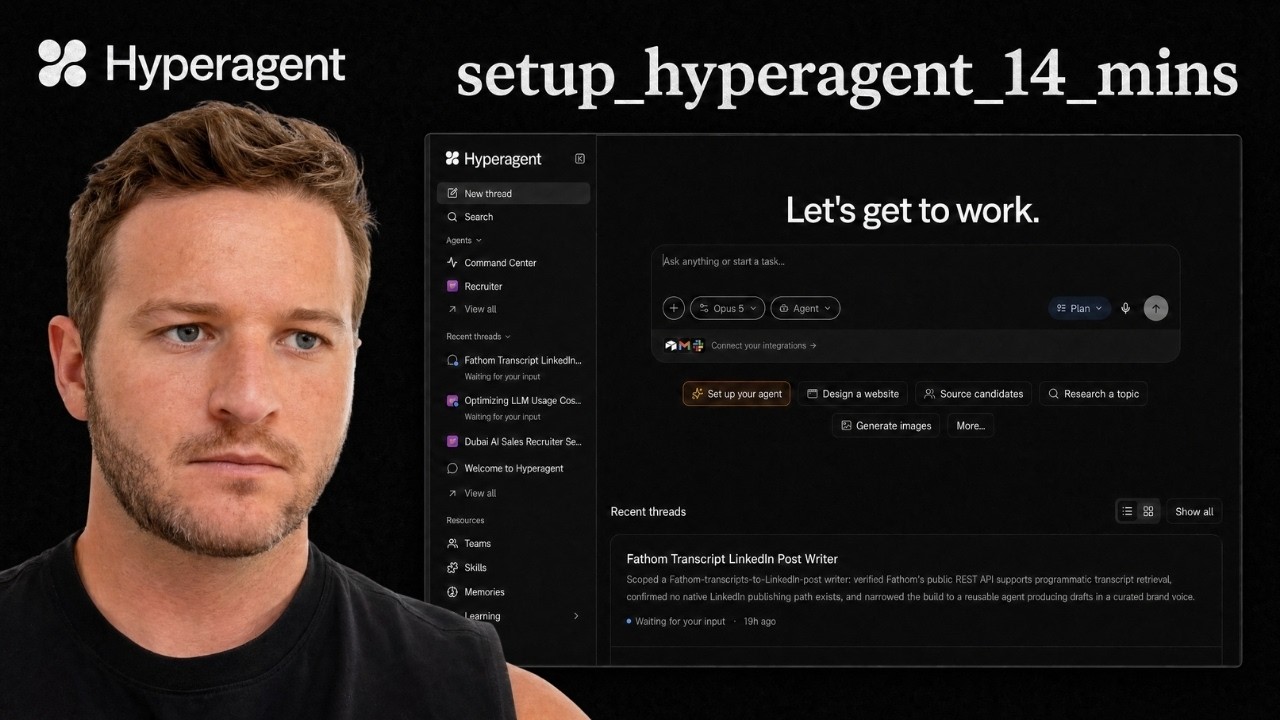
setup_hyperagent_14_mins_biz_owners
George Foley shows B2B owners how to build and deploy a HyperAgent that reads Fathom call transcripts, pulls out contrarian takes, turns them into Twitter posts, and sends them to Slack for approval. He covers connecting ChatGPT, linking business apps like Gmail and Airtable, and picking automation targets that actually save hours.
Chapters
Hey everyone, George here. This video is going to show you how to build your first AI agent in HyperAgent in 14 minutes. This is for B2B business owners. So what's my proof? I've helped over 500 6 and 7-figure agencies scale and make money with AI, streamlining their, their processes with simple AI automations, right? So disclaimer, this isn't AI entertainment or hype. This is purely for business owners who are looking to make money and streamline their business with AI. If you're looking for entertainment, feel free to click off the video. We're going to go through four key areas. First one is cost, just understanding so you don't get blown out on credits and spending because it can get expensive if you don't set it up the right way. Next is connections. You might have used these in Claude and ChatGPT, but getting HyperAgent to talk to all the different apps in your tech stack. Third is building your first agent, and then fourth is deploying it so you can actually use it. Before we jump into that, let's just talk quickly about why you would use HyperAgent. So if you think about the main comparison here between ChatGPT and Claude versus HyperAgent. It can do these 3 key things. Now you may have noticed if you ask like ChatGPT or Claude, send me a message 2 weeks in the future and remind me to buy a wedding present, it's not capable of doing that. So it's not aware of time either in the past or in the future, and that's a big flaw, right? So you used to see people setting up these Mac Minis and trying to have these computers that were always online so it could replicate that. HyperAgent just does that out of the box. Um, It also has memory. So with memory, it can create a database either in Airtable or Supabase, and everything that happens can get written to that database. So it's almost like a memory card for your PlayStation or something like that. It can always just refer back to that information, check in on it, and it doesn't lose or forget context. The third part that's really, really critical here is the access. And so we don't realize how much ChatGPT and Claude lock down their platform, but think about it, you have to use their app, their browser, um, their, you know, their website, or even their desktop app. Here we can start to message our agents via Telegram or Slack, and so it follows you wherever you work the most. I, I personally use Slack. So cool, we're going to dive in. First thing we're going to look at is costs here. Now you, you can get blown out really quickly with this. Um, this isn't the same as like a $20 or $100 Claude or ChatGPT plan. So the key thing that I'd recommend out the gate is just being very careful. The Chinese models are cheaper, so you'll see if I come back here, new thread, I can choose between, you know, the different models here. And so if forced to use them, I'd probably be using Kimmy or some of the Chinese ones just because they're a bit cheaper. And again, this isn't about being stingy, like we're talking about thousands of dollars can go in a couple days if you're not careful with this stuff. So what is the solution then? Connect ChatGPT. So this is actually a new feature, and this took HyperAgent from like a really imp— like impressive piece of technology to something very usable that I can now install for clients. And so the first thing you want to do before doing anything else, and I'll walk you through this here, when you get your HyperAgent, you want to click down here in the bottom left, you're going to go to Settings You're going to scroll down and then you're going to see AI providers and you want to click on AI providers. Now my option will look a little bit different because I've got mine connected. You want to select connect and it's going to request a code, or rather it might give you a code. In order to do this next part here, all you need to do is come into ChatGPT. You could copy the, uh, chatgpt.com and then go to settings and then you want to go to security and login. Now down here at the bottom you go enable device code authorization for Codex, you tick that, and then you'll be able to connect this up with a code. So it takes like less than a minute to do, um, and then you can use your, your ChatGPT credit. So for me, I'm on the $100 per month plan with— it's like $120 per month for ChatGPT. That's actually very sufficient for like our own internal hyperagent stuff. So, um, I would definitely start there, see how you get on, and then you can, you can decide if you need to use or pay for the other models, but By far, as you're learning and getting set up and, you know, sort of taking some of the roles in your business and automating them, um, you want to be looking at ChatGPT out of the box. Cool. So now we've got that done. The next thing that we need to do is look at— start looking at connections. So I, I want to talk just a little bit more about connections here so you have a, a better understanding of, you know, what they are and what they do. So, um, my biggest advice when I'm working with businesses is to stop thinking about Claude, ChatGPT as a tool. Start thinking of it is an operating system. So it's more like a Mac or a Windows. And in the same way I can have Mac, you can have Mac, my Mac might be totally different because of the applications that I've got installed on it, or even the settings. And so that's what we're starting to see with Claude ChatGPT now, and especially with HyperAgent. So when you, when you have these integrations, connections— I think ChatGPT calls them plugins You're effectively connecting two apps together. So an example of that is I might connect HyperAgent to my Google Calendar, and now HyperAgent can start adding blocks into my calendar or reschedule things or delete things, and it can manage the calendar. You are connecting the apps. You might hear the phrase MCP mentioned a bit. Just ignore that phrase altogether. Like connections is fine. MCP is just like the technical term, but you don't really need to remember that. The easiest way that I like to think about it is it's like I've got my operating system, my daily driver, which is, you know, has been Claude and is now HyperAgent, where I'm just jumping in and I'm using it for work. And then I install the apps and/or connect them. And so that would be like Google Calendar, Gmail, Airtable, your database, etc. Cool. So, so the next step here is we're going to jump into HyperAgent. Click down in the bottom left and you'll see Integrations. Now you can see, uh, they've got a ton of integrations here, which is really useful, um, because they're— they were actually created by the, the founder of Airtable, um, which I'm, I'm a huge fan of Airtable, uh, they've obviously got that enterprise-level connections and, you know, I think things are going to move really fast for them. So they're not a startup by any stretch, um, You can see that it connects directly to Gmail, Google Drive, GitHub, Telegram. I've got Airtable, Apify, Fathom, all of these ones here. For what I'm going to show you quickly how to build today, I recommend getting, um, ideally Airtable connected, connect your Slack, and then also connect, uh, like your note taker. So if you're using Fathom, which is probably the most popular, there's Fathom. I think they also— yeah, they have Fireflies. Um, you can connect Zoom, I believe, as well. So, um, or even Google Meet. Yeah, so you should have a few options here, but just make sure you get most of your things. There's no real downside to connecting more, only, you know, that the only risk is it might control it. So if it's something that's very precious and you don't want it to be changed in any way, probably don't connect it. But otherwise, you, you can add all these in. Now sometimes half the battle is just adding these in, and then you'll, you'll have your own creations come to mind. So Like I say, do it once, get everything linked up, and then you'll start having more and more ideas around what you, what you can build off the back of it. So that's, that's integrations. So we've got ChatGPT connected, the costs are sorted, we've got the connections, and so now we're ready to rock and roll and, and build something out. So first thing you want to do is just build something easy. Um, transcripts are a gold mine, so I recommend we'll start there. Give it examples of what a human is already creating. If you're trying to think what I should like, it's a product productivity question. If you're trying to think of like, what should I build? Probably the wrong way. So not what should I build, but like, what's my bottleneck or inefficiency? Or what is someone doing already that's like, it just seems very simple that we could potentially replace? You don't want to go after you know, things that can be very complex and break. So something simple. But in this case, whenever I'm deciding what should I build, I usually start to look at like bottlenecks or high-leverage things. So something that maybe takes 10 hours but could be automated, rather than automating something that takes 10 seconds and is complex to build. So what we're going to build here is basically something that takes transcripts to We'll do like a social media post, for instance. Cool. So jump back into HyperAgent. We're going to go new thread in the top left. I'm just going to note take, uh, dictate rather, straight into this here. I need you to create a helpful assistant that will take my Fathom transcripts from my most recent calls, analyze them for contrarian or hot takes. So things that are just go against the grain or would stand out on social media. You're going to take the core element of that and then use that to create a social media post for Twitter. So it should be less than 180 characters, needs to be sharp and to the point. And you'll take it from Fathom, store that in Airtable, and then you're going to send it to me on Slack for approval. So there's, there's an example. Now for the model, you've got ChatGPT 5.6 connected. I tend to sit on high. If it's something complex, I might bump it up to max. You always want to start with plan so it can just come up with the idea of what it's going to create. And then we're going to hit send on this here. So as this loads in, this chat here is where you can describe what you're looking to build. So you don't even need to know how or what you're going to build. Sometimes you can just describe the problem and then you can see it's, it's going through and doing everything it needs to do here. So let AI figure some of this stuff out for you. That'd be, that'd be a key takeaway is, um, once you've got the tools connected, the ideas can come out of HyperAgent. So we'll just tell it to create a new table, uh, direct message me on Slack after each call. I'm just going to say manual on request, but you, you can have it scheduled on a daily basis. I'd set up the first one just manual. Cool. I'm just going to pause the video while it runs through and does its thing here. Okay, perfect. So we can see it ran through it. It asked me a couple more questions, but they're all very straightforward just in terms of what new table, where do you want to save these, etc. So now it's given me a plan. You can have a quick skim through of this. They're usually pretty good, and then you just want to hit approve plan. Here. Cool. I'm going to pause the video again. It'll work through. It takes a couple minutes. It's just building the thing out, and then I'll show you on the other side. Okay, great. So I approved the plan. This has come back created. Cool to hot take. I'm going to hit save agent because that's created the agent. It's going to add these accounts to it, and now I can click in to view this agent. So this is the agent. I can access these by coming into the command center, viewing all the agents there. And what I'm going to do here is before I message it, I want to just set it up so it can message me on Slack. So I'm going to come into— you might have already got your integration to Slack, but to, to be able to message it on Slack, you just need to select Set Up on Slack here. Send direct message, and then I'm going to hit save. Cool. Now we can come back to a new thread. Now since it already has the plan built in, I can just tell it to execute. So I can say run the task and message me on Slack. Now this is what you want to do the first time, so it'll pop up and message you on Slack. Now the key thing to think about here is this shift And how you message the AI agent, because you can message this on Slack now and tell it to improve over time. So think, think about it like this. In a bit here, it's going to message me on Slack, but it's not, it's not just a dumb agent or a dumb ChatGPT that just sends me the message. It's the actual agent that I can communicate with. So I can reply back to it and say, you need to improve this post and save it to your memory so I don't need to remind you. And it will remember that. I can tell it, message me in 2 days from now to post this on my, my Twitter, for instance, or my X. It'll remember that. So we'll just wait for it. It's doing its thing here. It's running the transcript. I'm just going to pause again very quickly to keep this video timely, and then I'll show you once that message comes through the other side. Okay, amazing. So it's completed its task here. I come into Slack and it's taken the Fathom transcript and it's given me some suggestions and I could say to approve. Rewrite, etc. Cool. So now the final piece here— that's all up and working. You can play around with it, edit it, do what you need. If you want it to happen on a schedule, i.e., after every call, all you need to do is come back here, set up live mode, and then you can define the schedule for when you want it to run in future. Anyway, I'm going to wrap the video there. If you enjoyed this, comment, like, make sure you let me know, and I'll keep doing these.